Discover how to access and filter key property, tenant, and bank reports to monitor occupancy and financial data.

1. Start by accessing the "Reports" section to see a snapshot of your property's portfolio and key metrics.
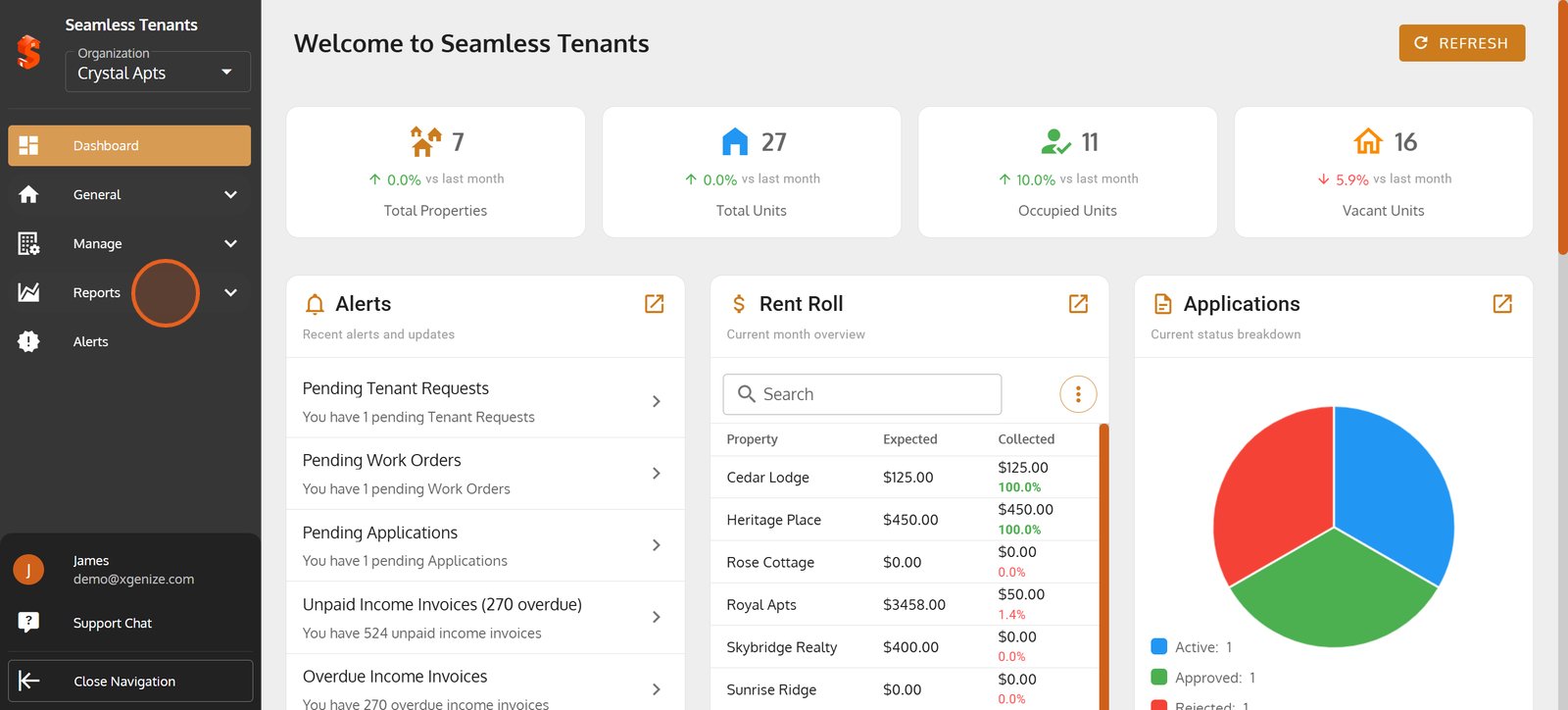
2. Select "Contact Report" to view essential contact details for your tenants and stakeholders.
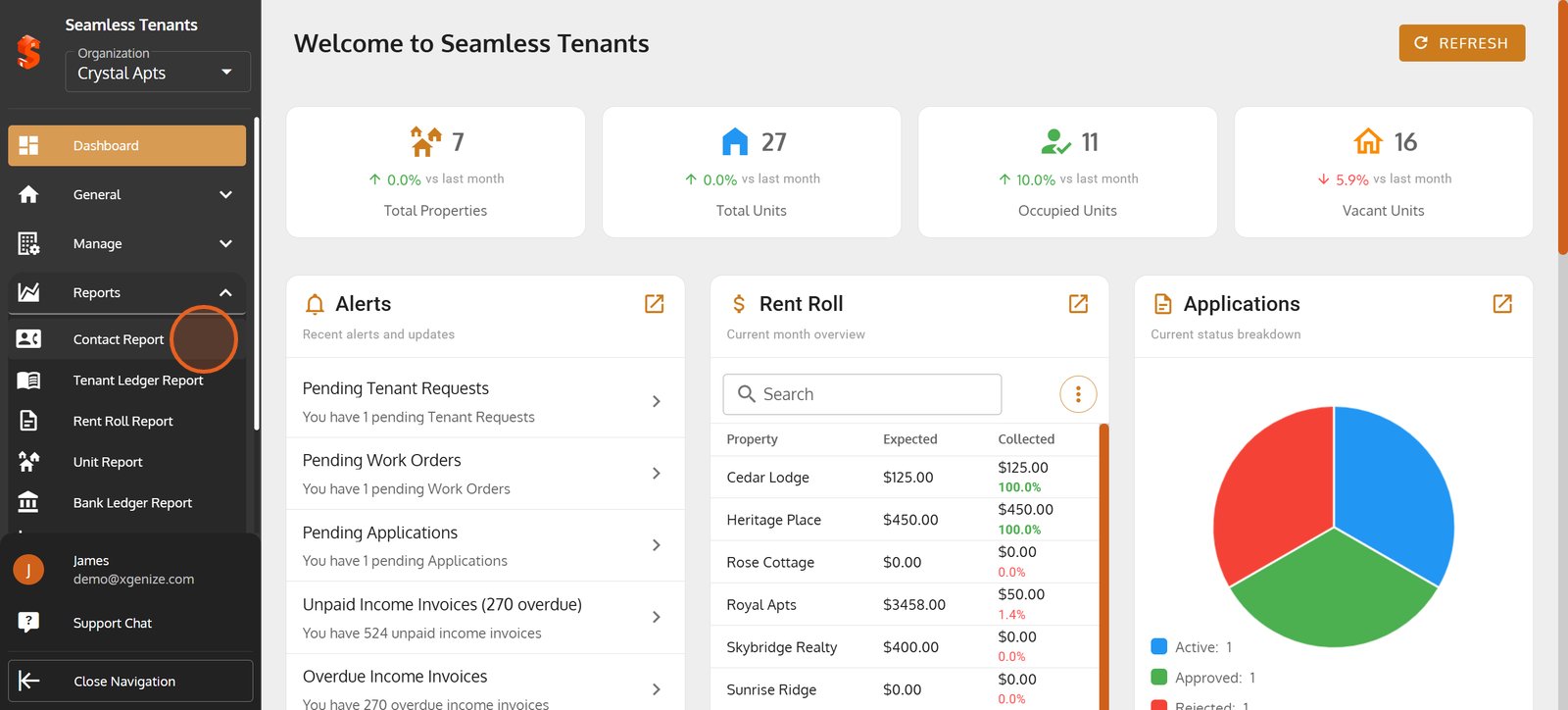
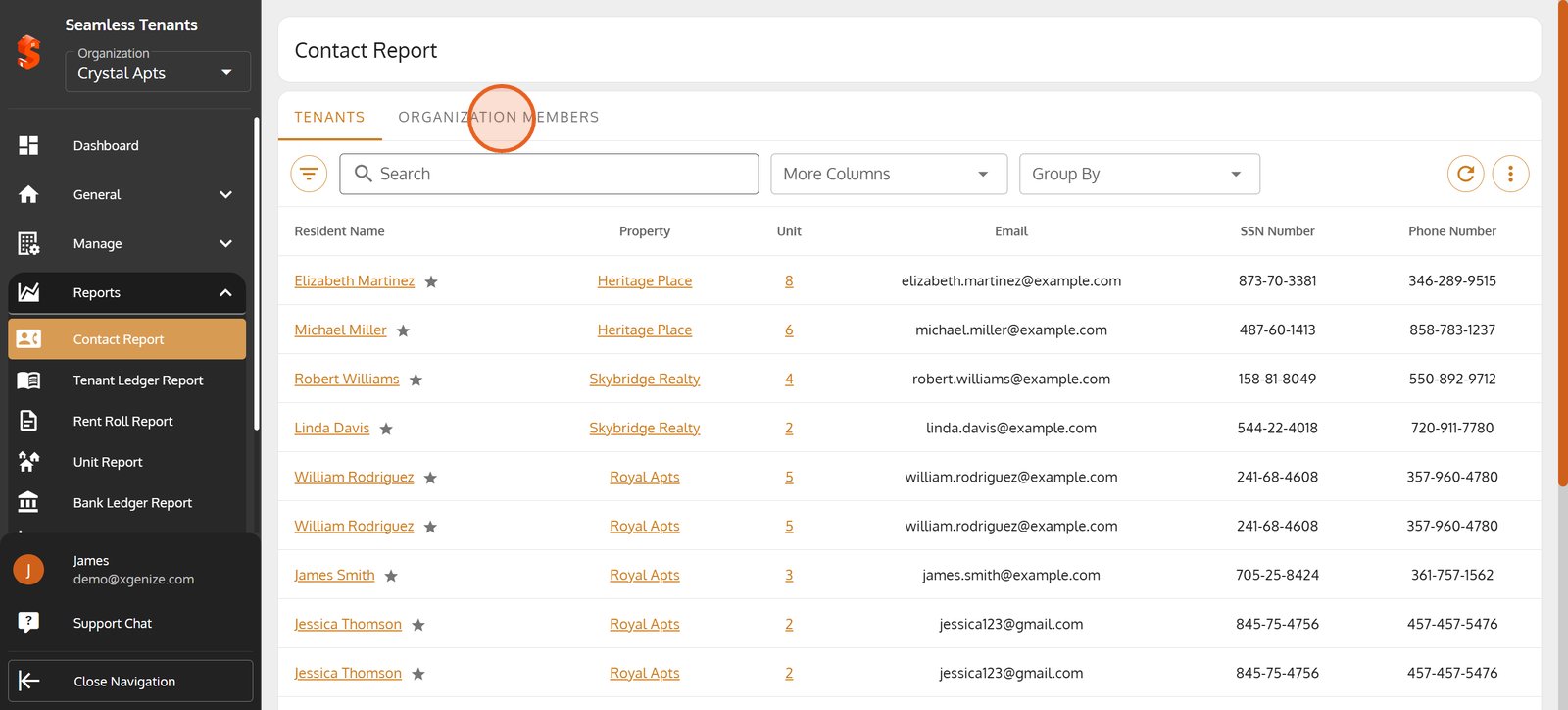
3. Switch to the "Organization Members" tab for team members contact details.
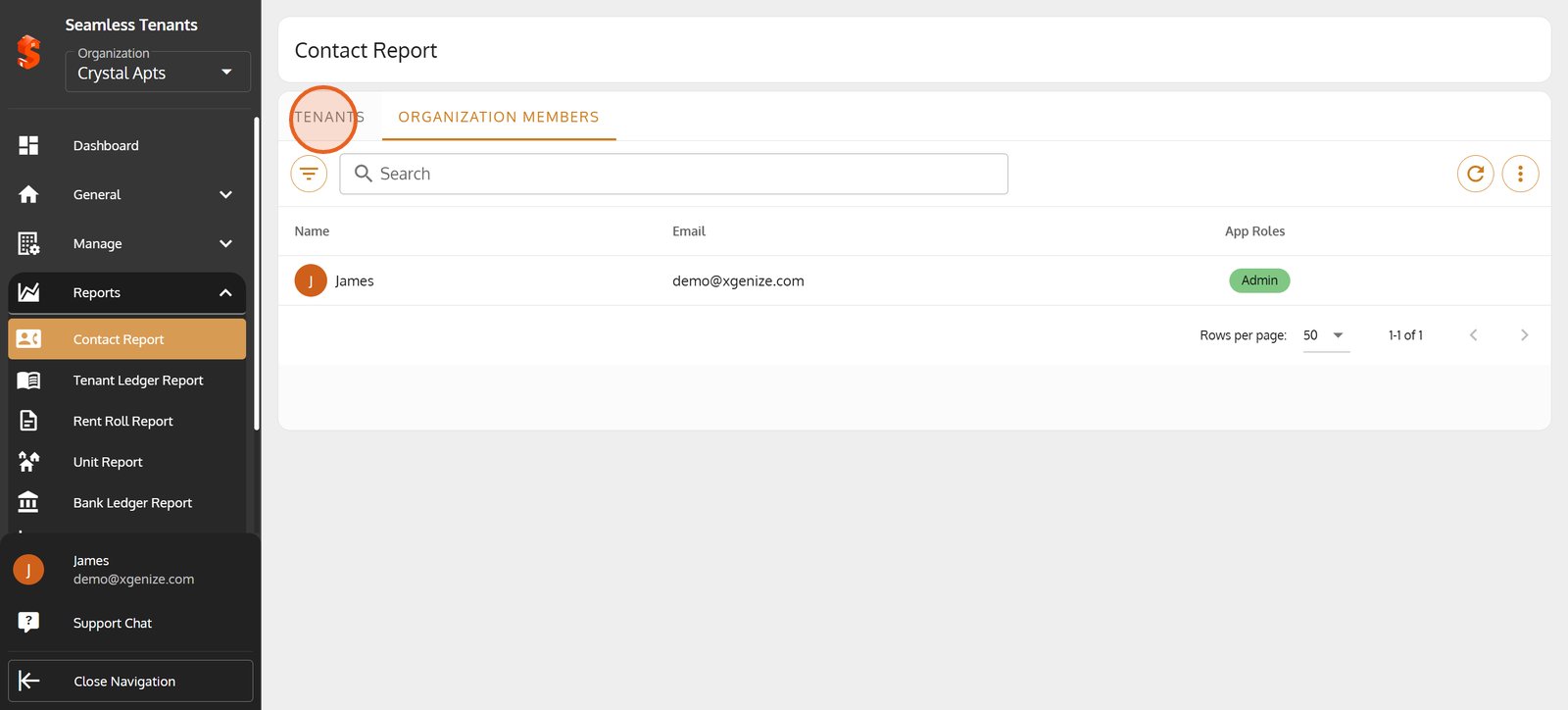
4. Click on the "Tenants" tab to manage all tenant contact details.
5. Go to "Tenant Ledger Report" to access detailed financial records for each tenant.
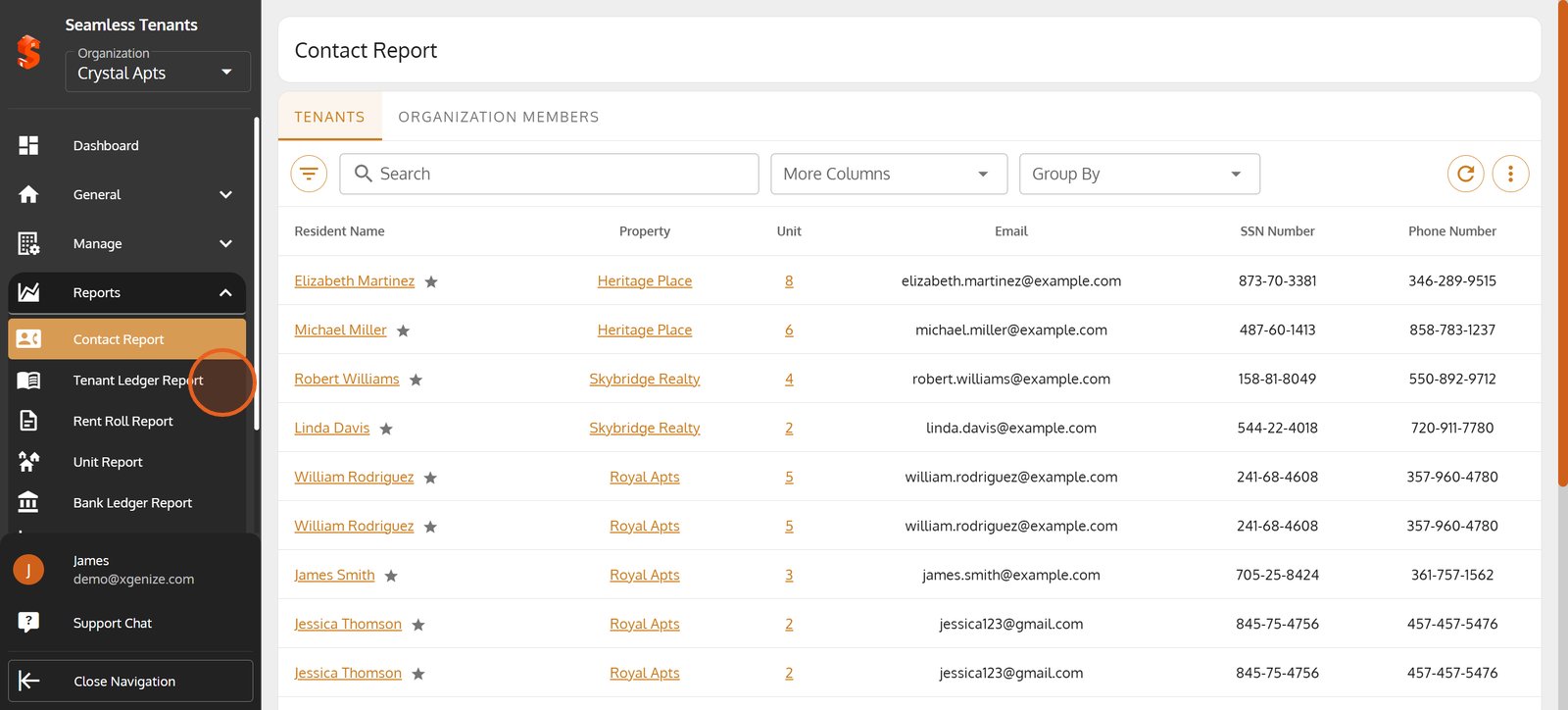
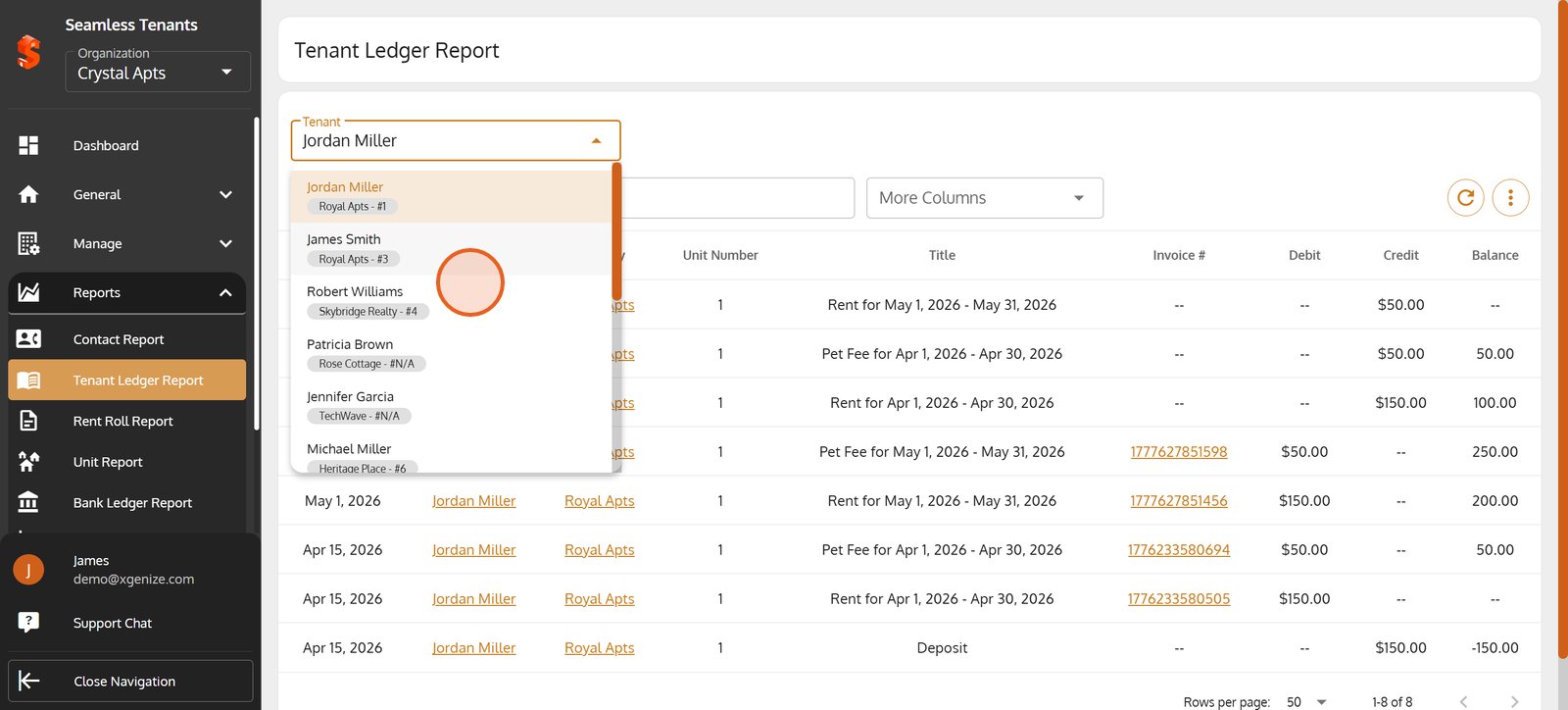
6. Use the tenant dropdown to quickly select whose financial transactions you'd like to review.
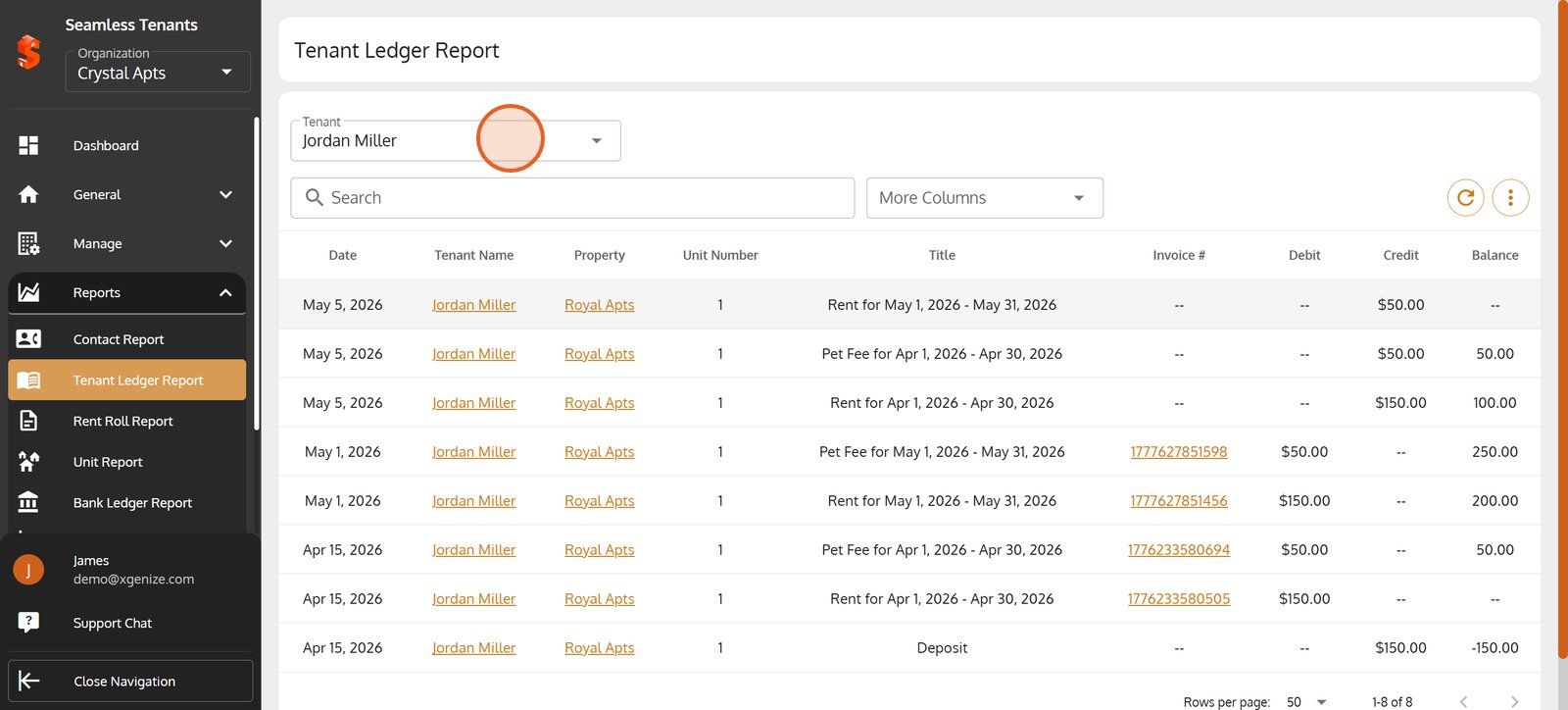
7. Choose a tenant from the dropdown for a personalized, comprehensive ledger report.
8. Go to Rent Roll Report to view transaction history and analyze balances - all in one seamless report.
Go to Rent Roll Report to view transaction history and analyze balances - all in one seamless report.
9. Click the menu icon for extra navigation and advanced filter options on the Rent Roll Report.
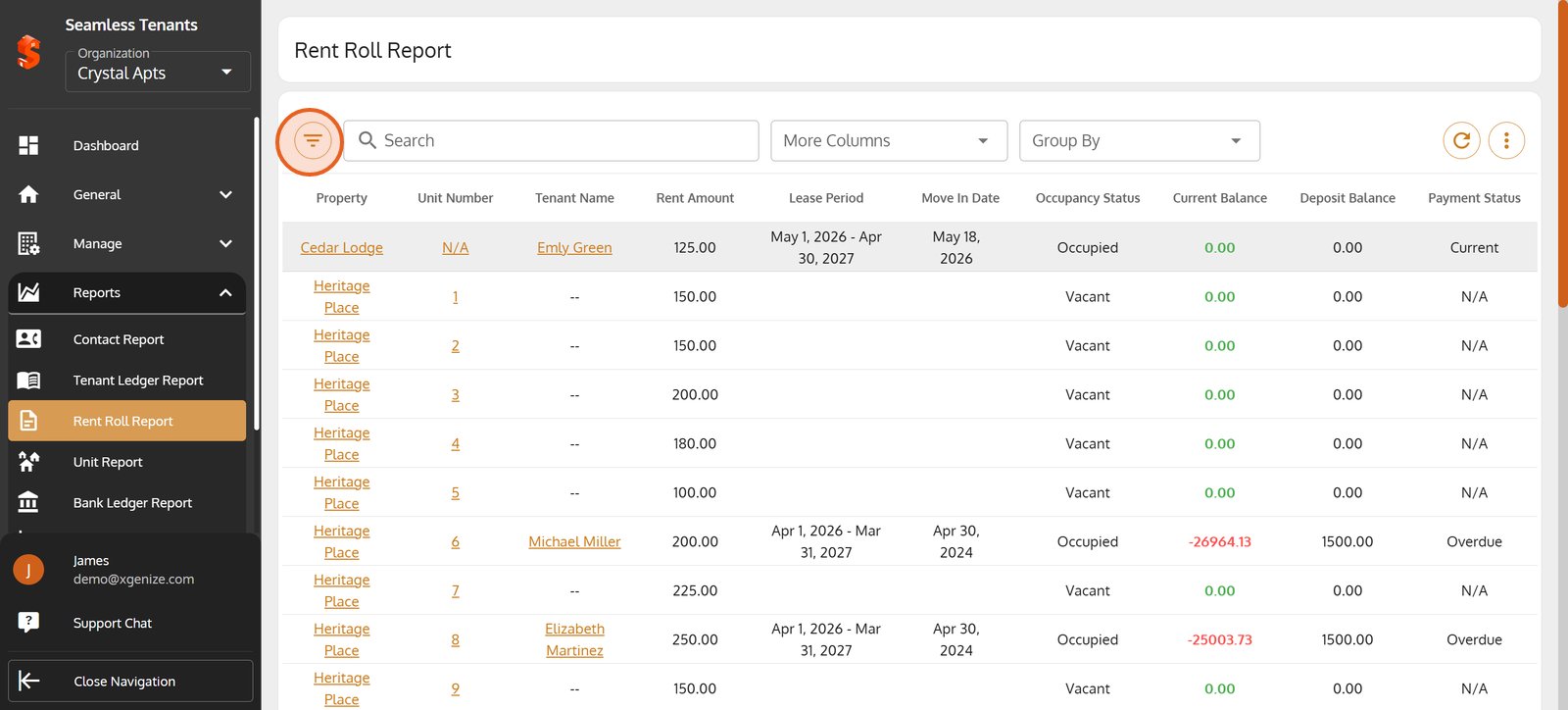
10. Apply the "Property" dropdown to focus your rent roll on specific properties or portfolios.
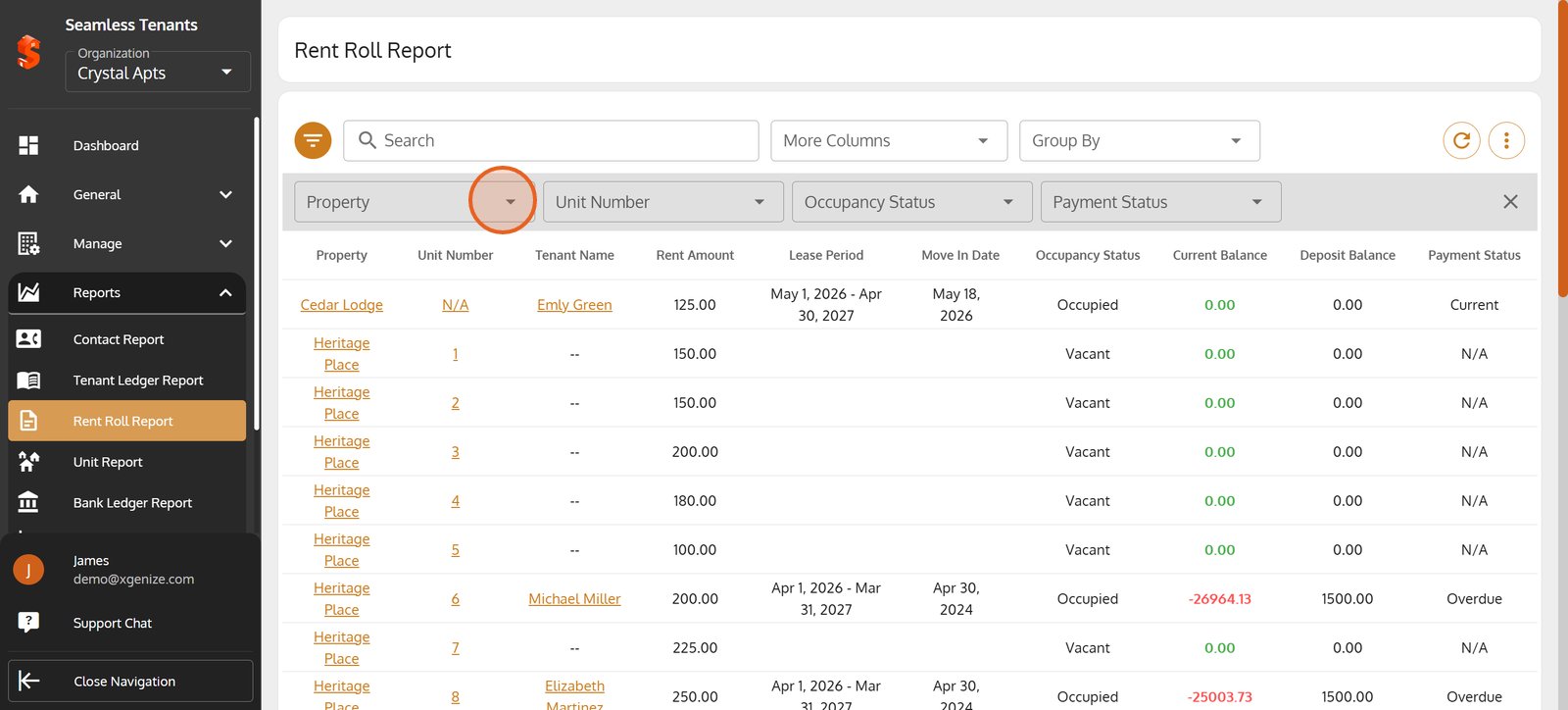
11. Select "Any property" to instantly drill down into rent and occupancy details for that property.
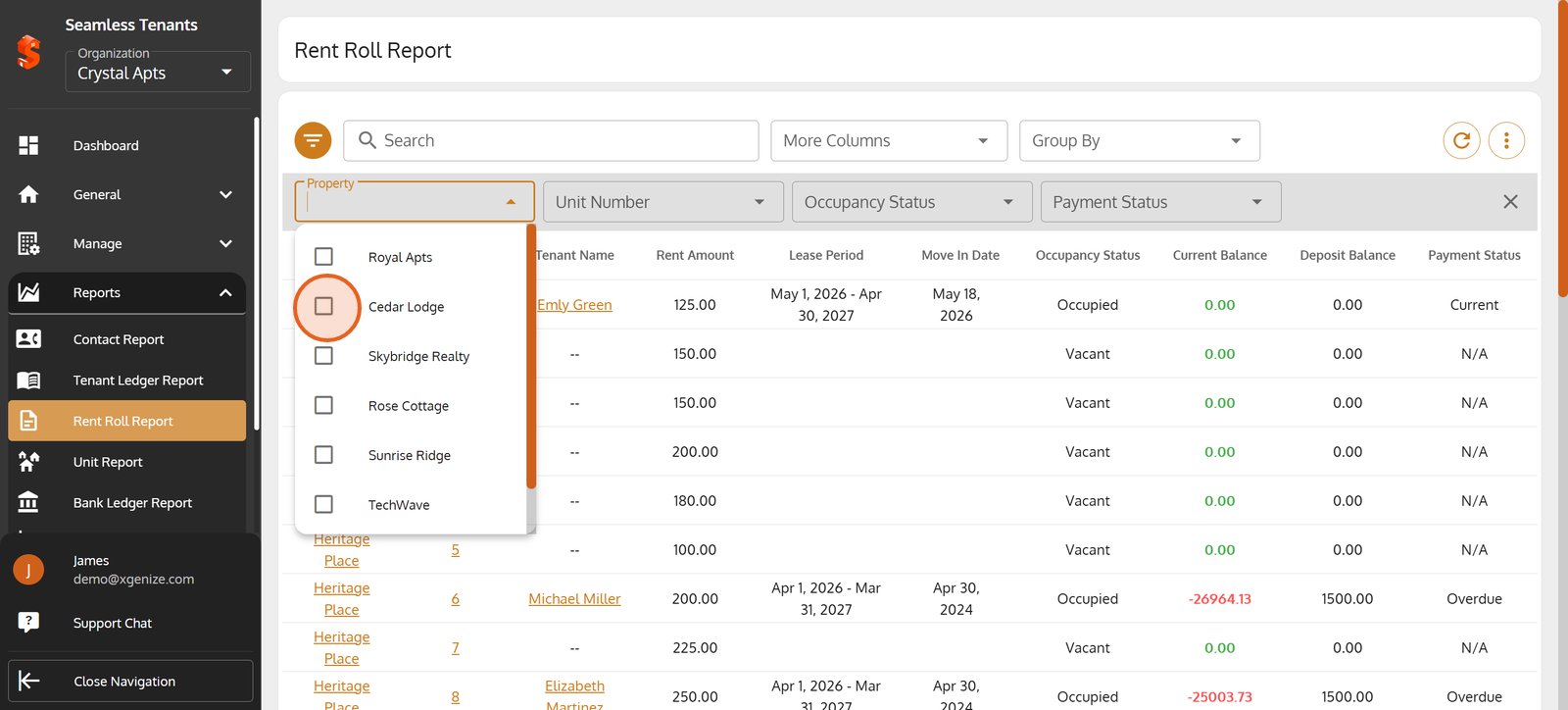
12.
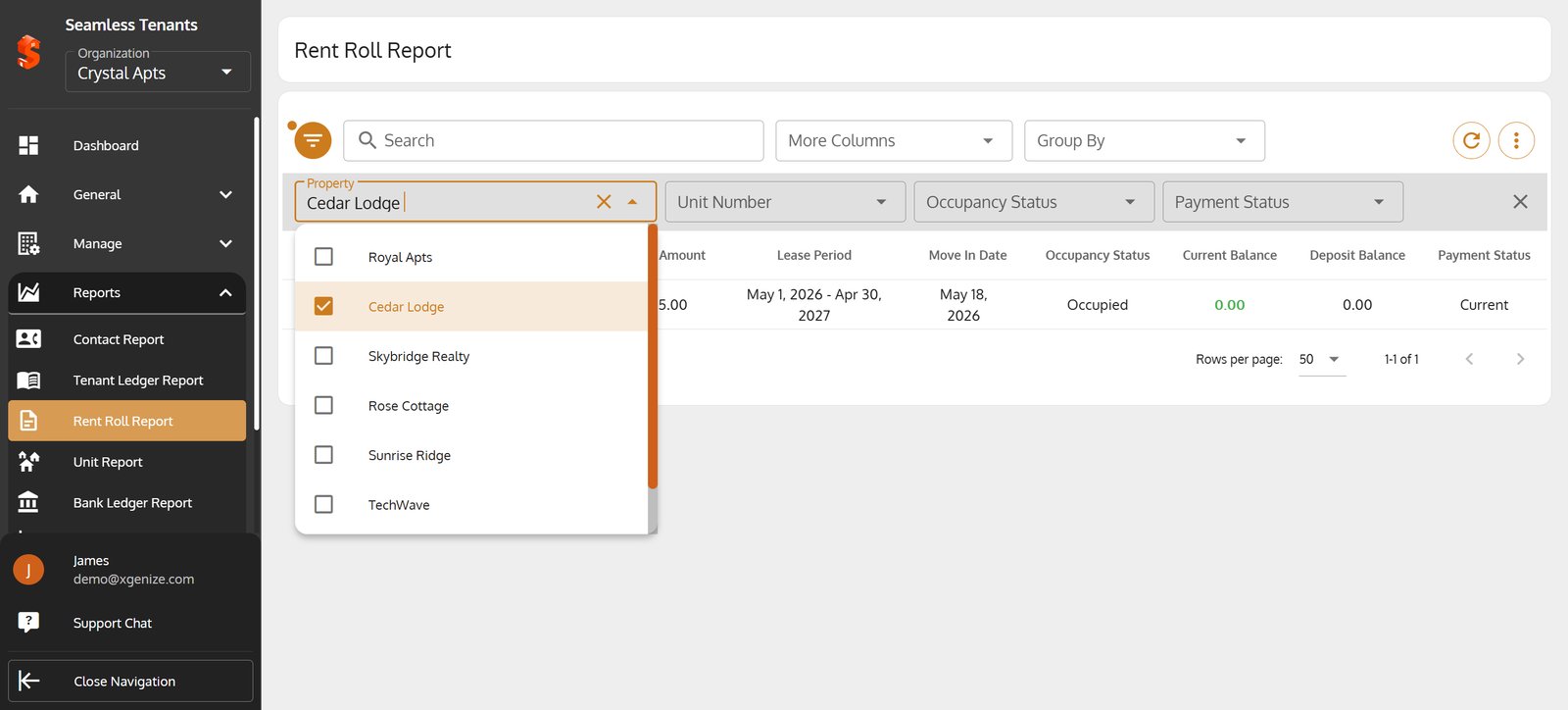
13. Clear your filters to view rent roll information across your entire property portfolio.
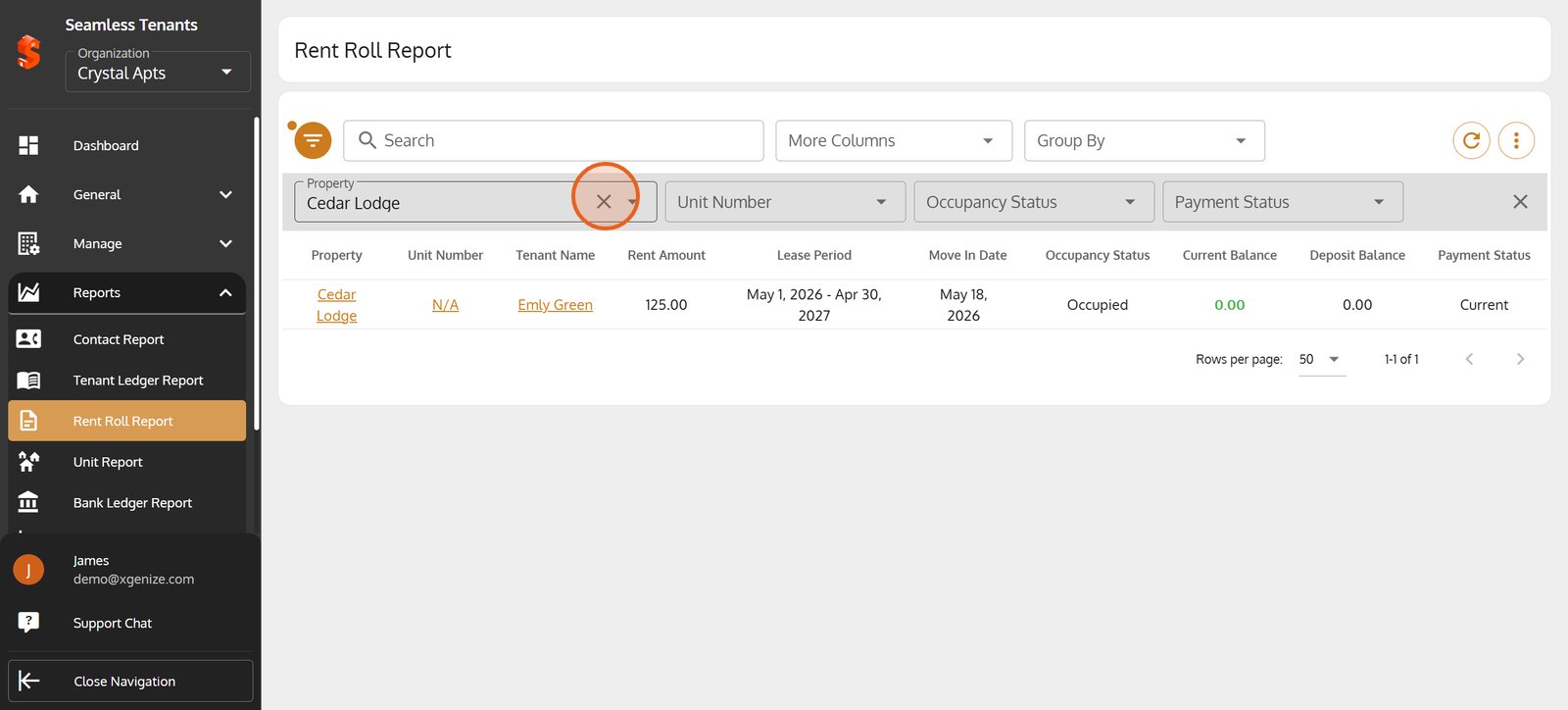
14. Click the close icon to remove active filters.
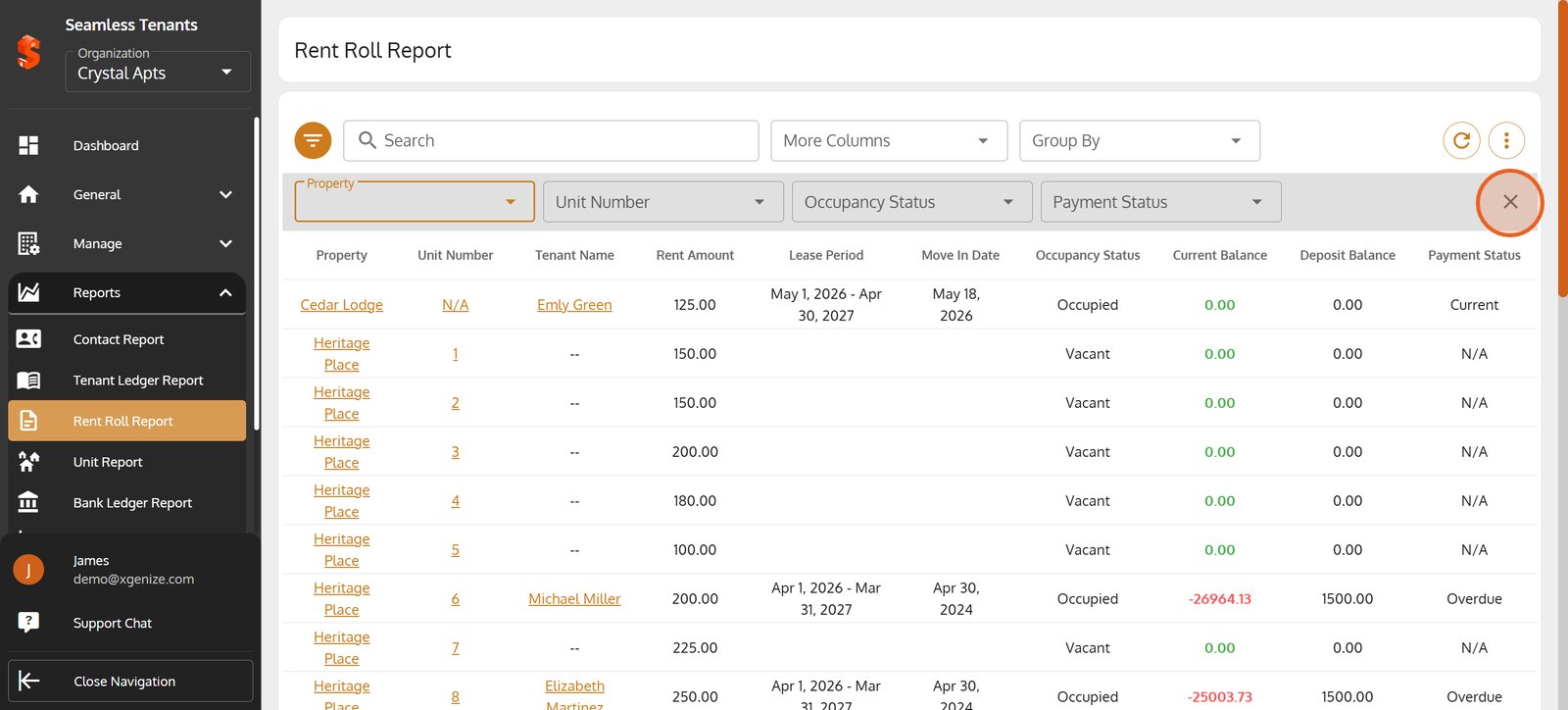
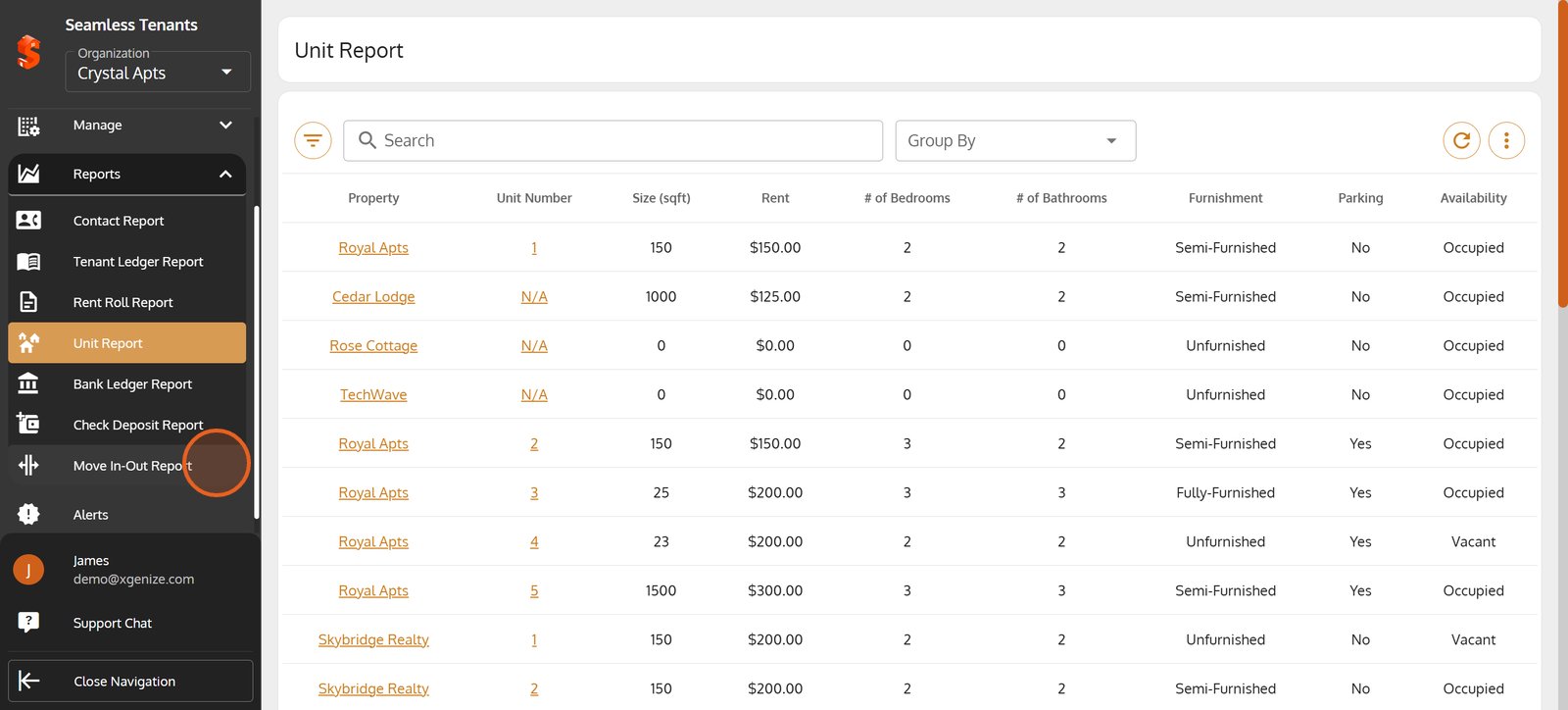
15. Click Unit Report to open the Seamless Tenants unit-level report.
Click Unit Report to open the Seamless Tenants unit-level report.
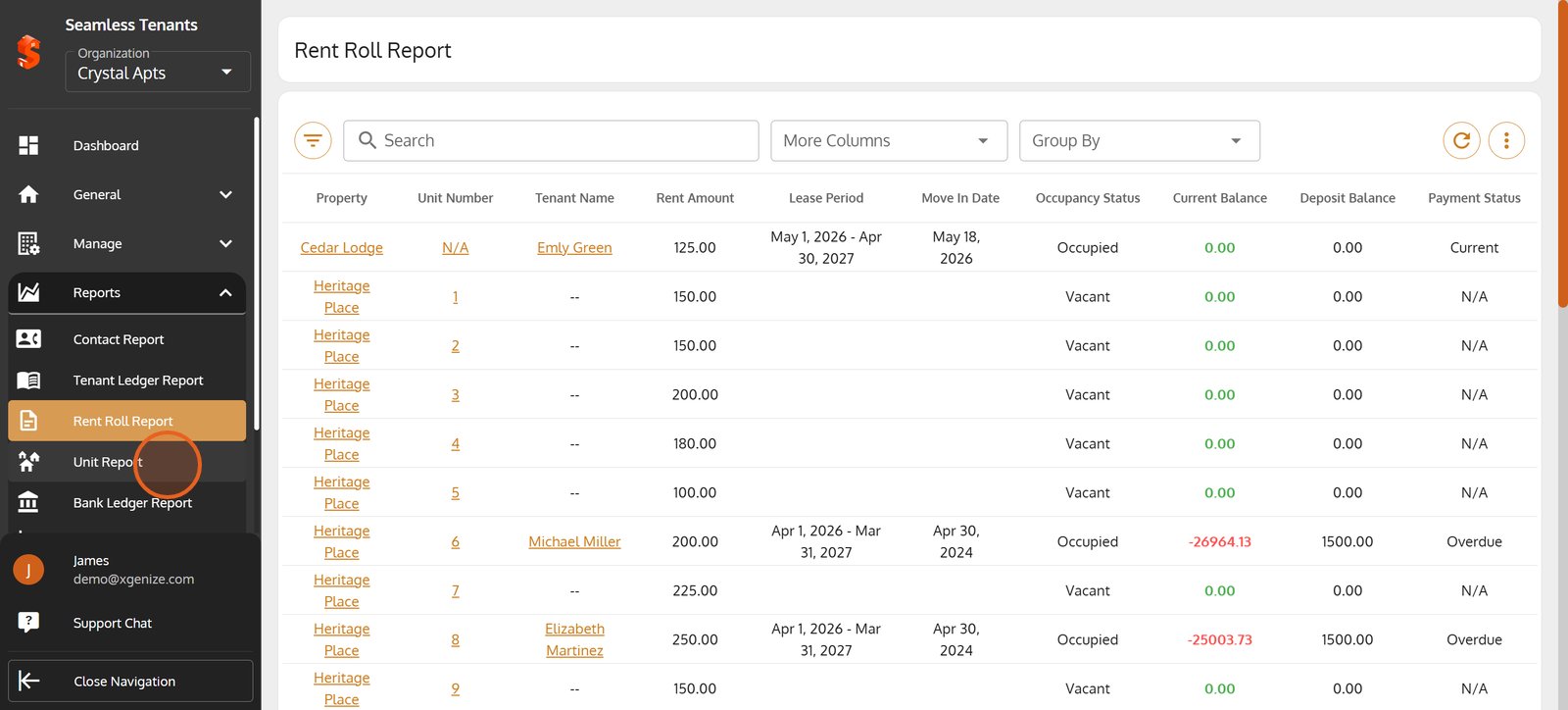
16. Tap the filter icon to quickly refine results and focus on the units that matter most to you.
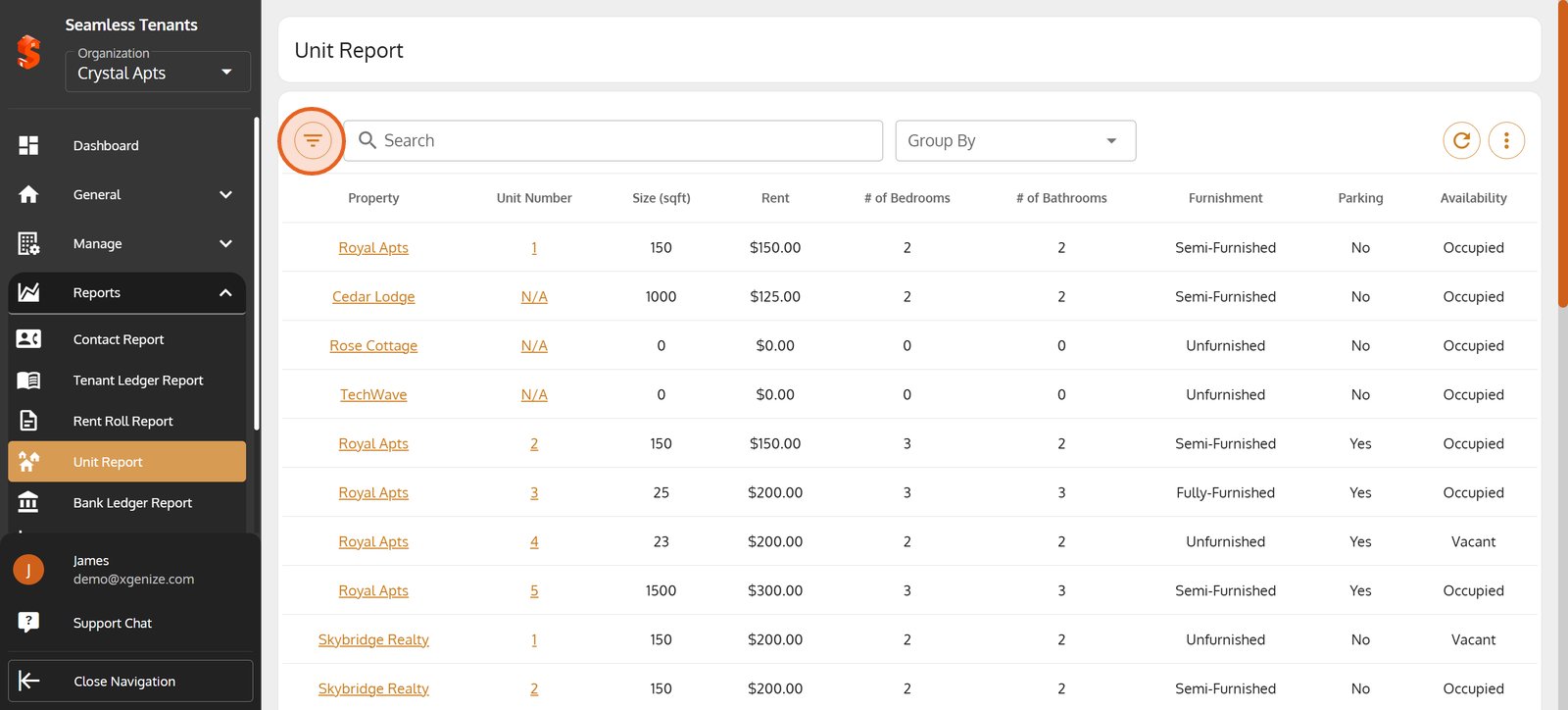
17. Filter your unit report by property to spotlight performance and availability by location.
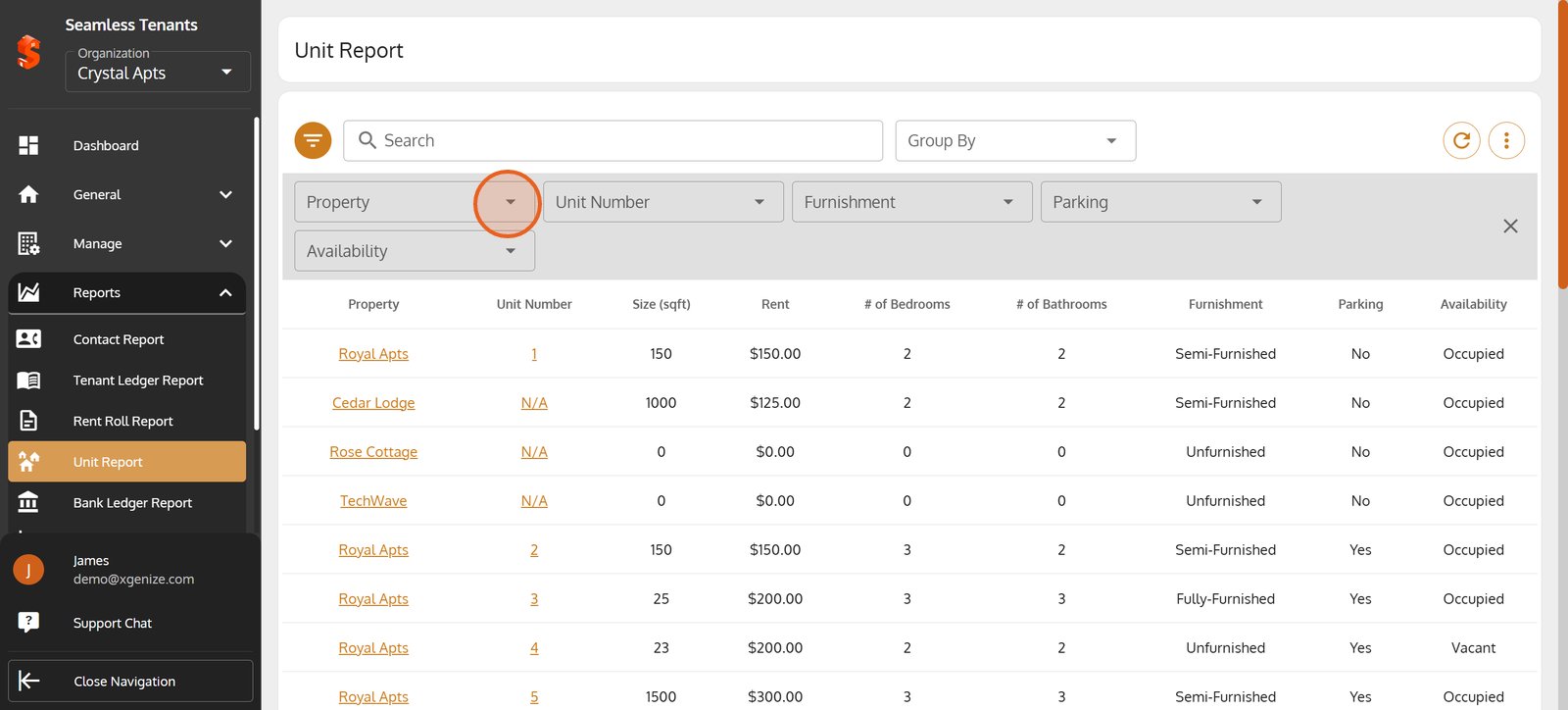
18. Select a specific property to analyze detailed unit data for tailored asset management.
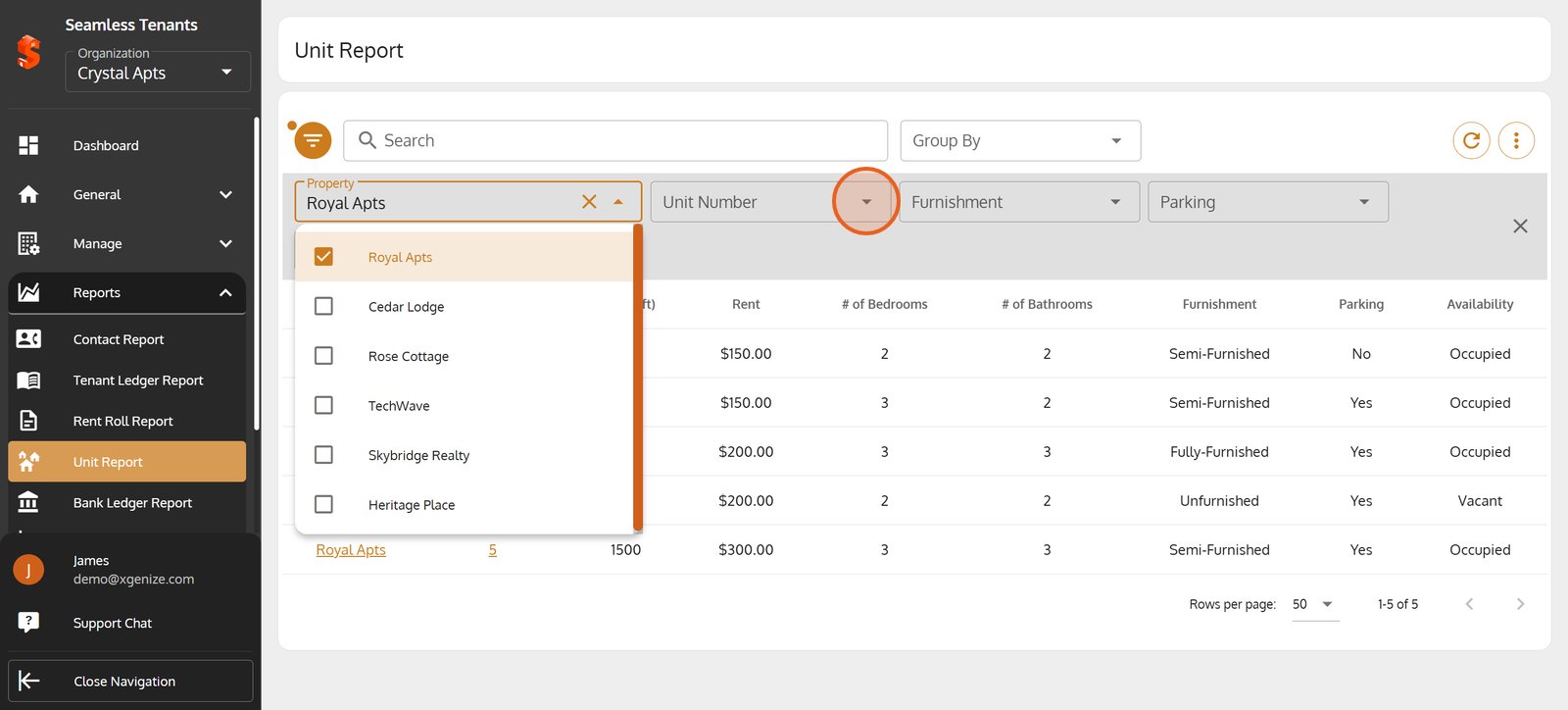
19. Clear an active filter for a complete view of all units across your portfolio.
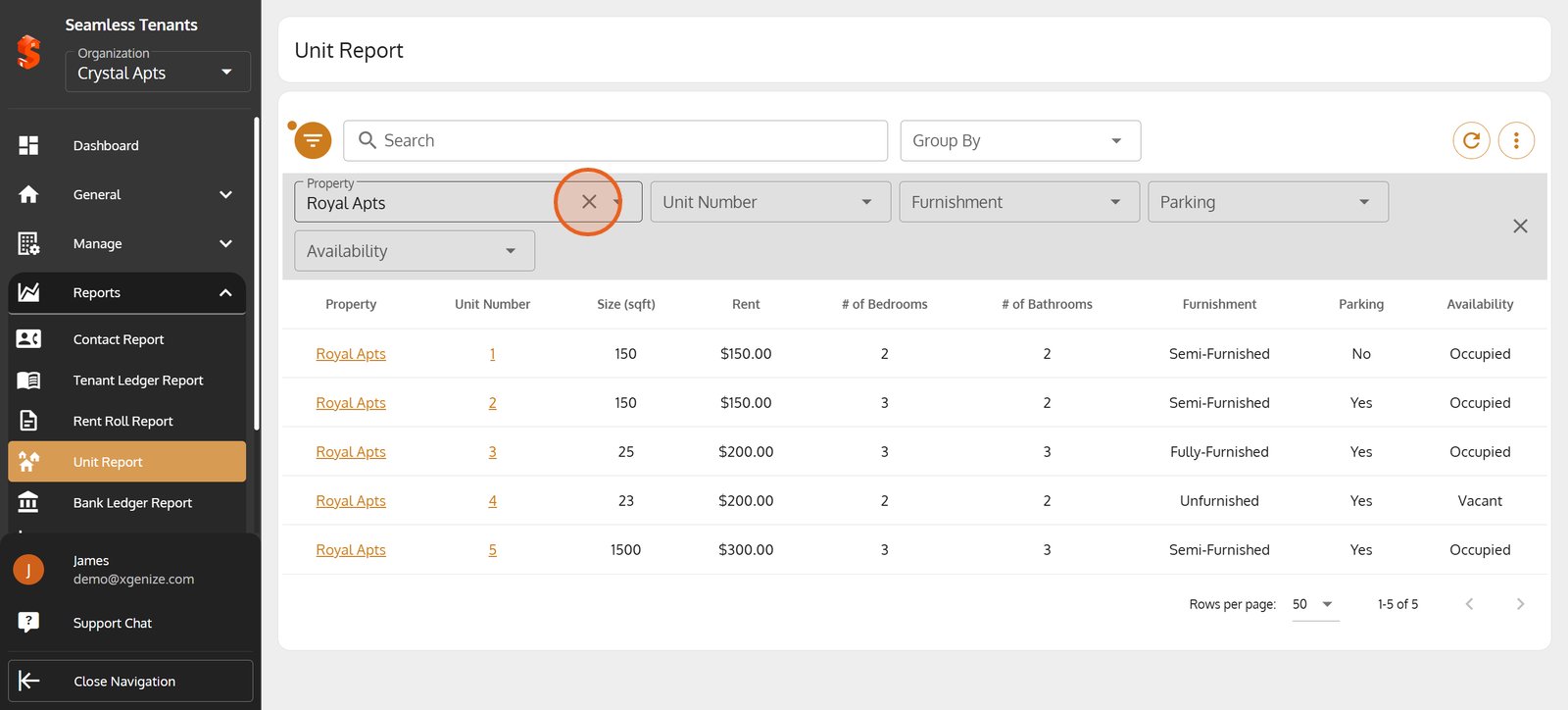
20. Close the filter bar to streamline your workspace and keep the focus on your data.
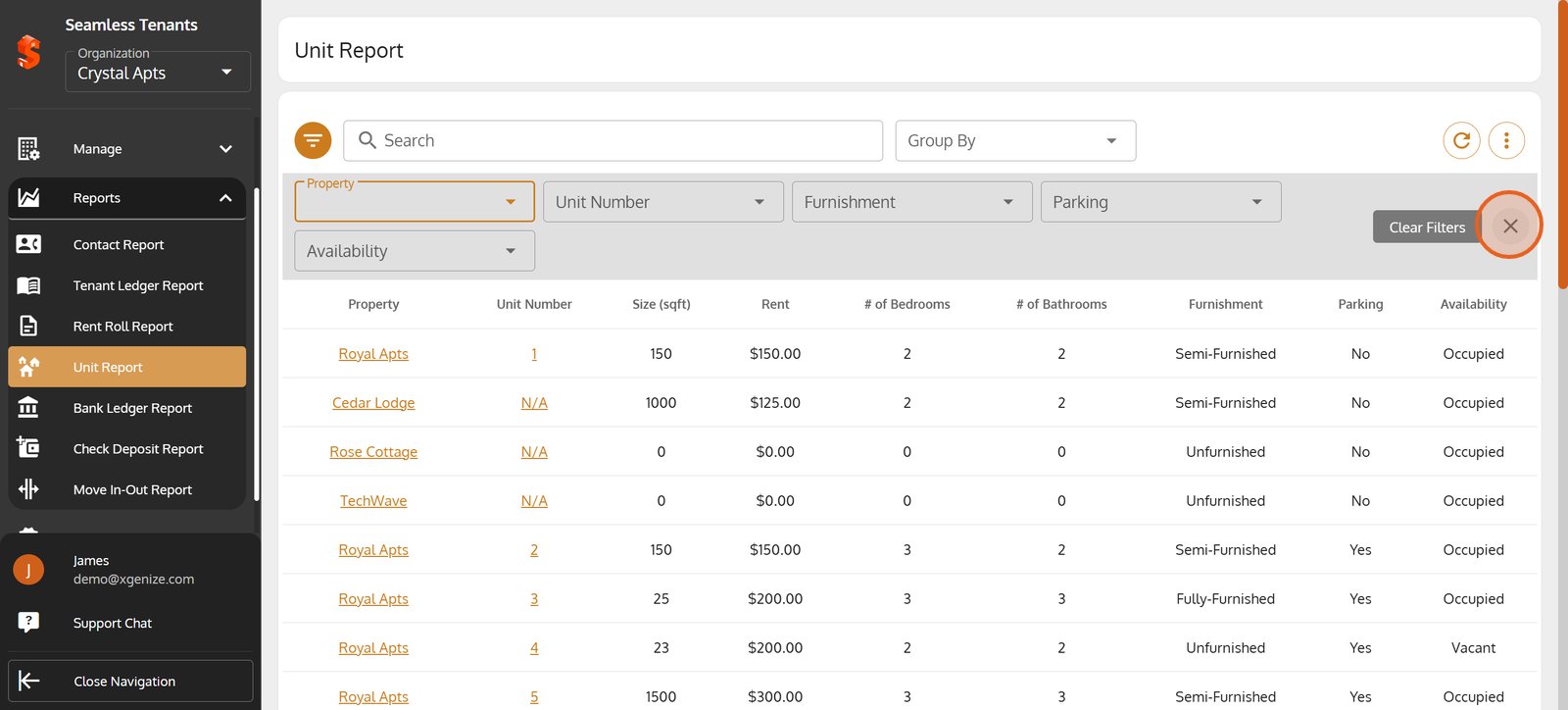
21.
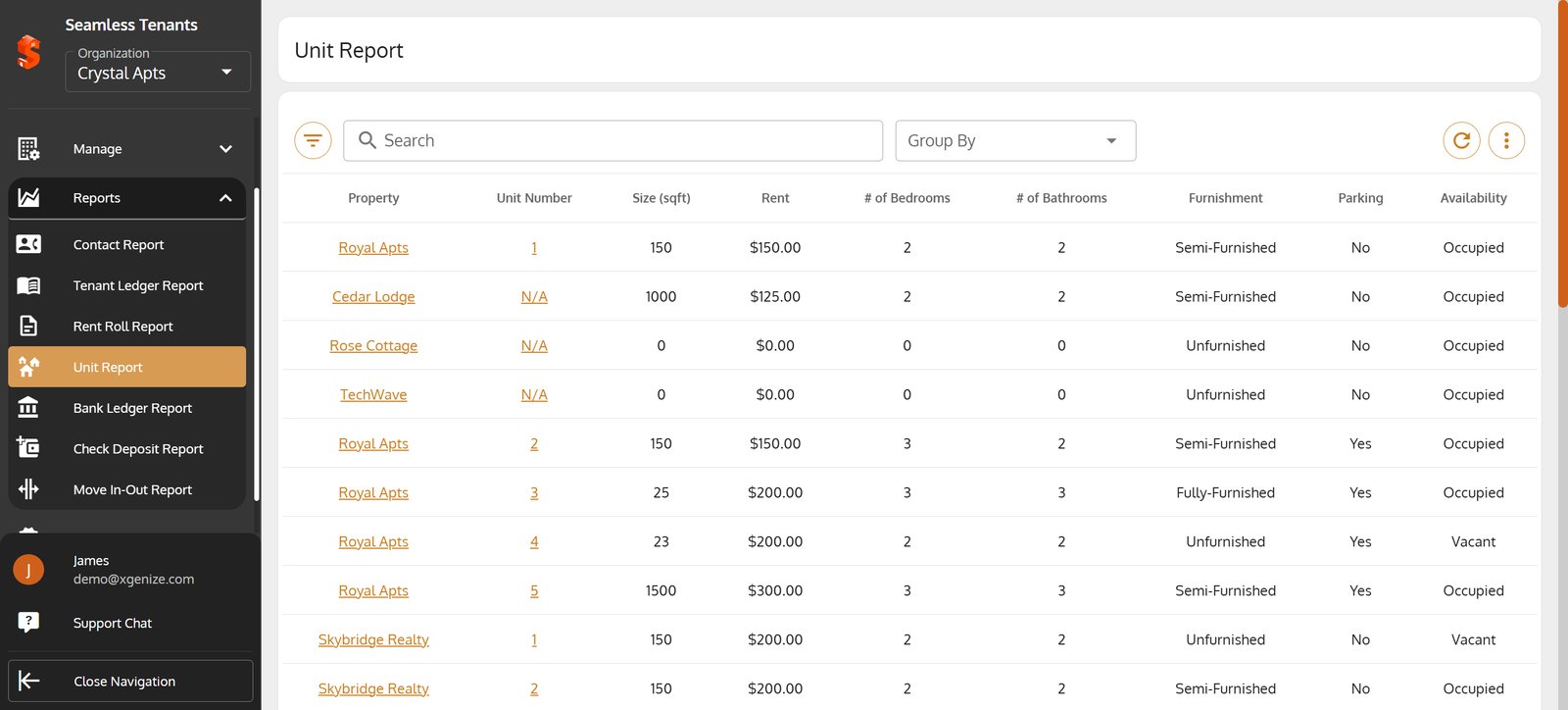
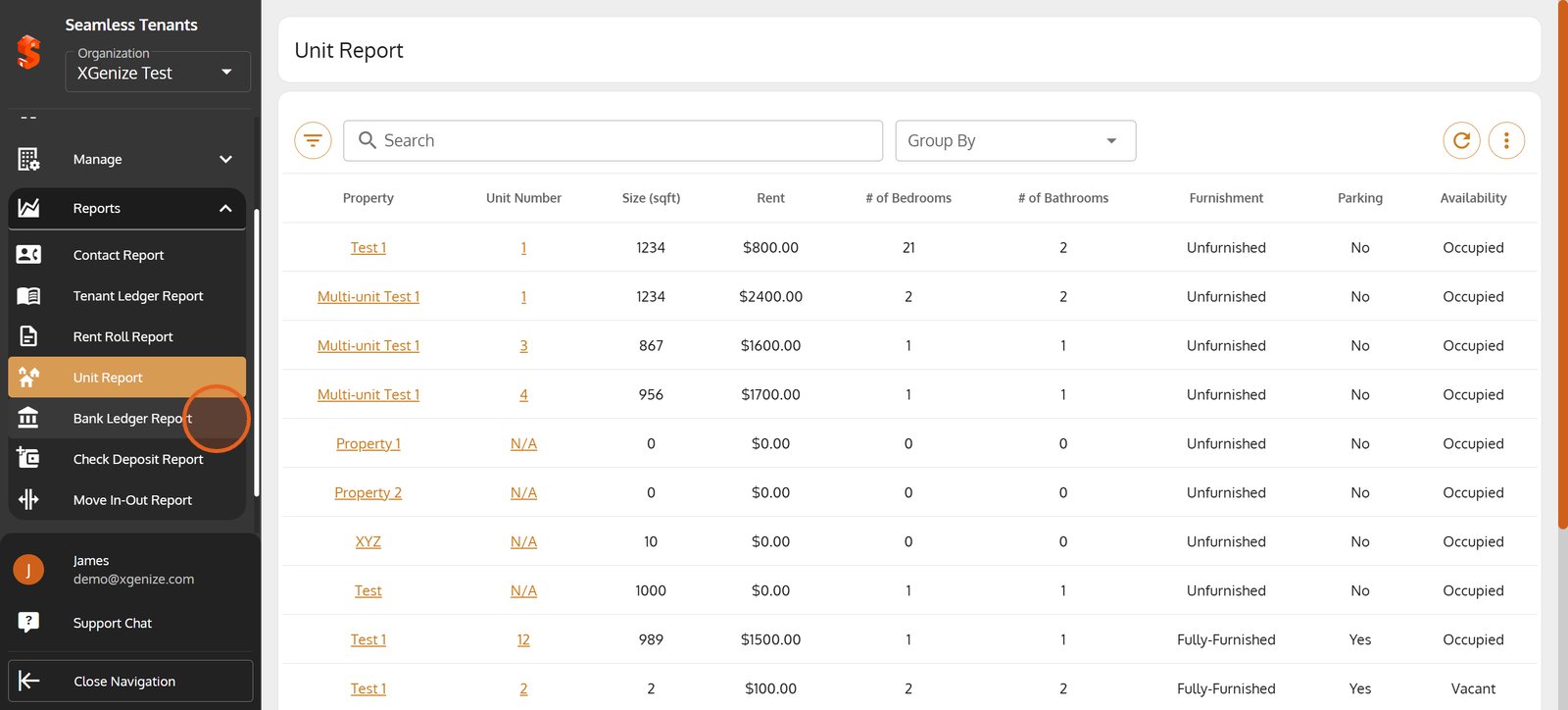
22. Begin by selecting the Bank Ledger Report from the sidebar to access detailed financial records.
Begin by selecting the Bank Ledger Report from the sidebar to access detailed financial records.
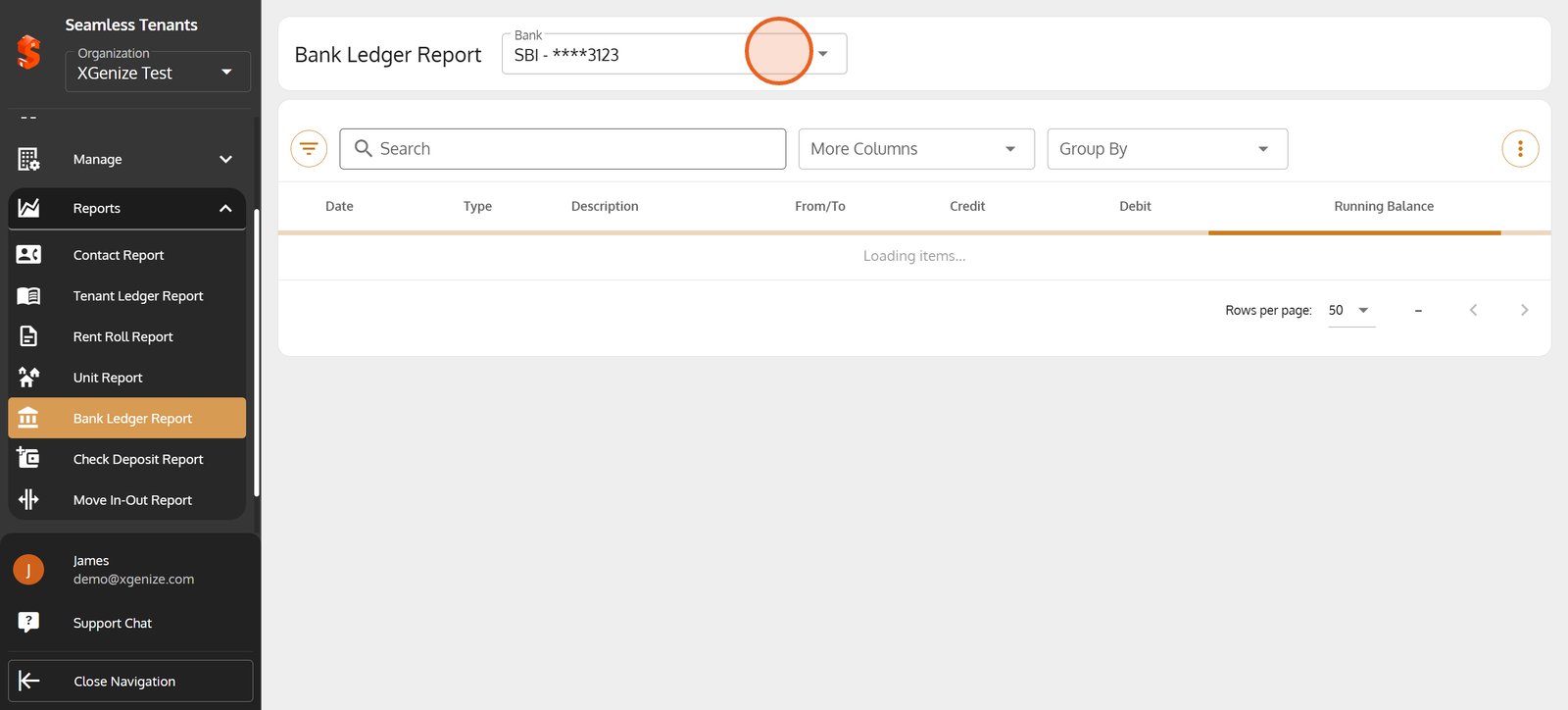
23. Click the bank account dropdown to choose which account's report you want to review.
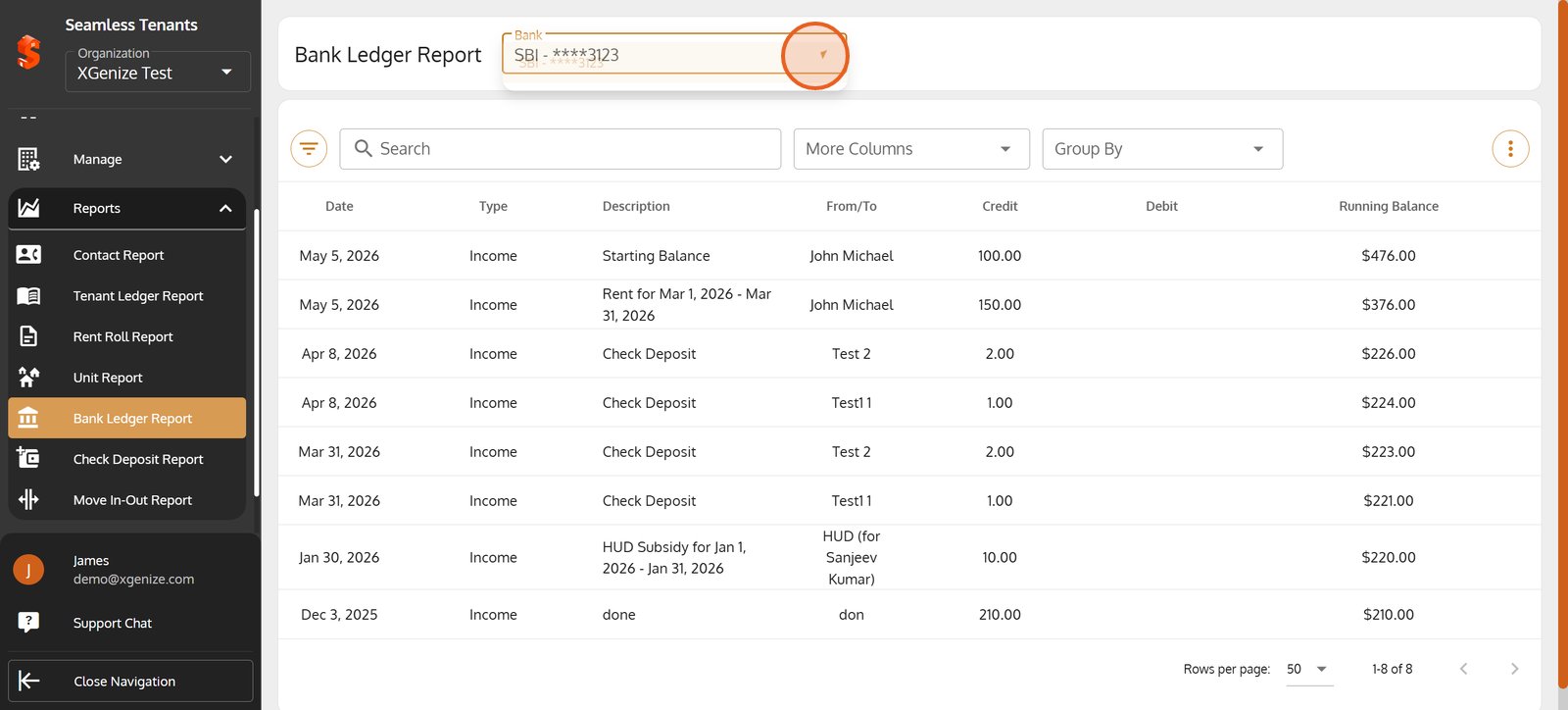
24. Select or switch the account here to view the specific ledger for that bank.
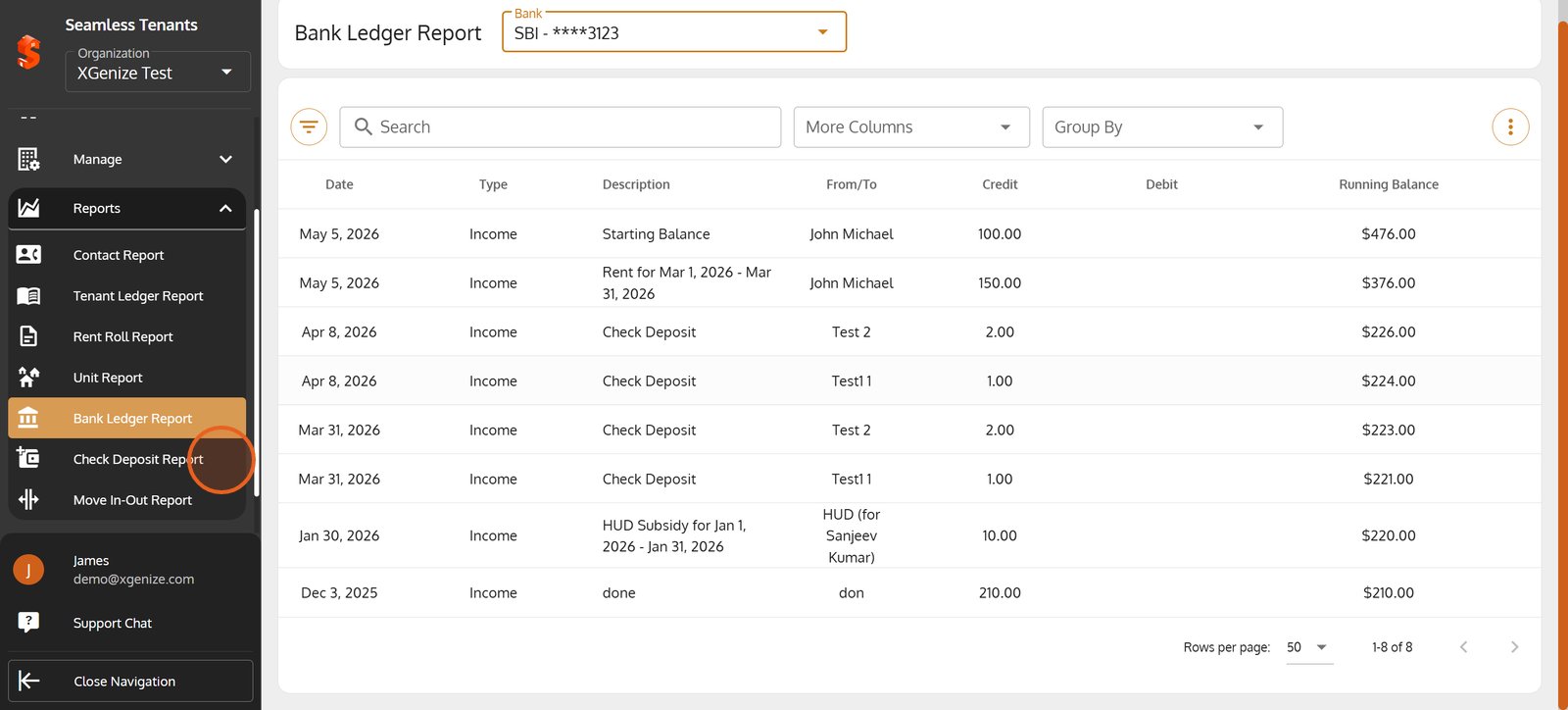
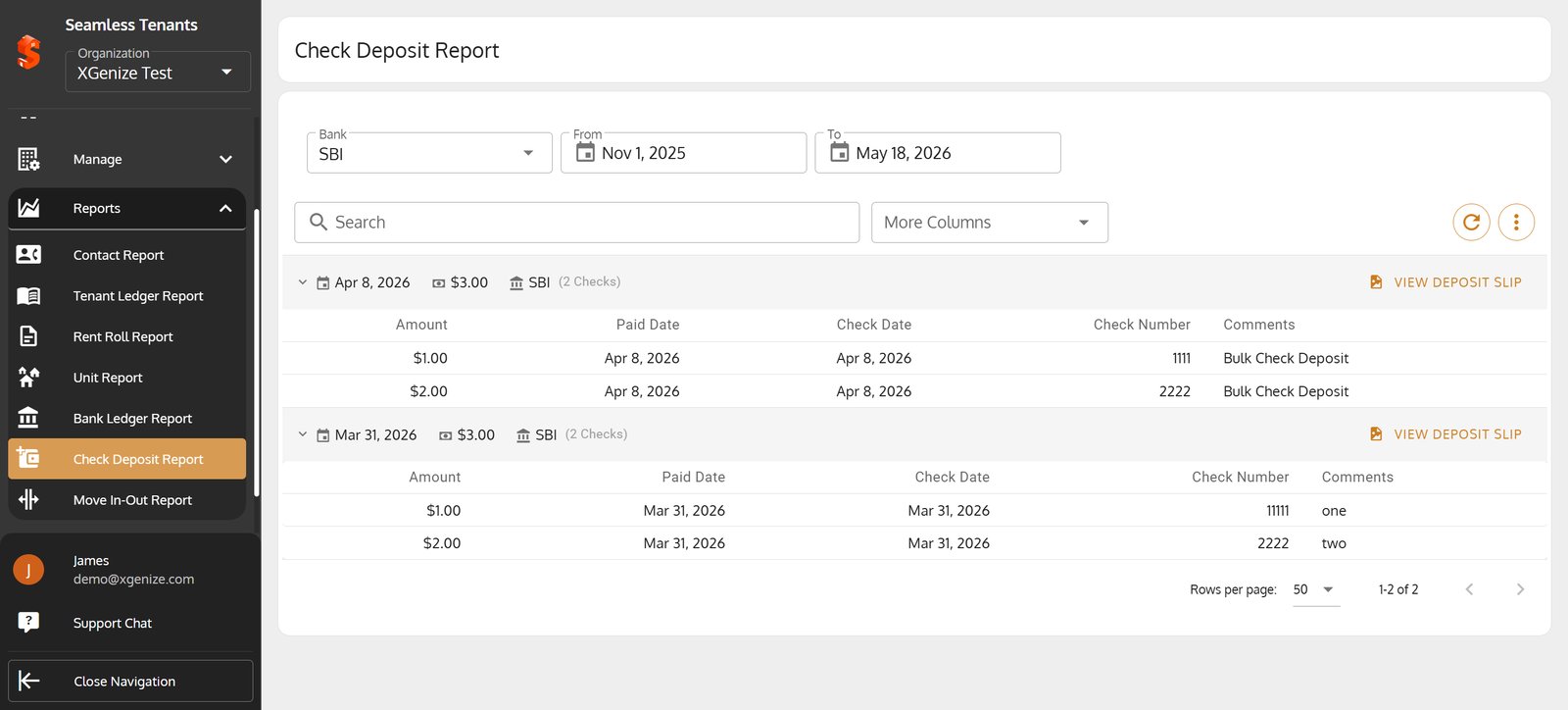
25. Navigate to the Check Deposit Report for focused insights into check deposit activity.
Navigate to the Check Deposit Report for focused insights into check deposit activity.
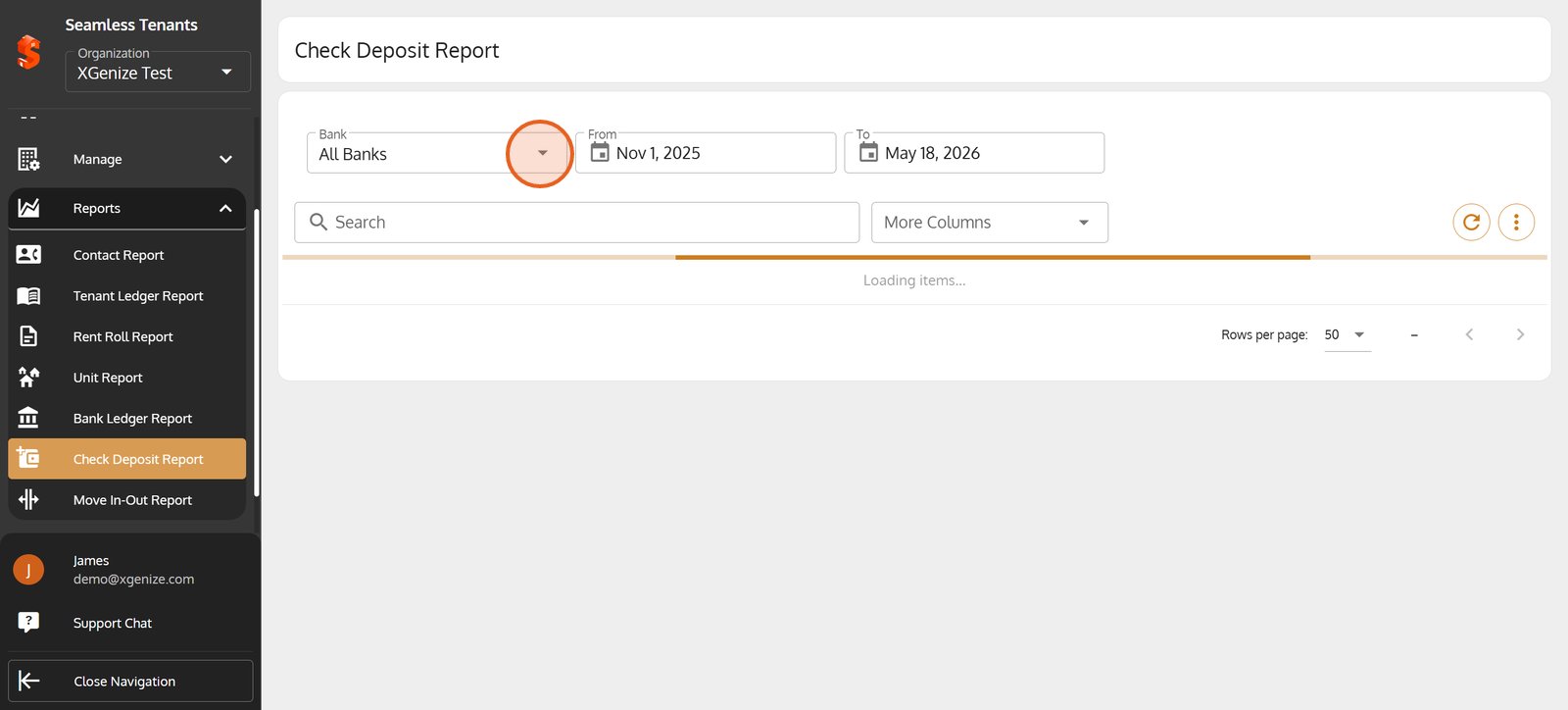
26. Use the All Banks filter to quickly narrow your results by bank.
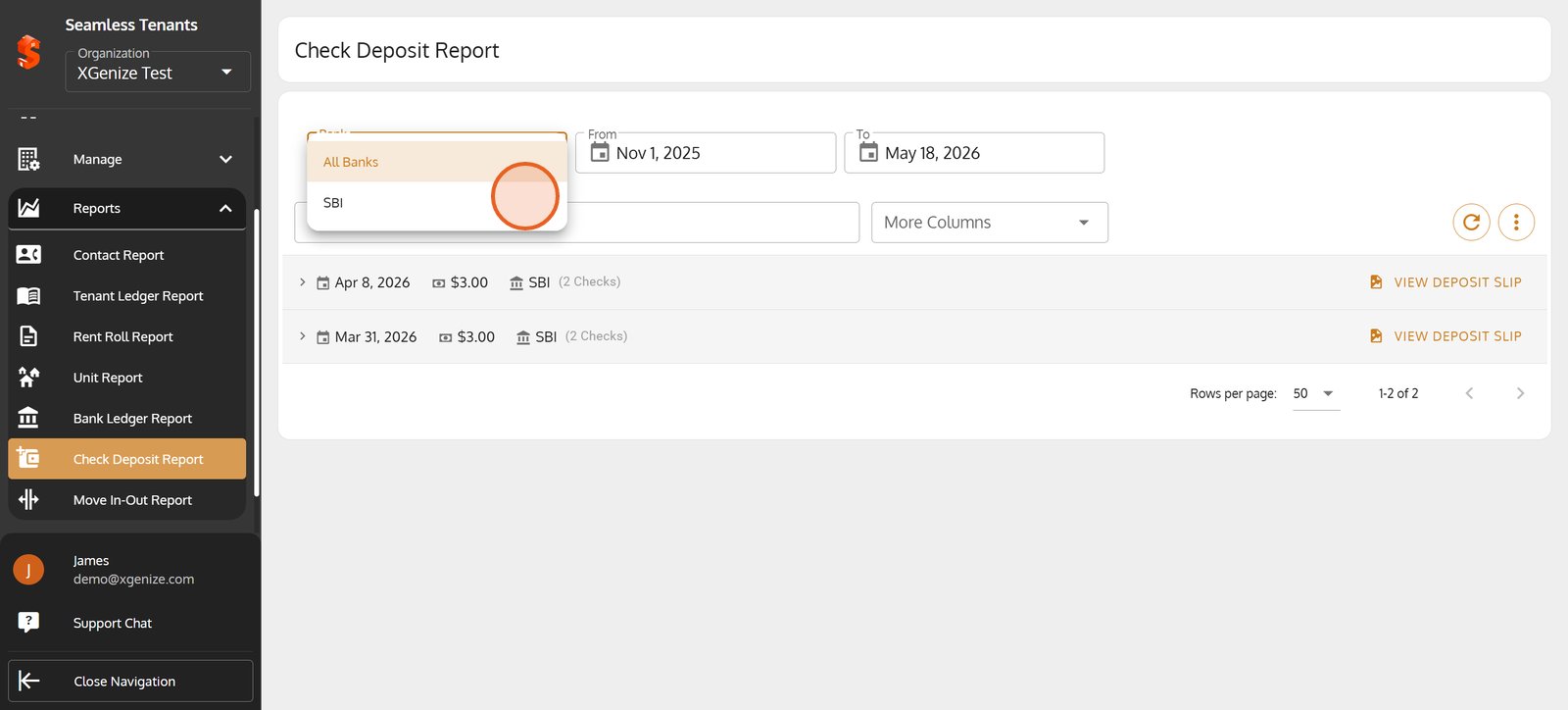
27. Choose a bank, to instantly filter the report for deposits with that bank.
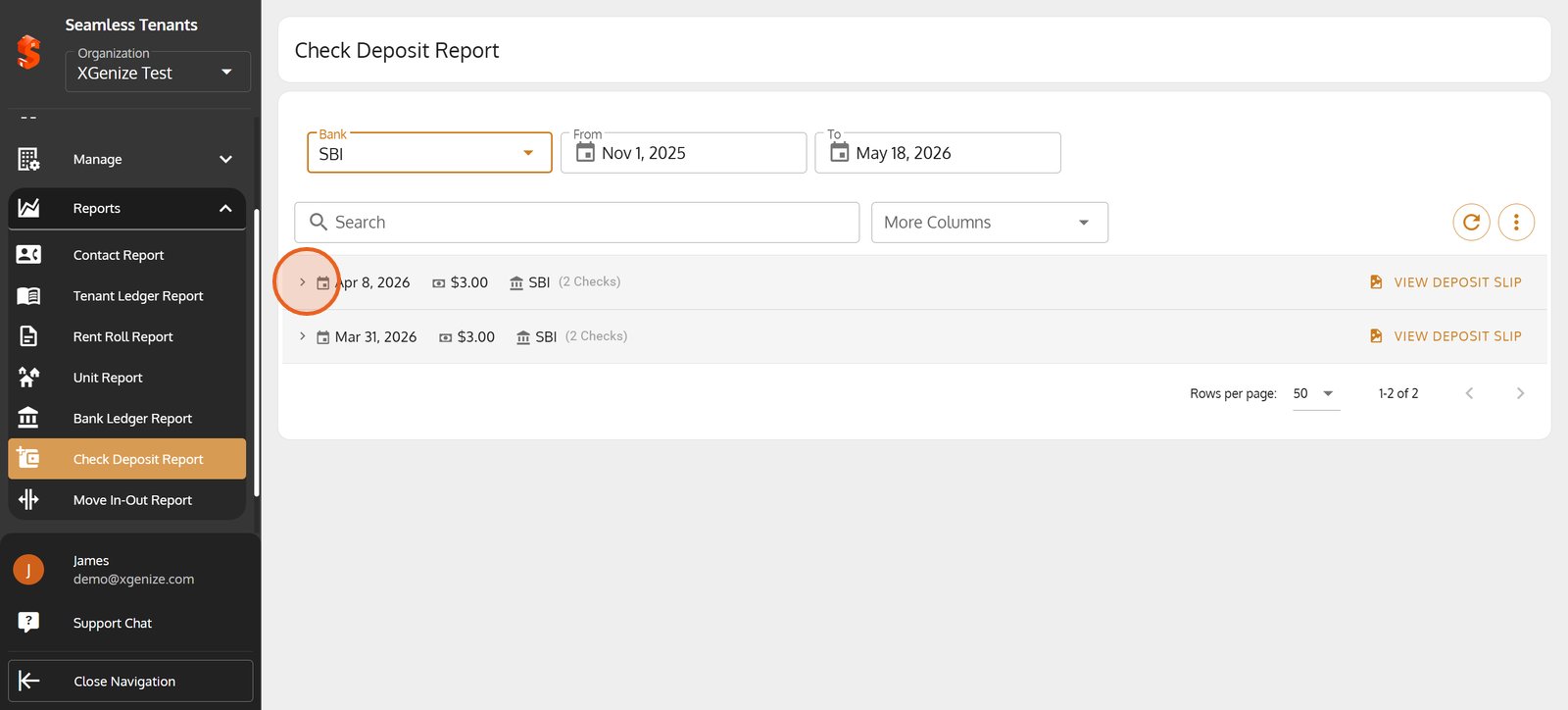
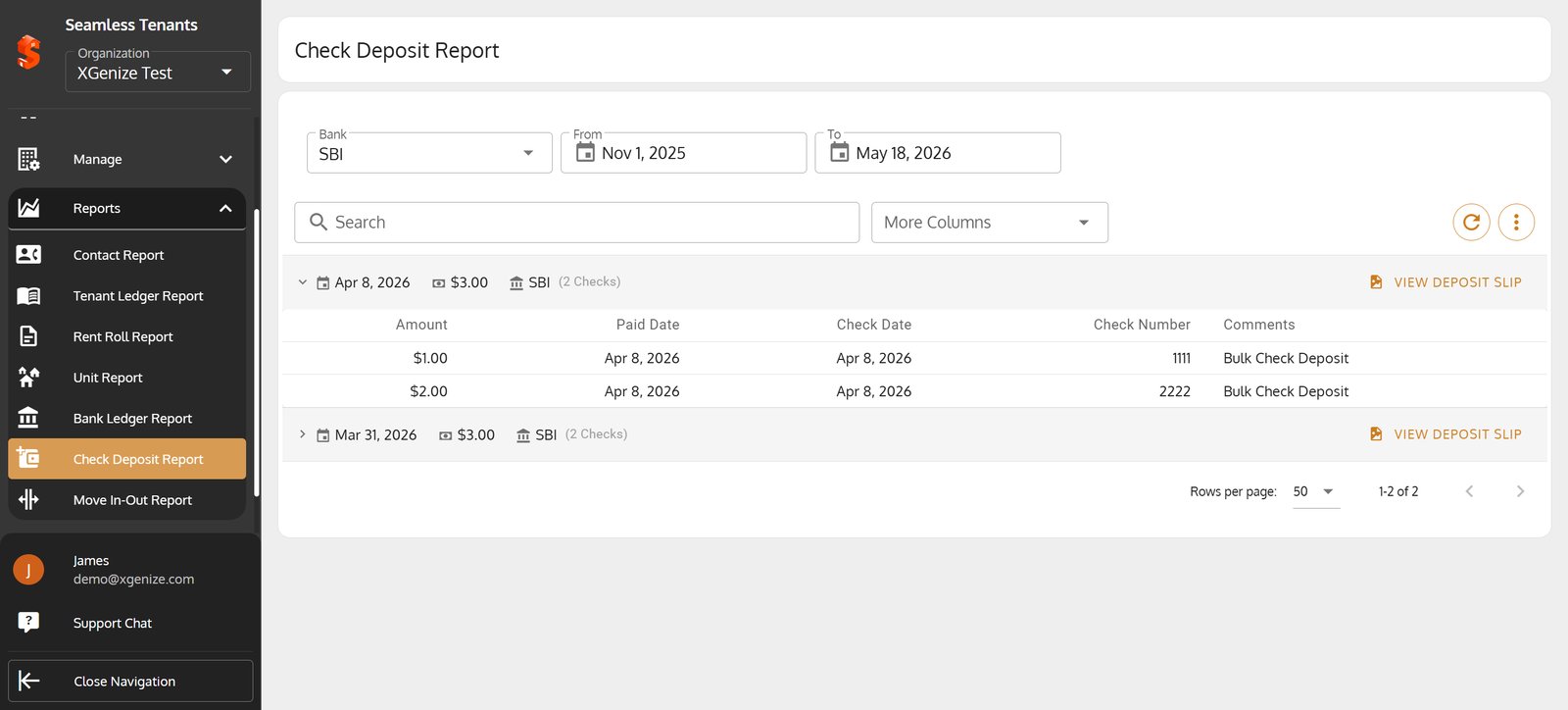
28. Click the expand arrow for a deposit to see all the transaction details at a glance.
29.
30.
31. Access key metrics by opening the Move In/Out Report from the sidebar.
Access key metrics by opening the Move In/Out Report from the sidebar.
32. Click the Group By dropdown to organize report data for clearer insights.
33. Choose how you'd like to group your report - by property, tenant, or unit for customized views.
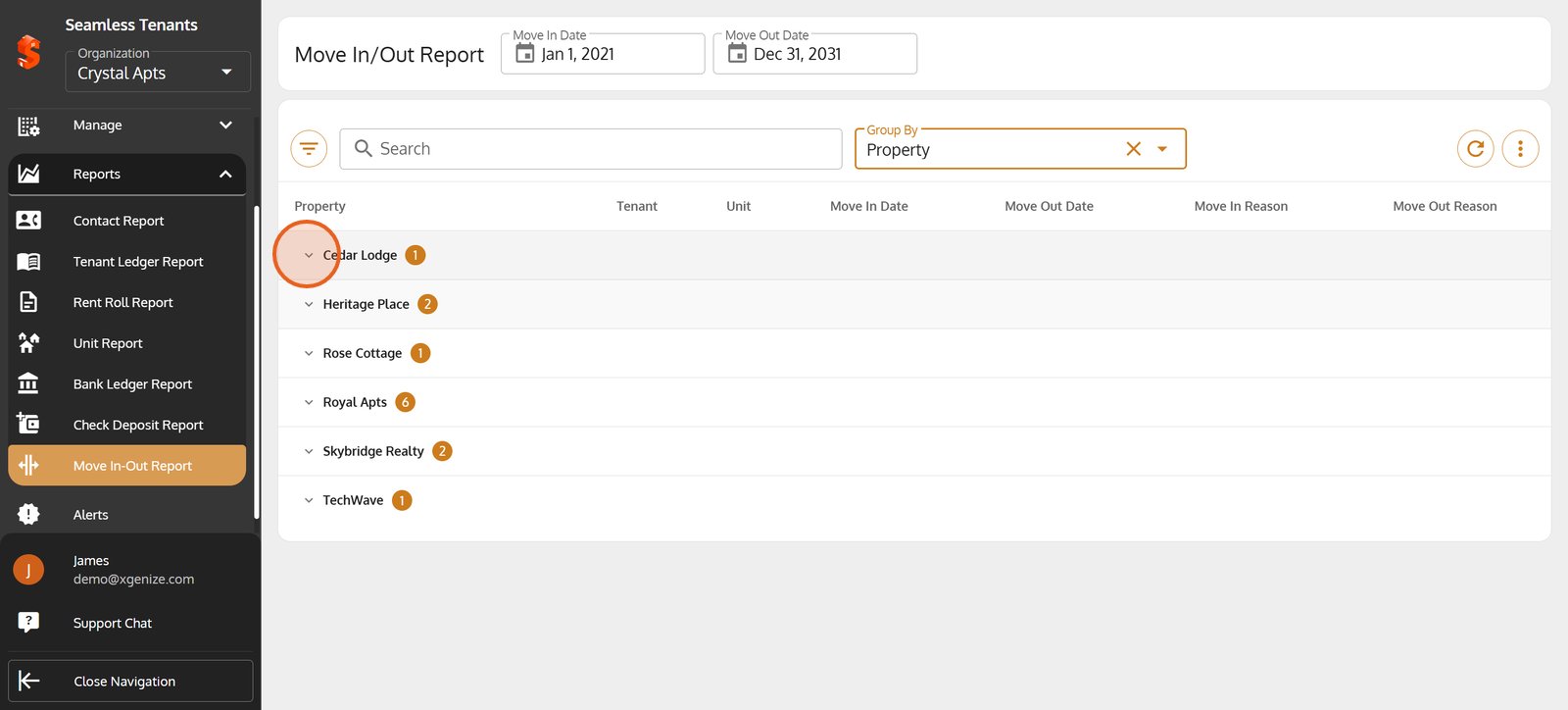
34. Expand a property row to drill down into all move-ins and move-outs for that location.
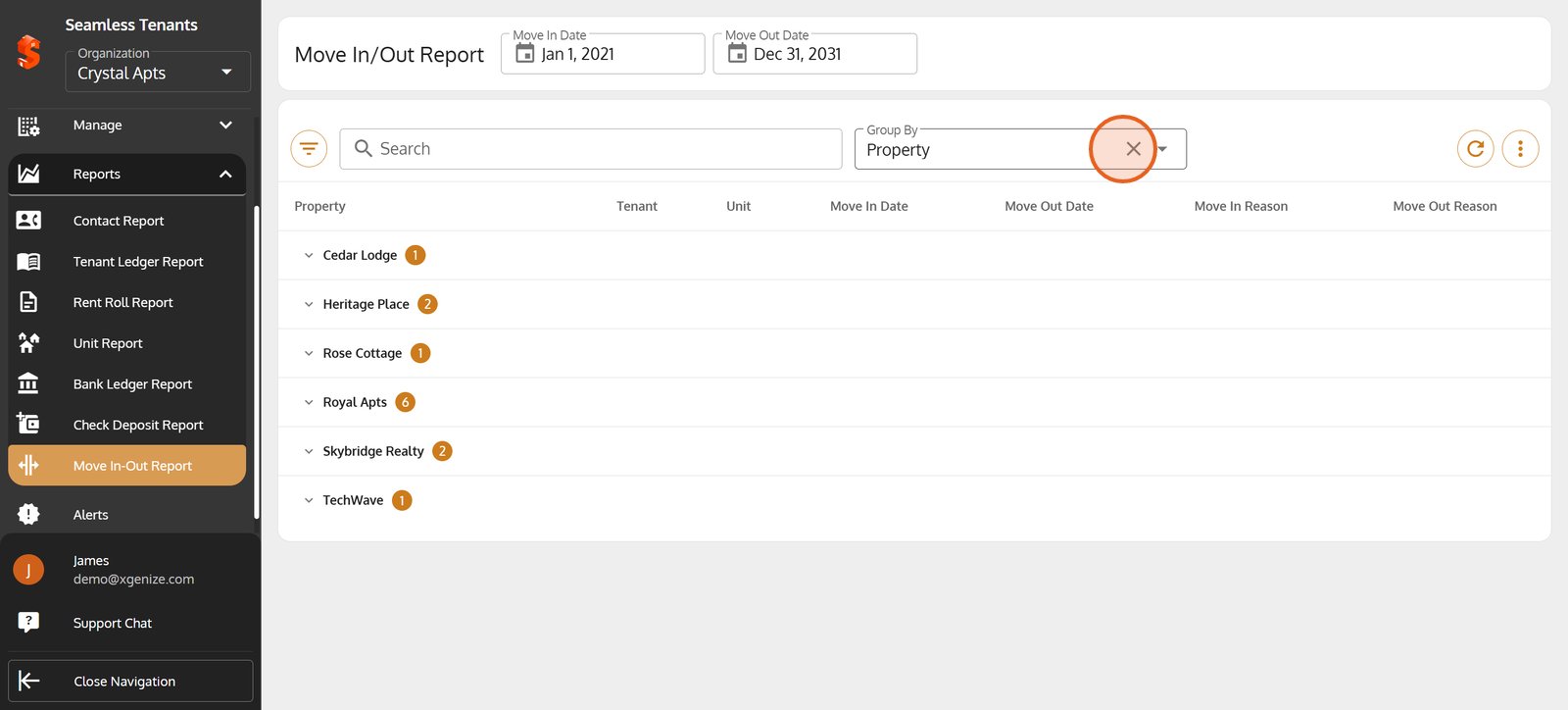
35. Remove any grouping to see all move in/out activities in a single, unfiltered report.
36.
Property added successfully!
You can now add units, tenants, and start managing your operations.
Was this article helpful?
Help us improve our documentation