Add New Property in Property Portfolio Dashboard

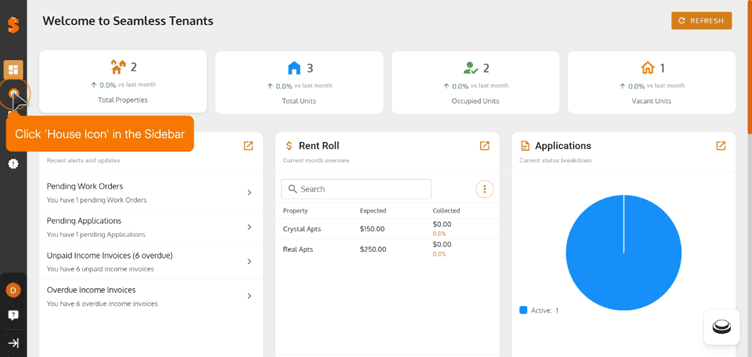
1. Click 'House Icon' in the sidebar
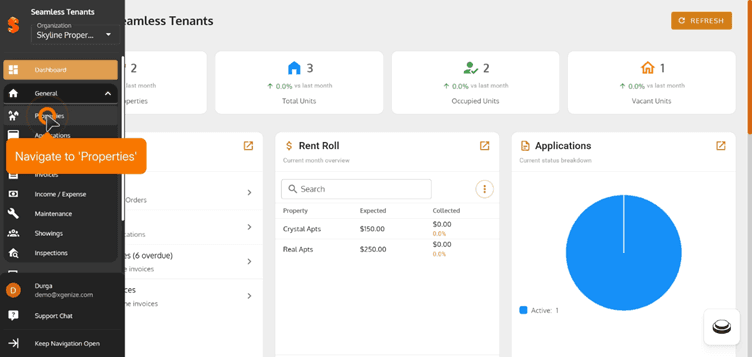
2. Navigate to Properties
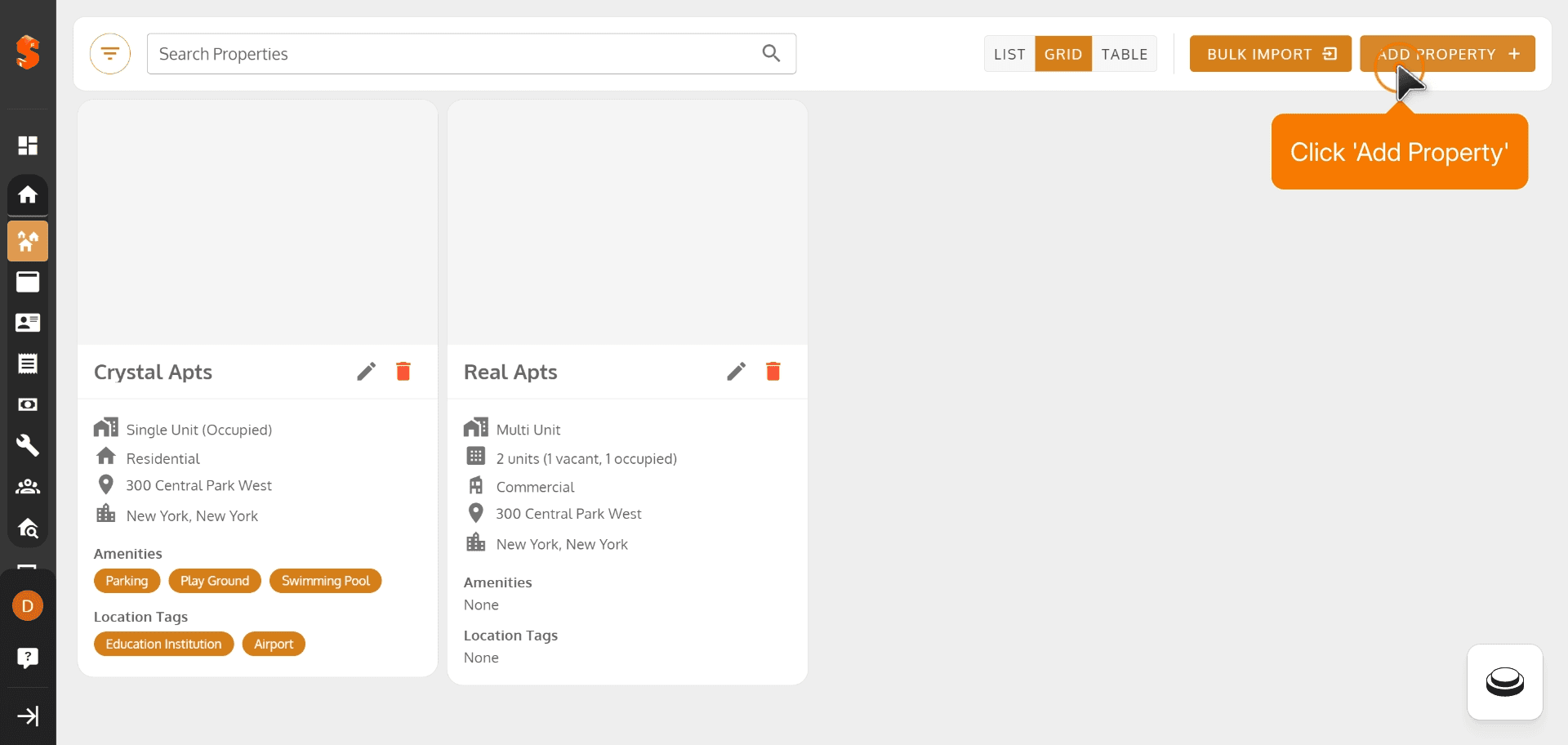
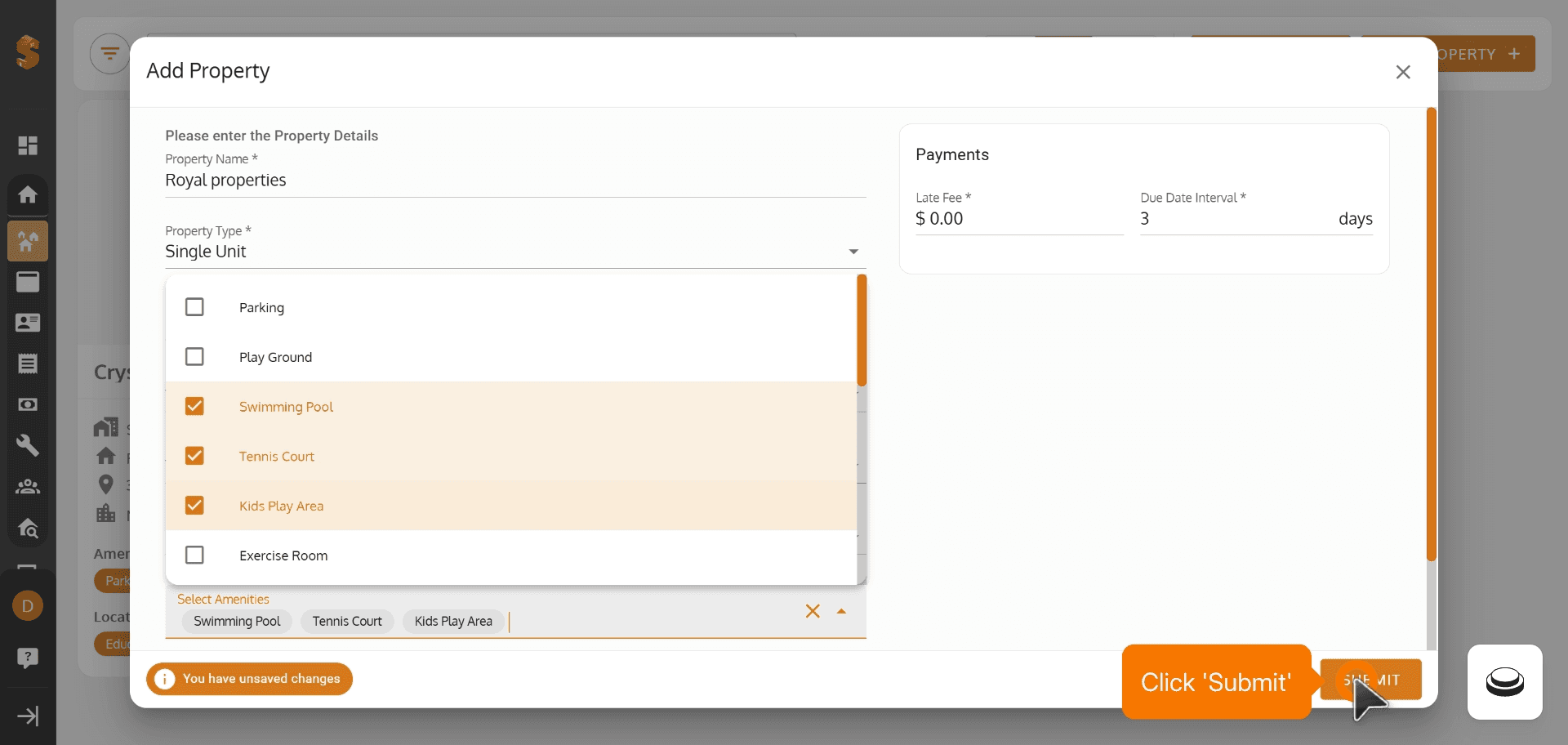
3. Click 'Add Property'
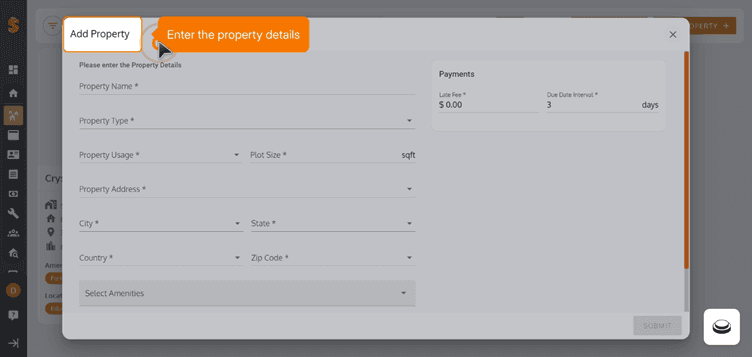
4. Enter the property Details
5. Click 'Submit'
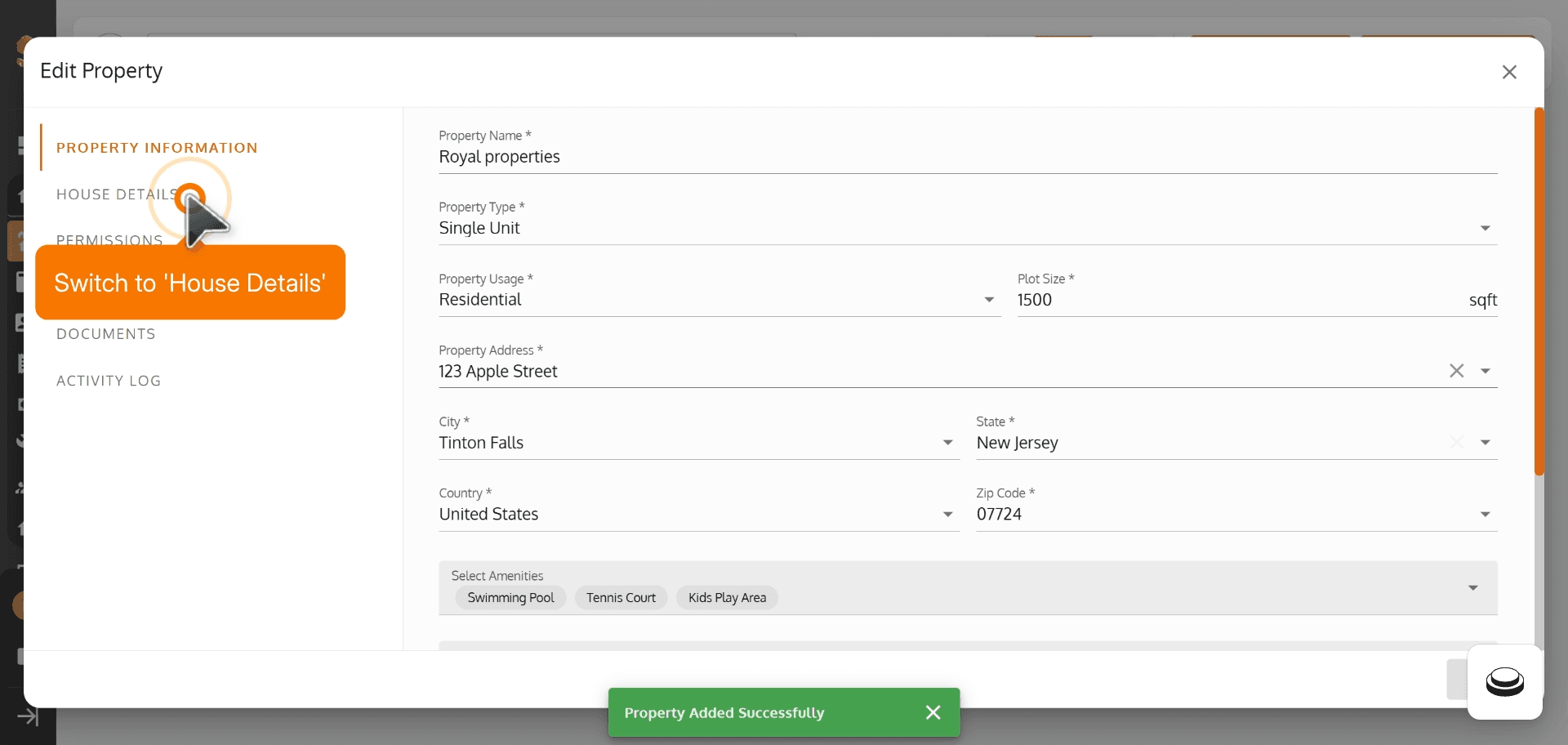
6. Switch to 'House Details'
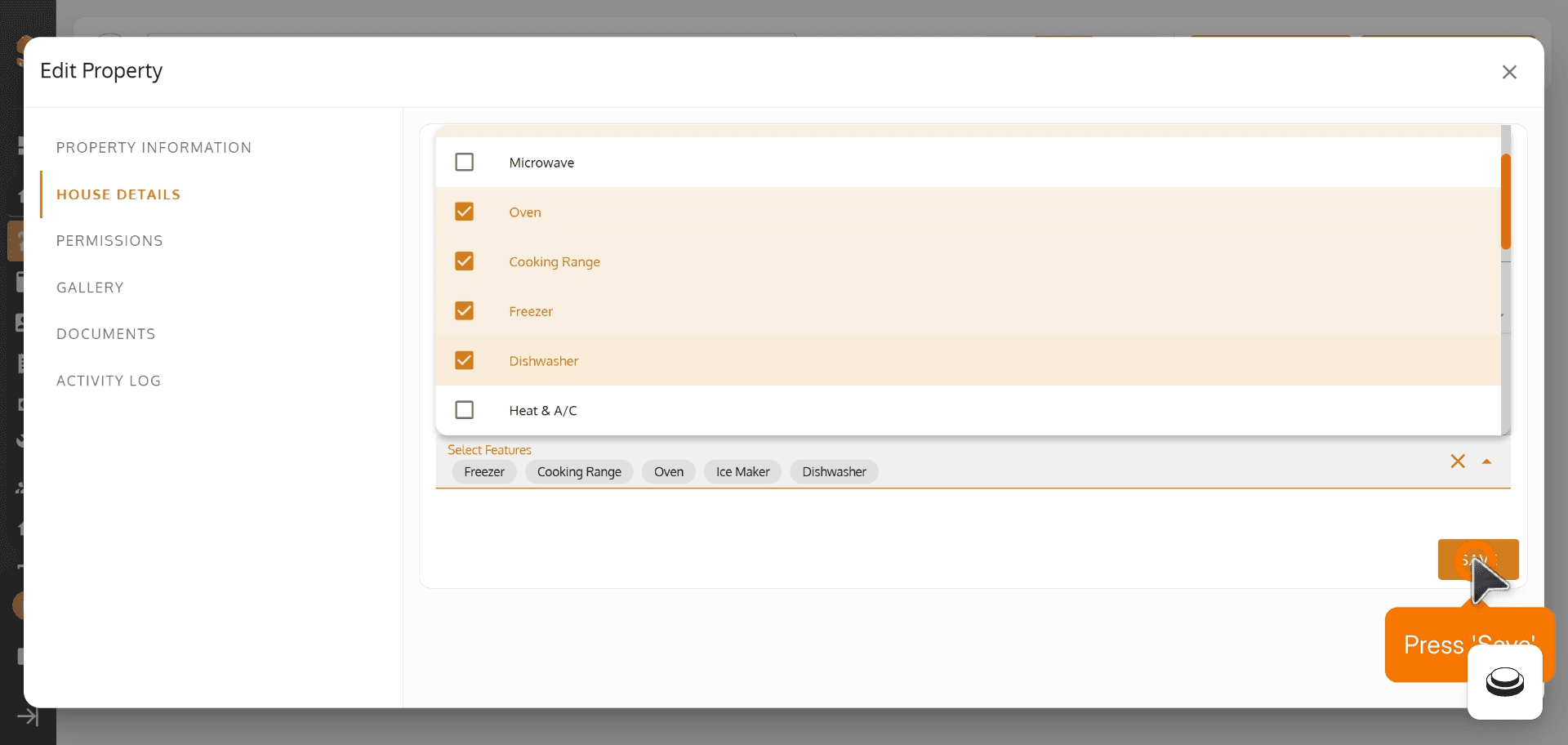
7. Press 'Save'
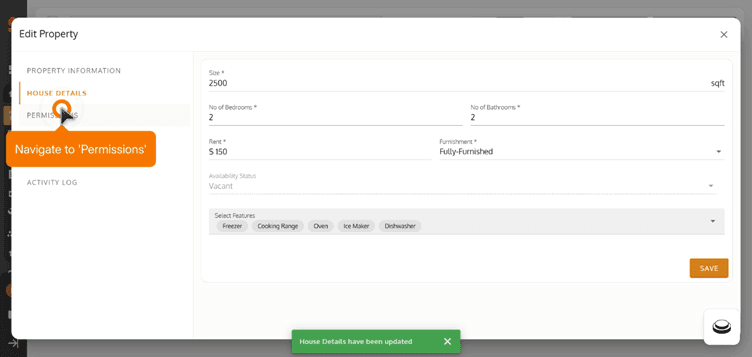
8. Navigate to 'Permissions'
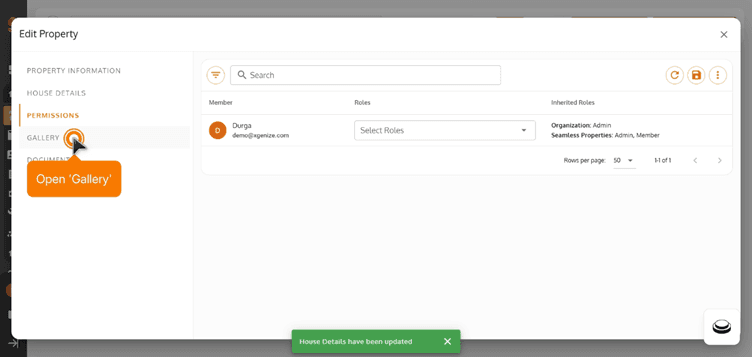
9. Open 'Gallery'
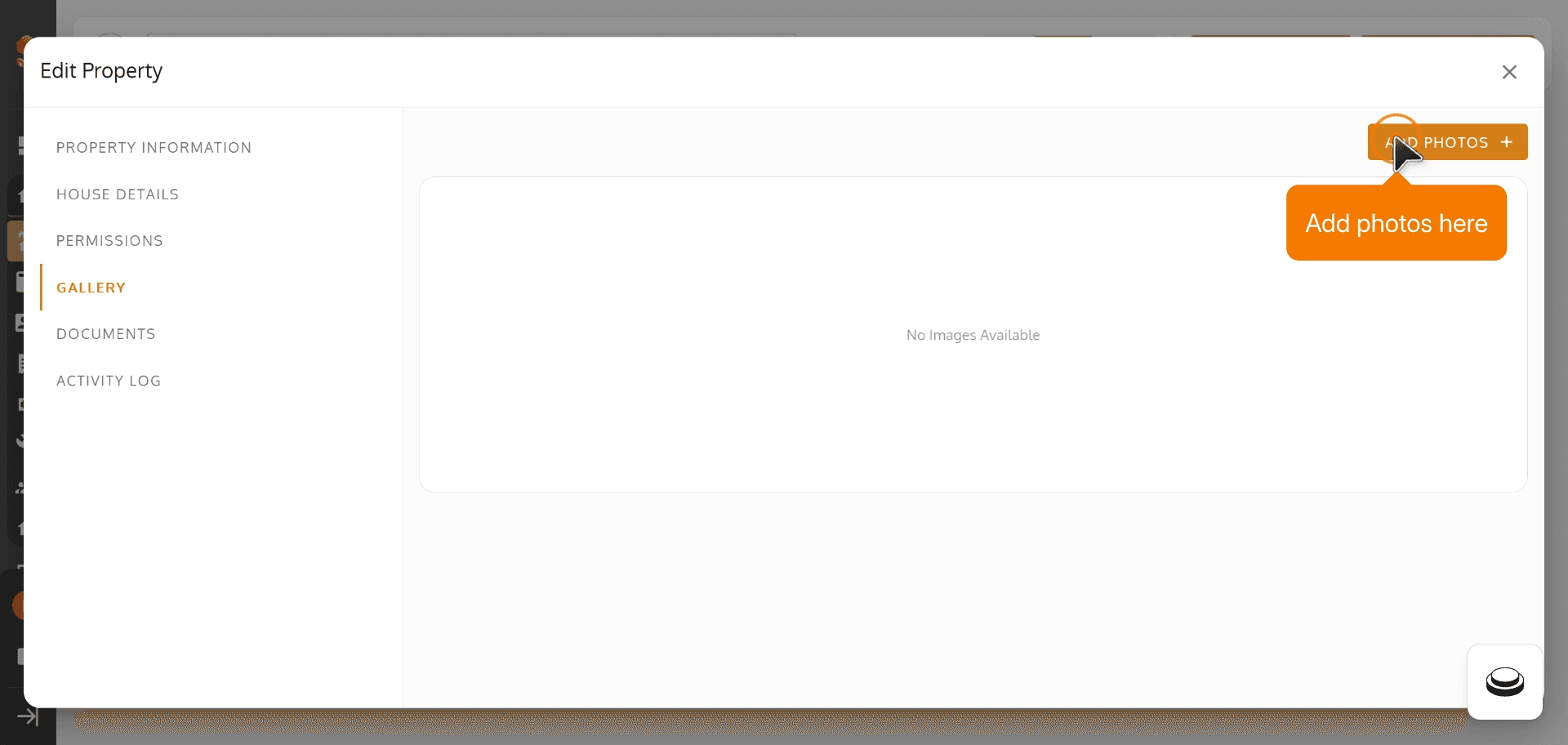
10. Click Add Photos here
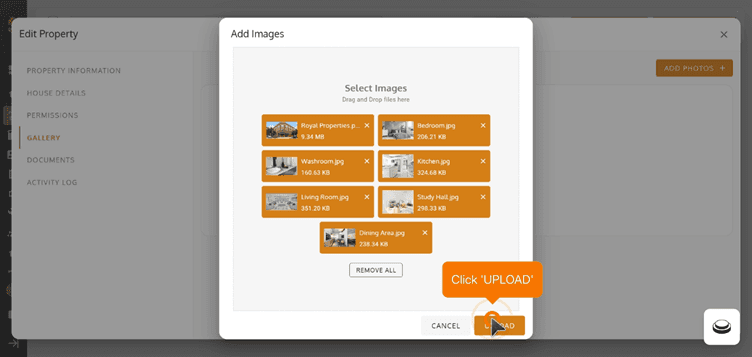
11. Click 'Upload' to upload gallery photos
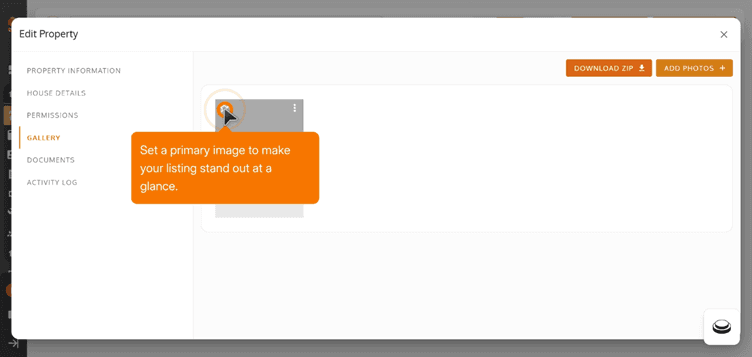
12. Set a primary image to make your listing stand out at a glance.
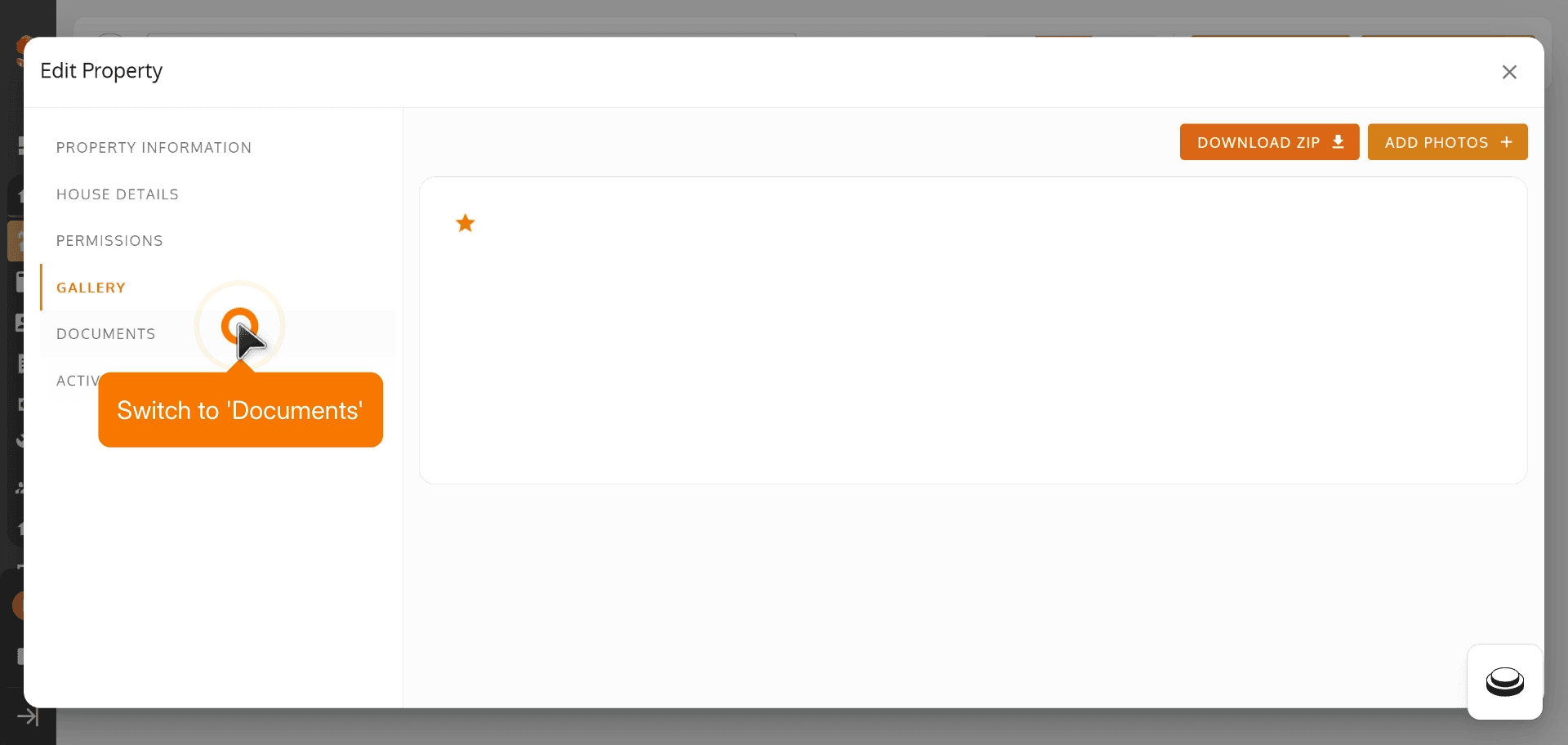
13. Switch to 'Documents'
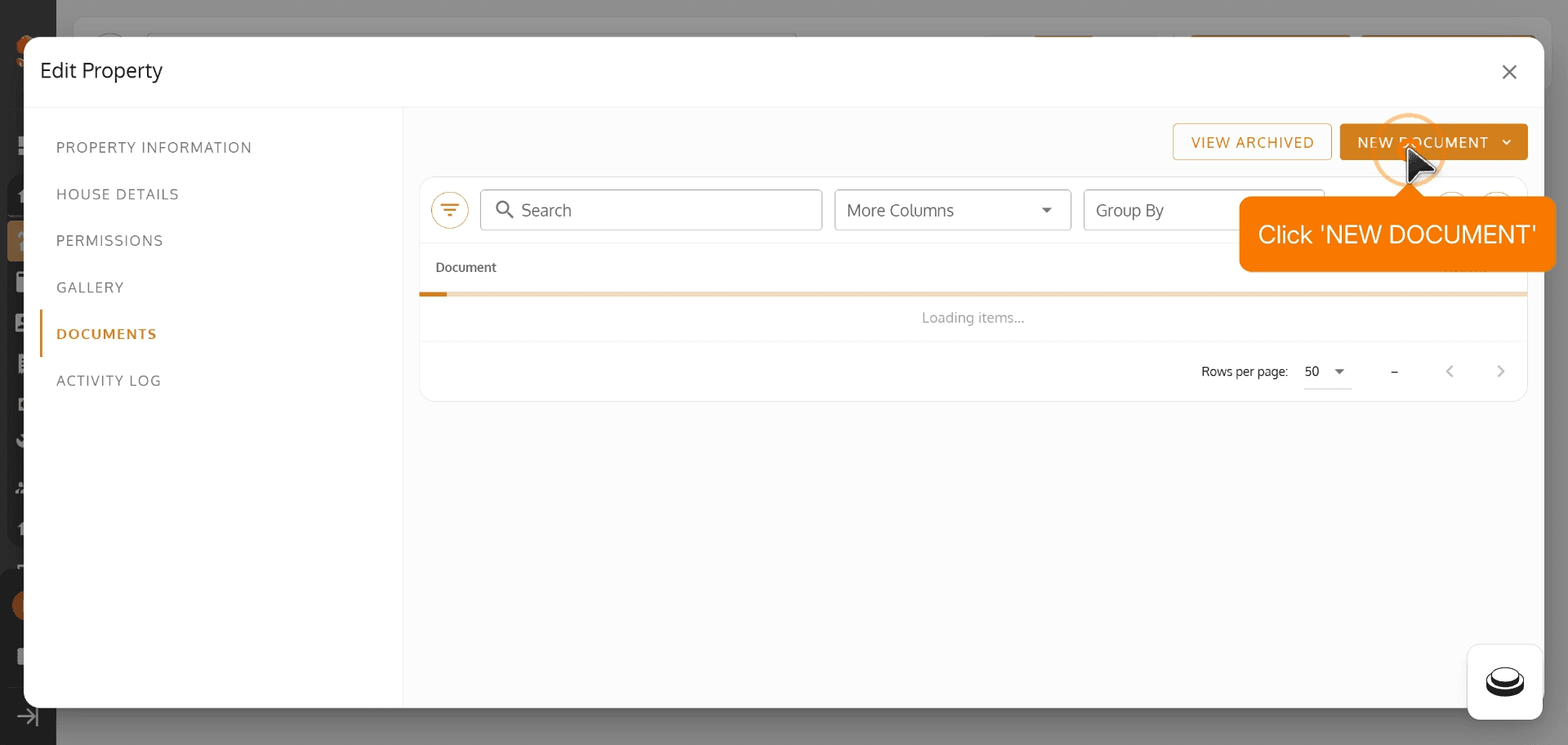
14. Click 'New Document'
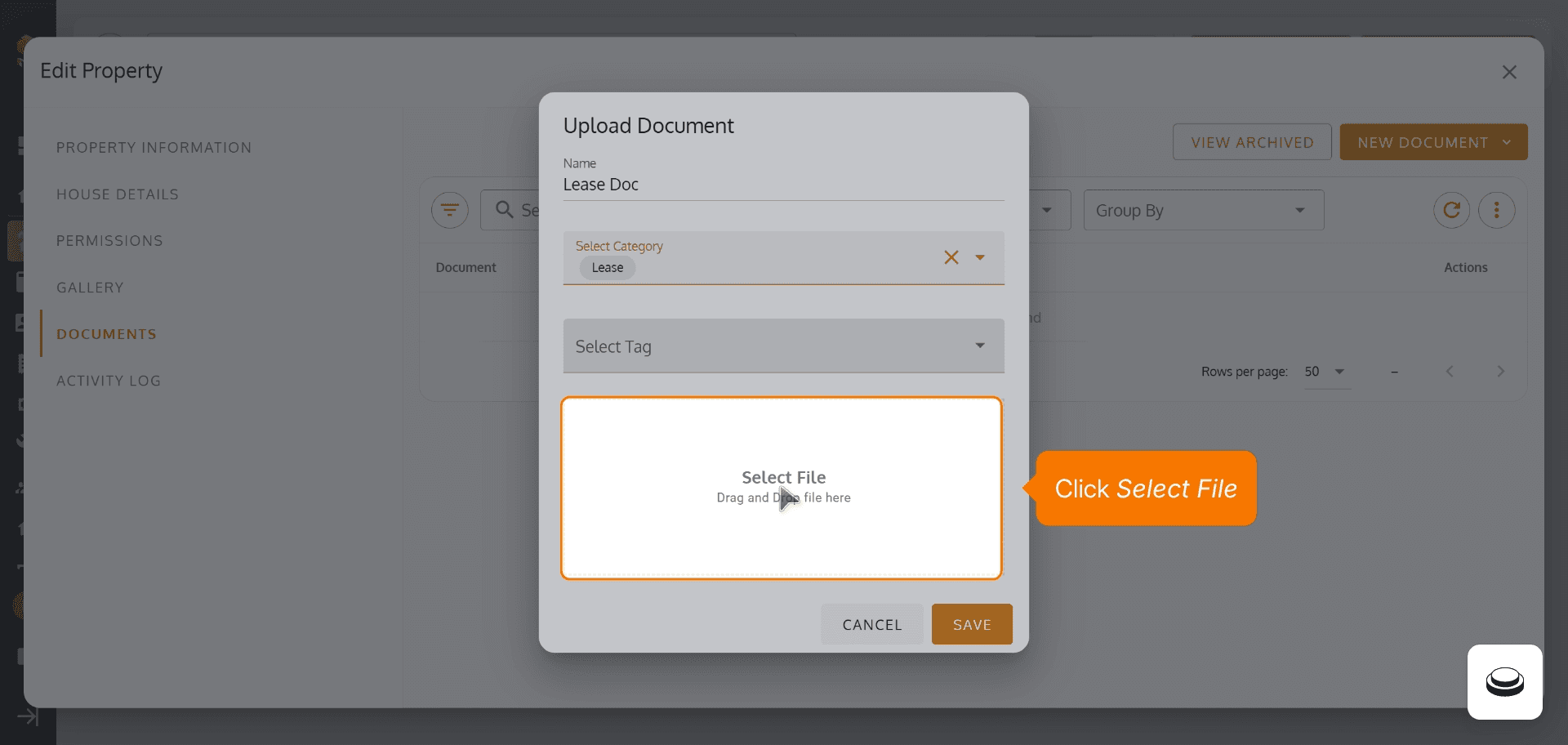
15. Click Select File
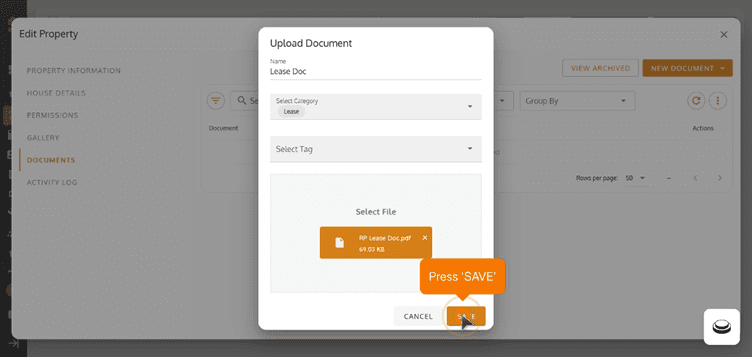
16. Press 'Save'
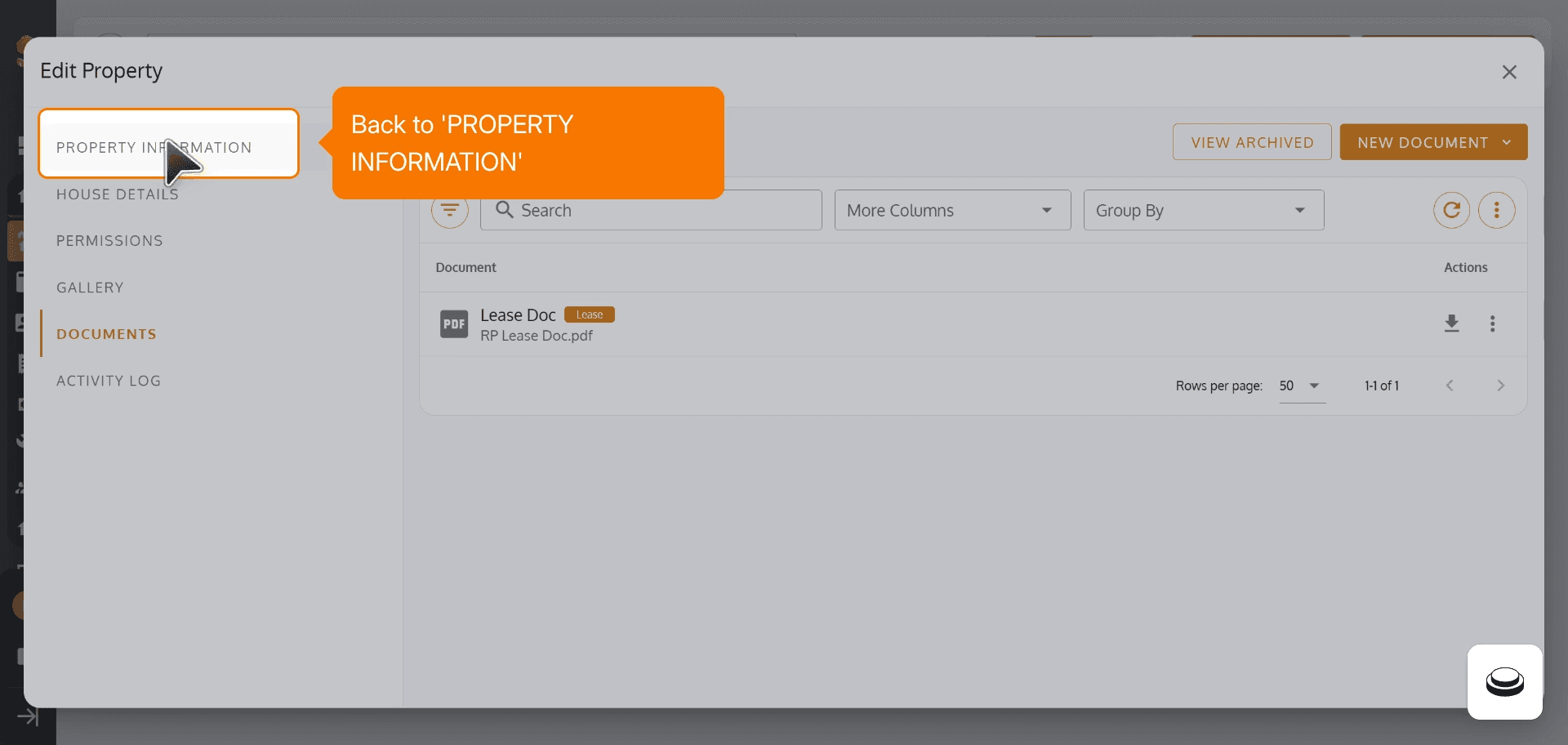
17. Back to Property Information
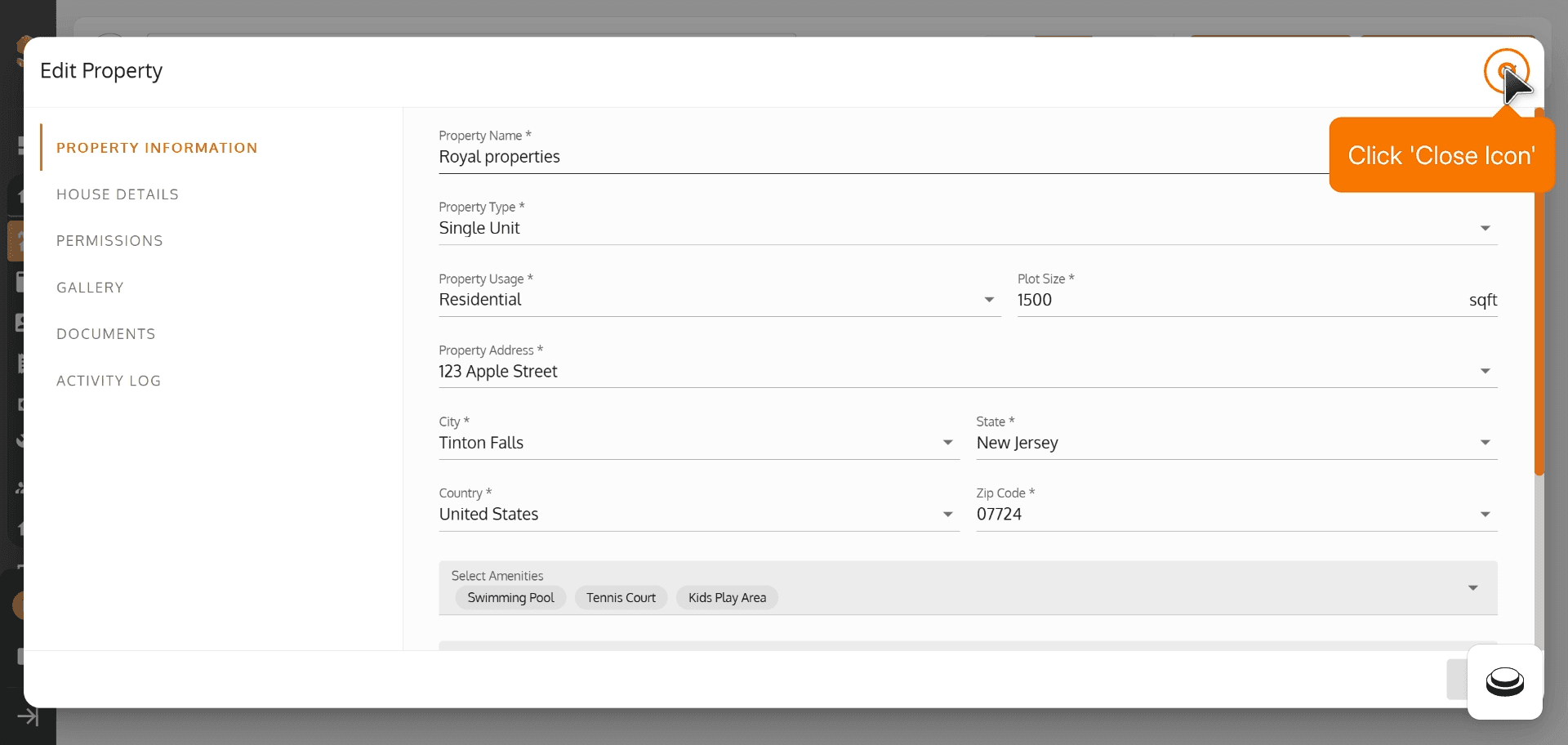
18. Click 'Close Icon'
19. Click 'Edit' Icon
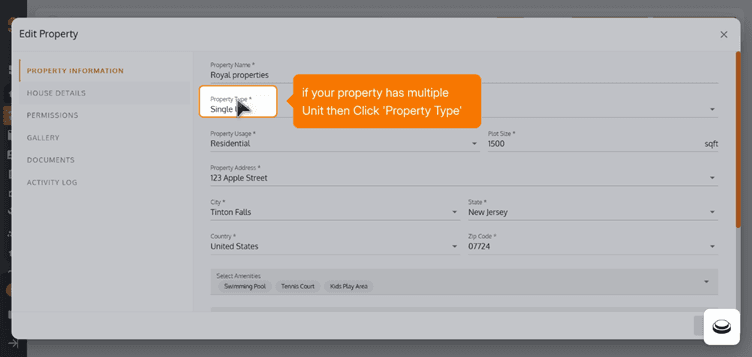
20. If your property has Mutiple until then Click Property Type'
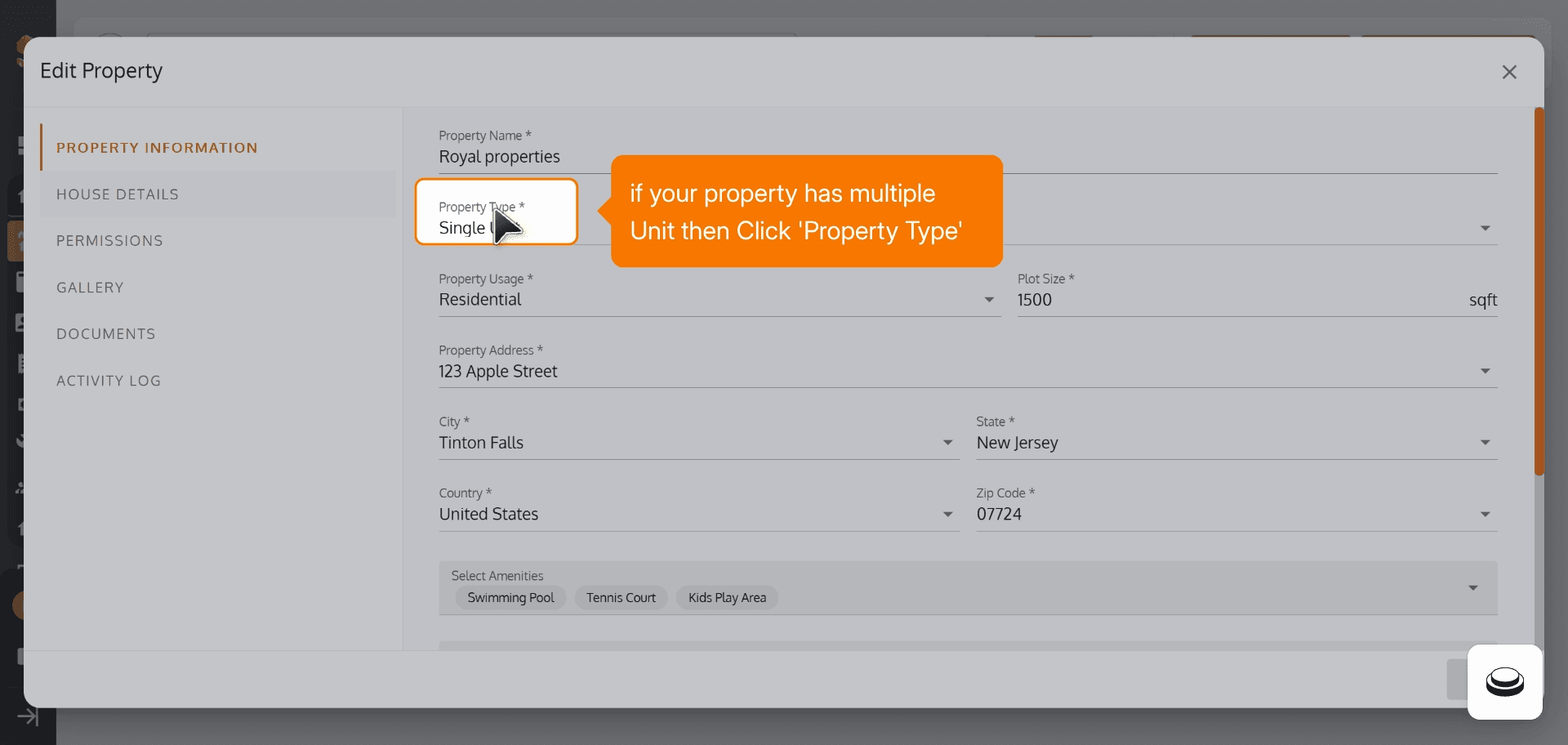
21. Use 'Multi Unit'
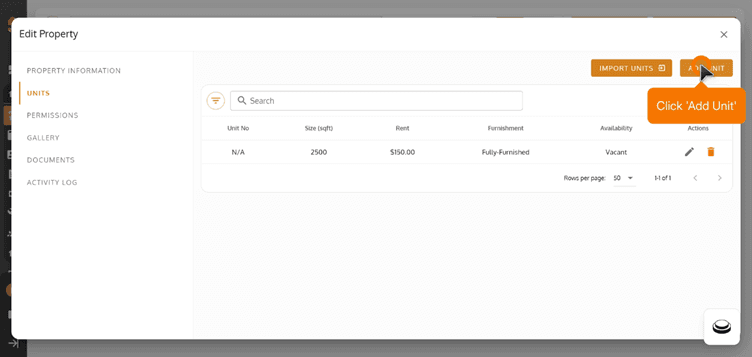
22. Click 'Add Unit'
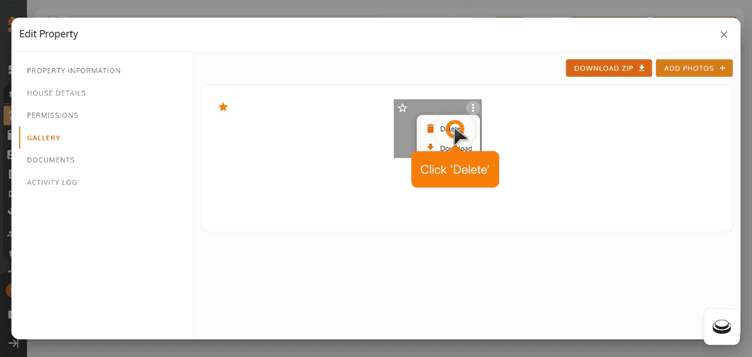
23. Click 'Delete'
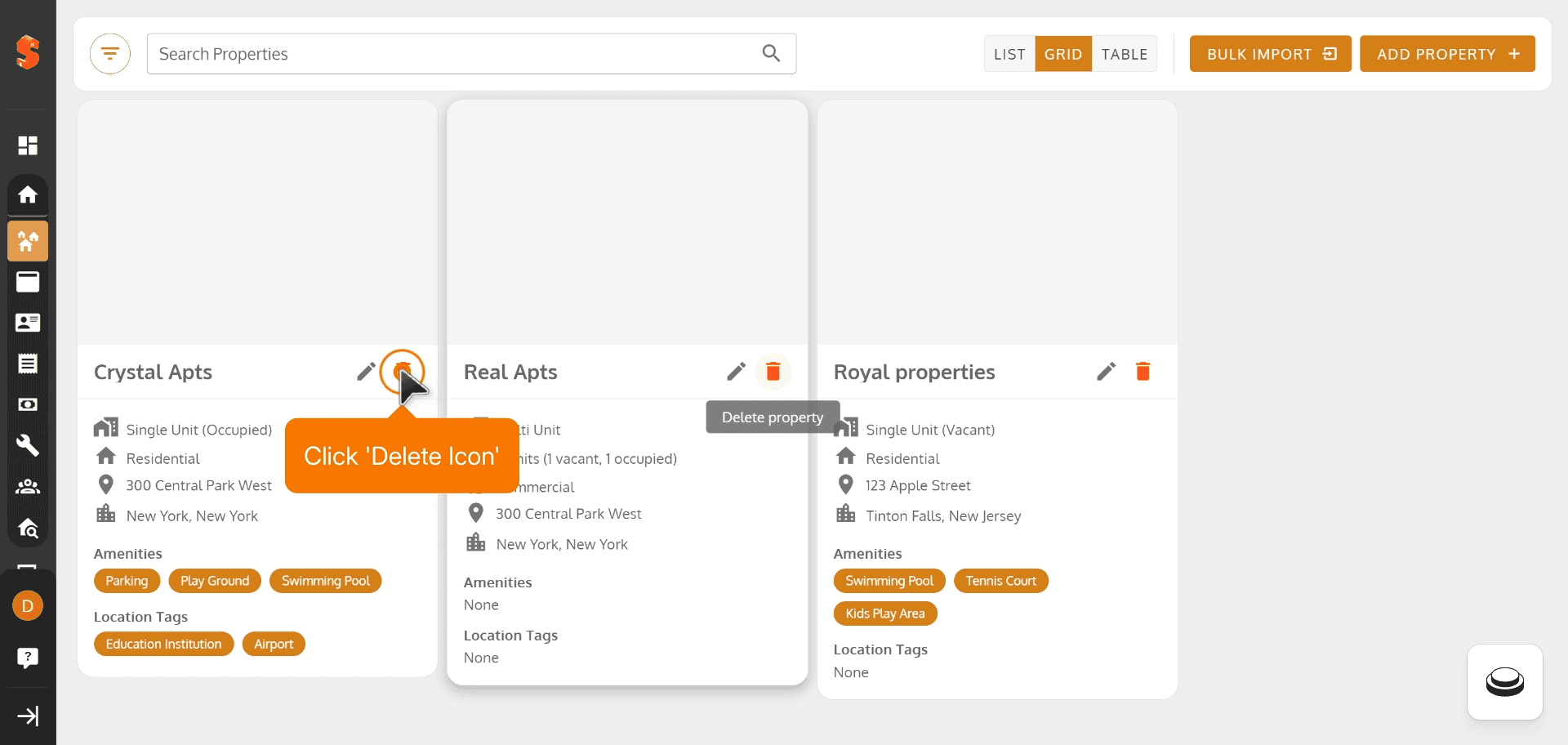
24. Click 'Delete Icon'
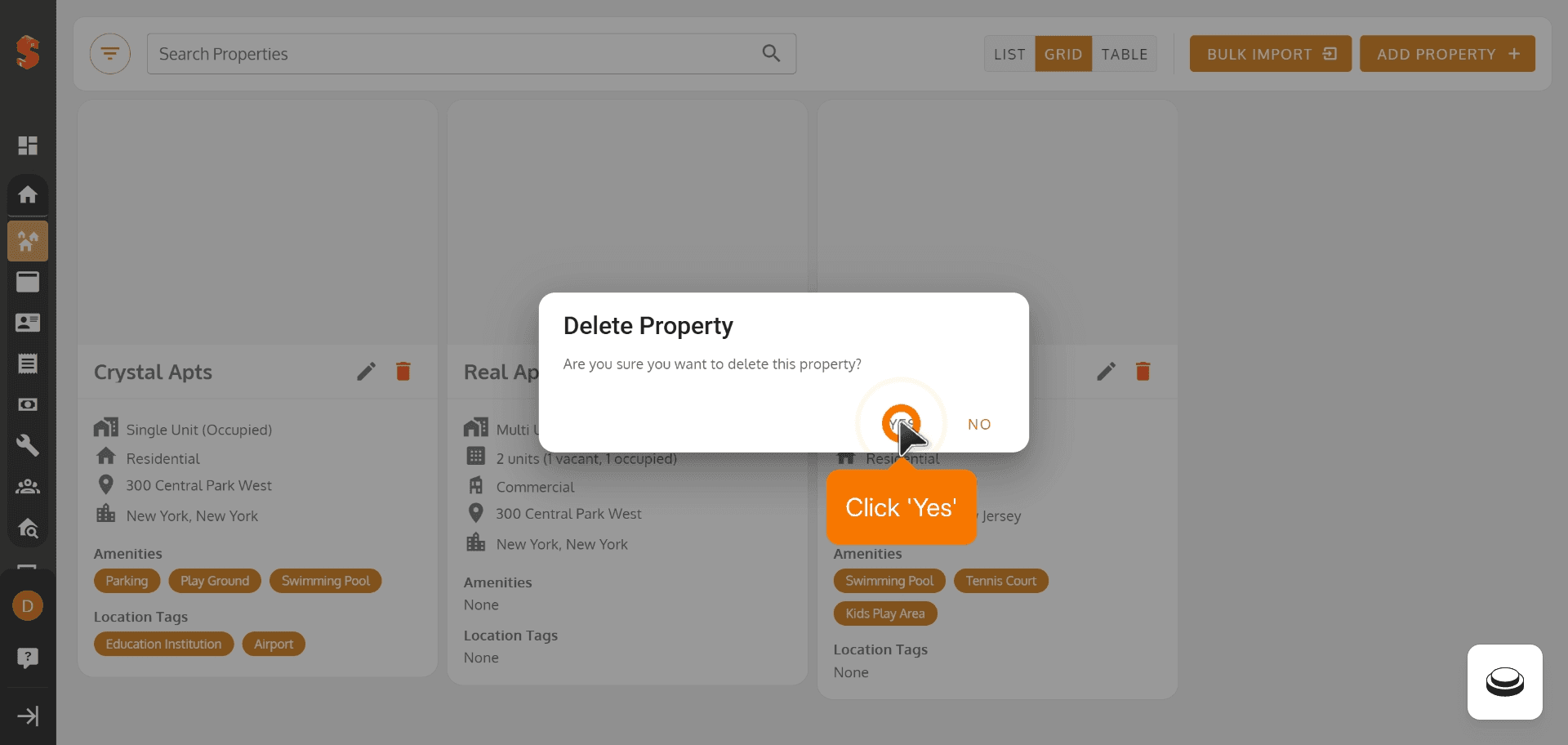
25. Click 'Yes' to confirm
Property added successfully!
You can now add units, tenants, and start managing your operations.
Was this article helpful?
Help us improve our documentation