Follow the process to schedule a new property inspection and update its status in your property management dashboard.

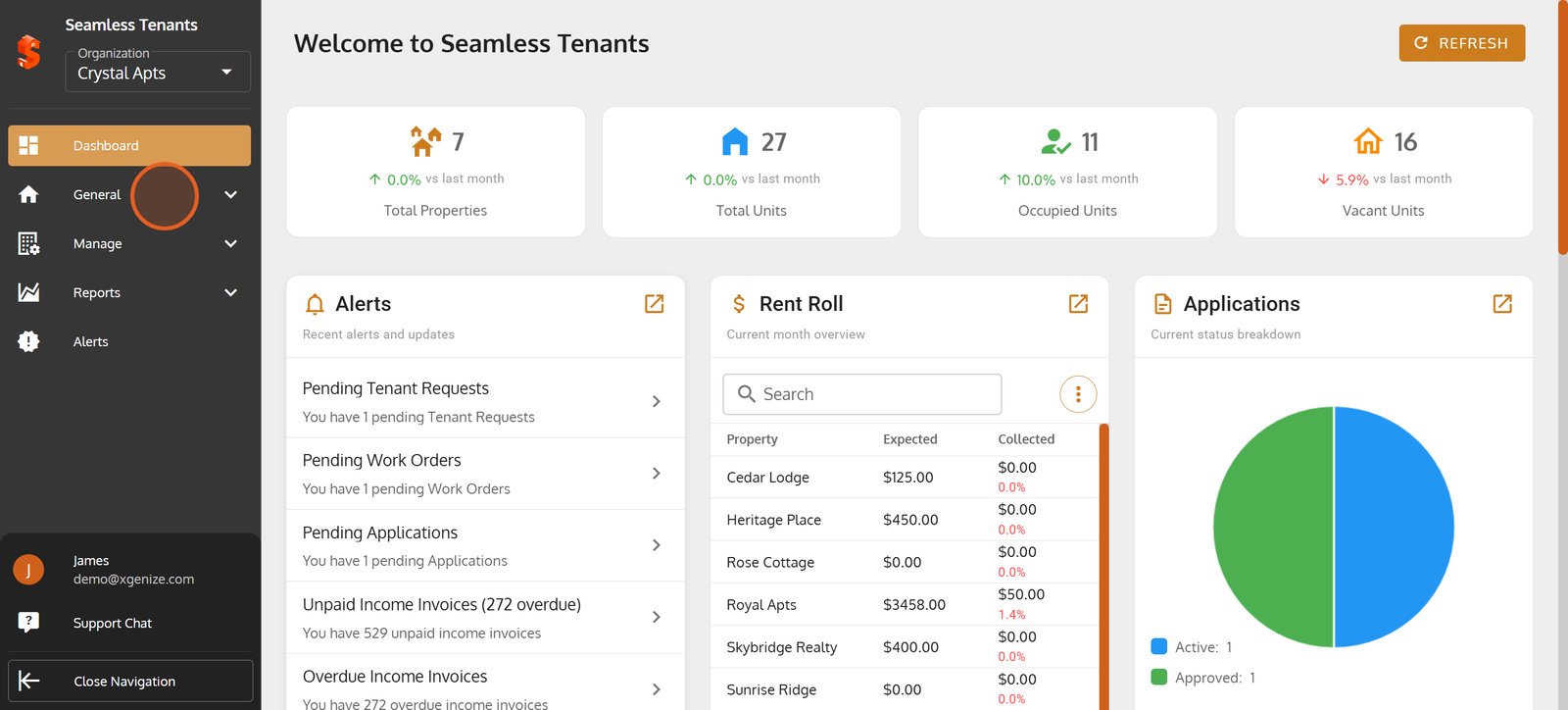
1. Expand the 'General' menu to reveal more property management options.
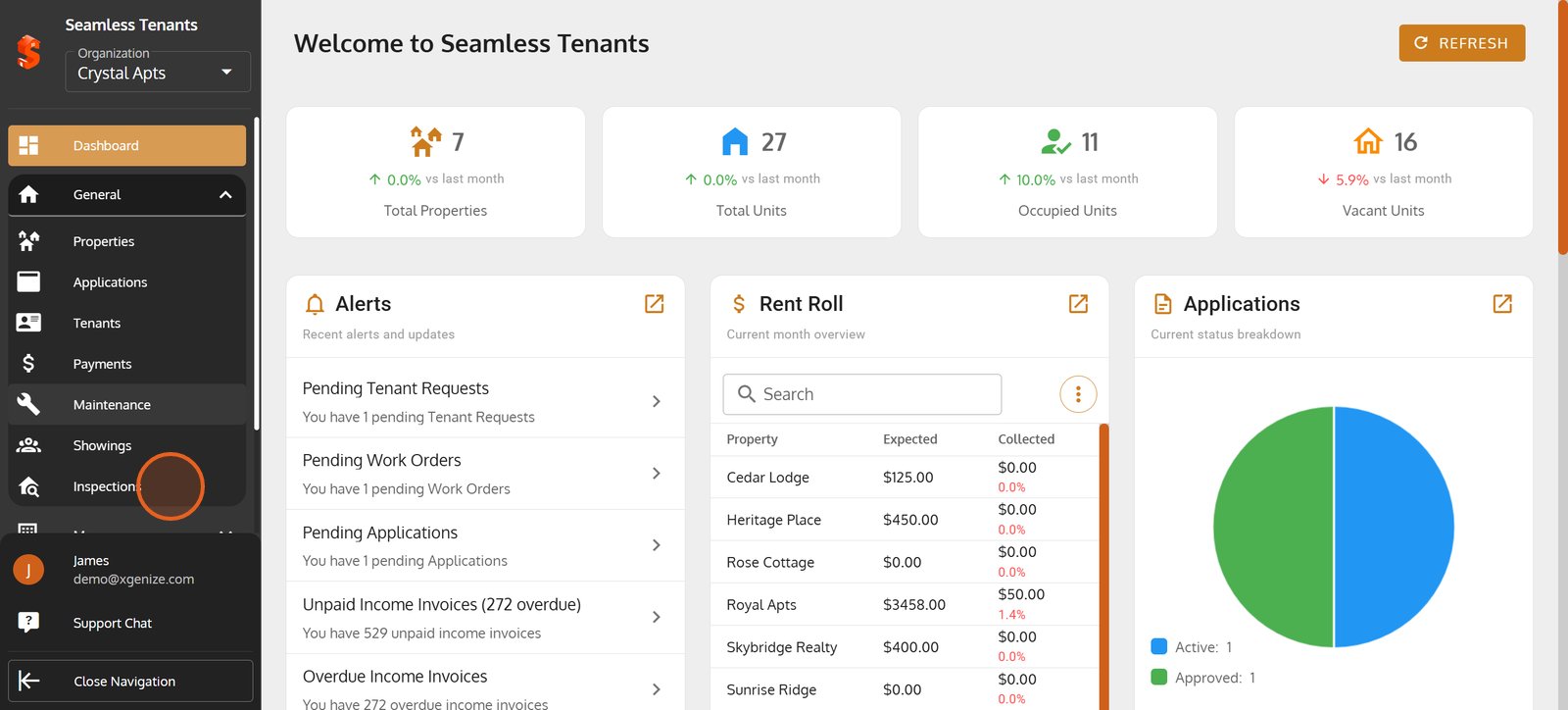
2. Click on 'Inspections' to manage and track all your property inspections in one place.
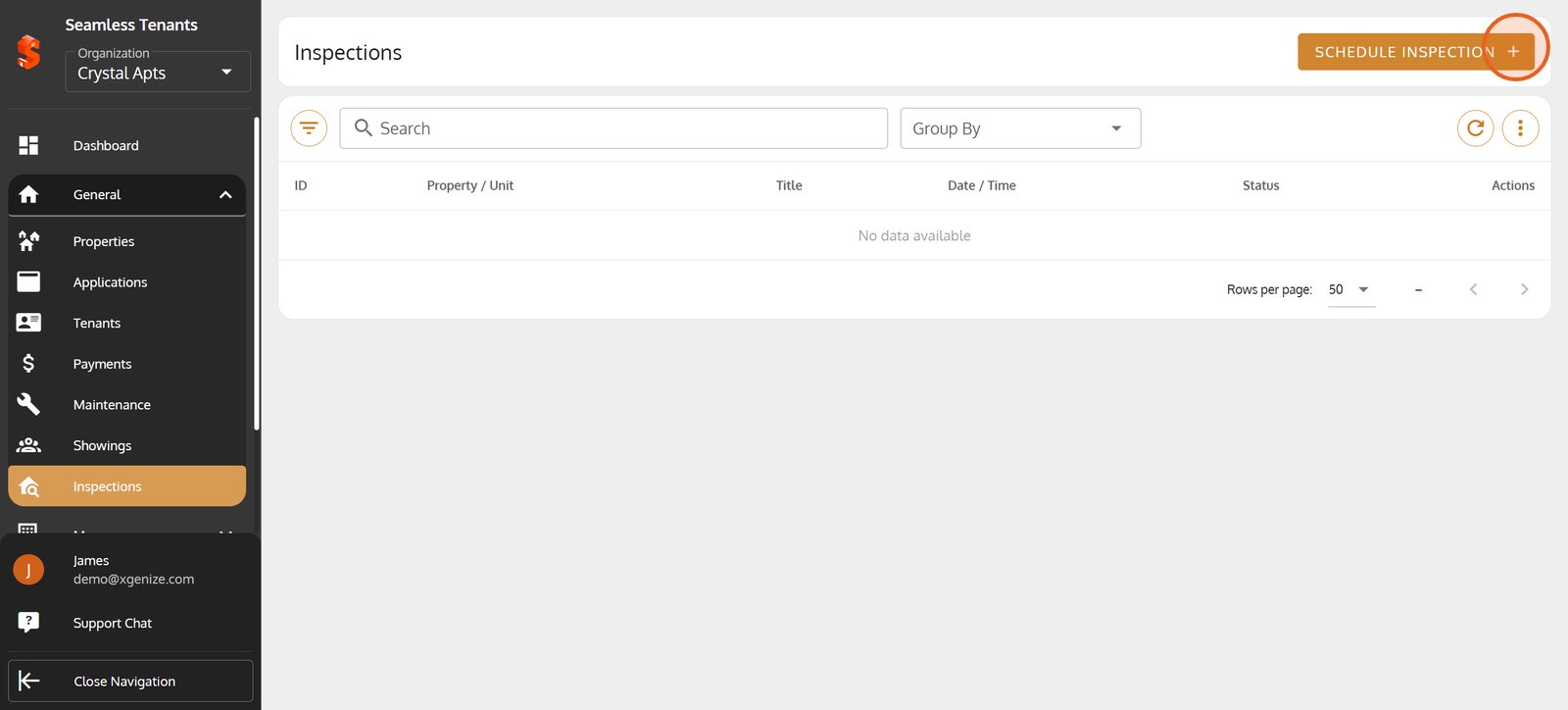
3. Start scheduling a new property inspection by selecting 'Schedule Inspection'.
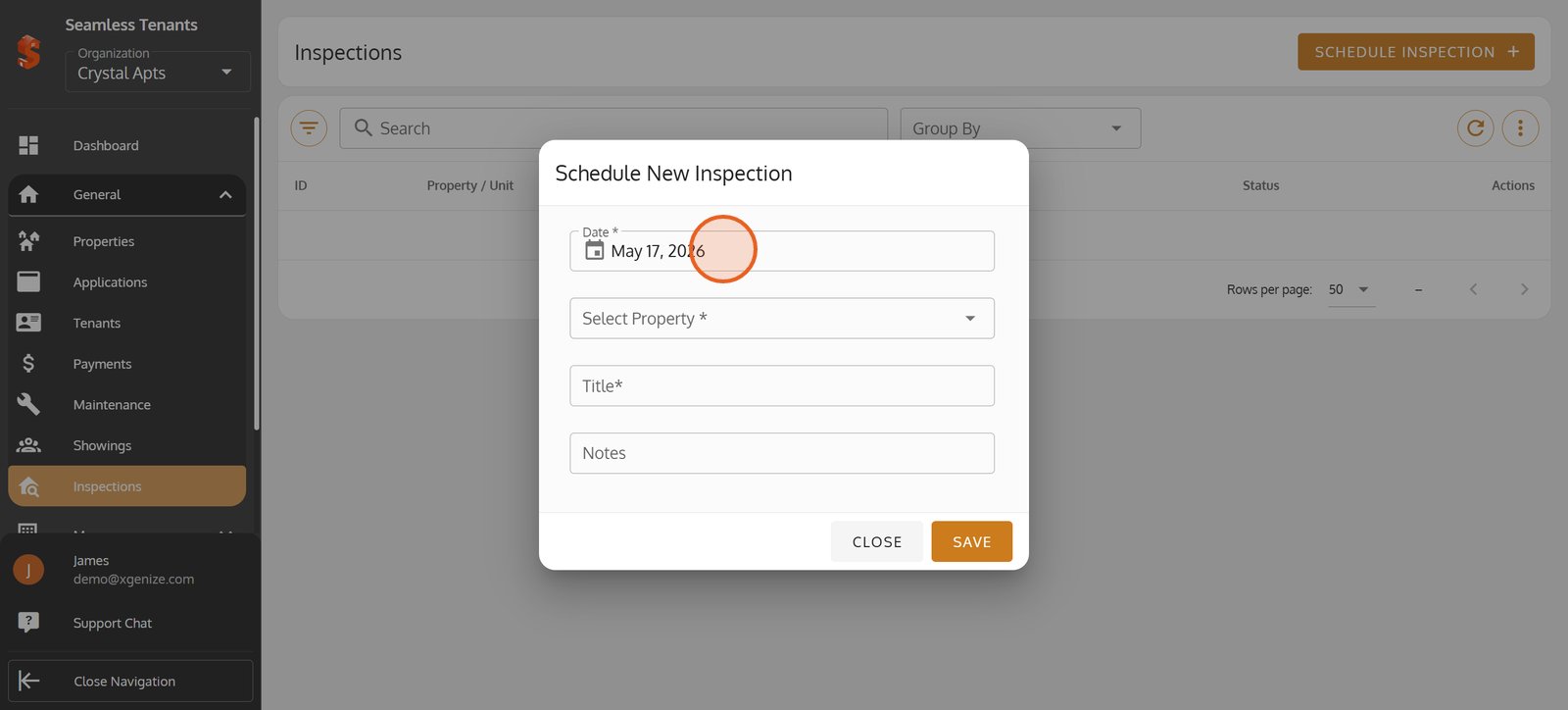
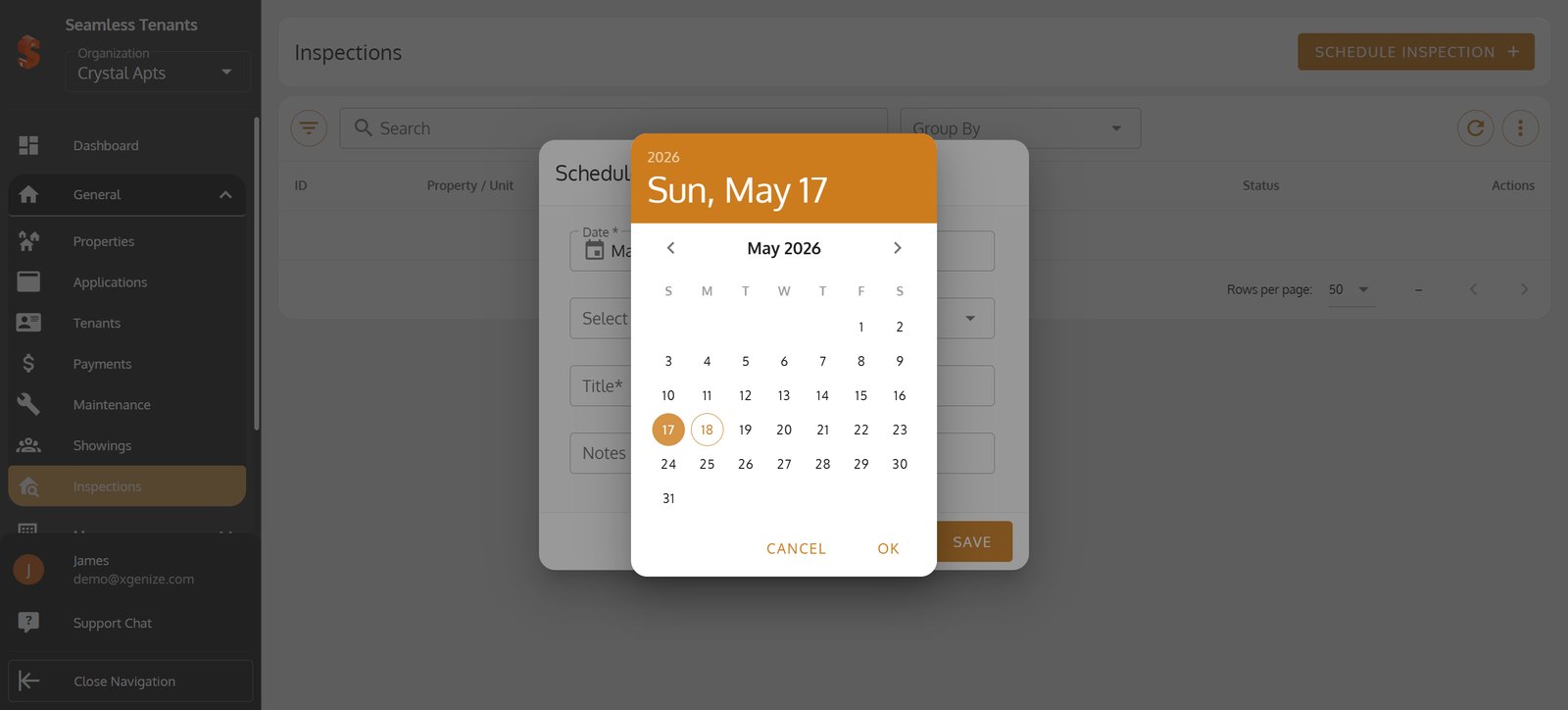
4. Click the date field to pick when the inspection will take place.
5.
6. Confirm your date selection with the 'OK' button.
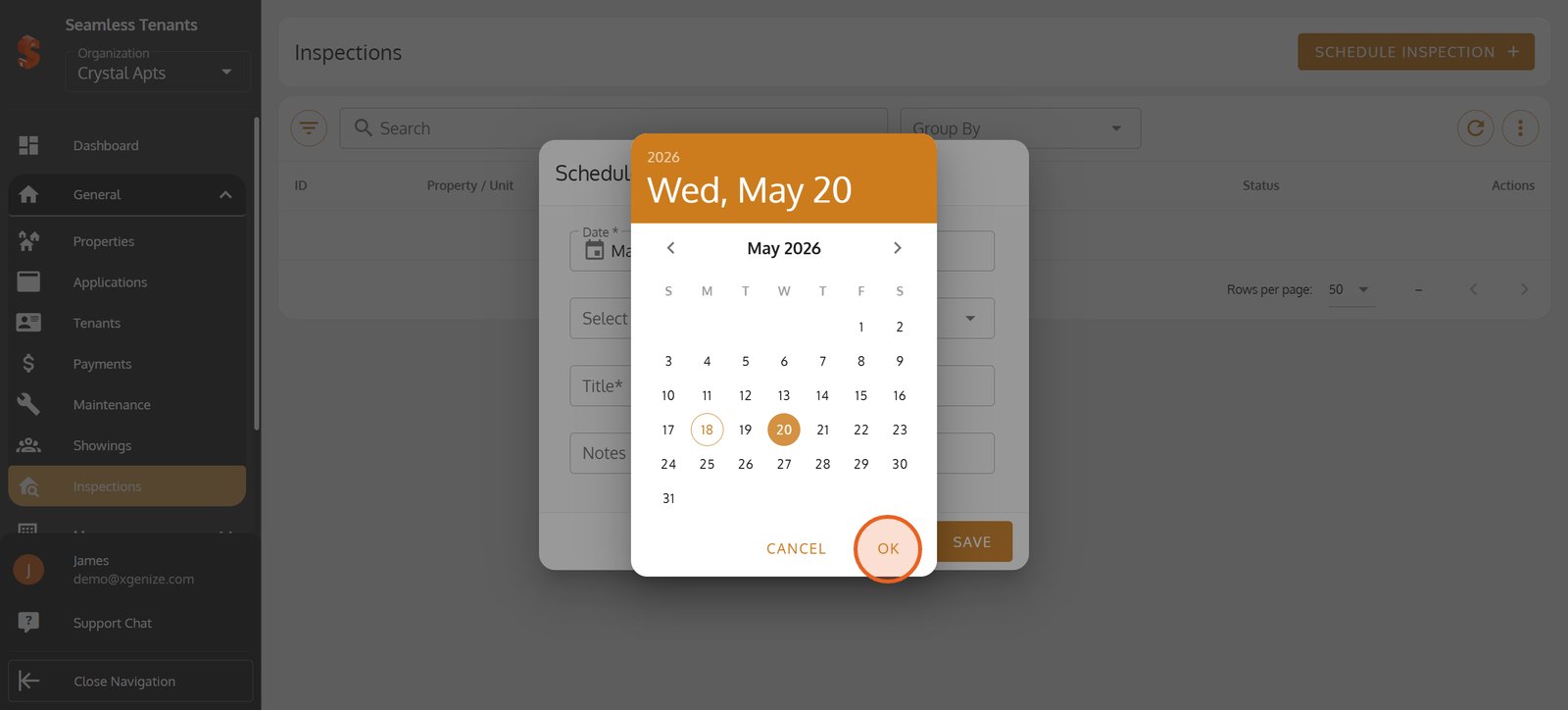
7.
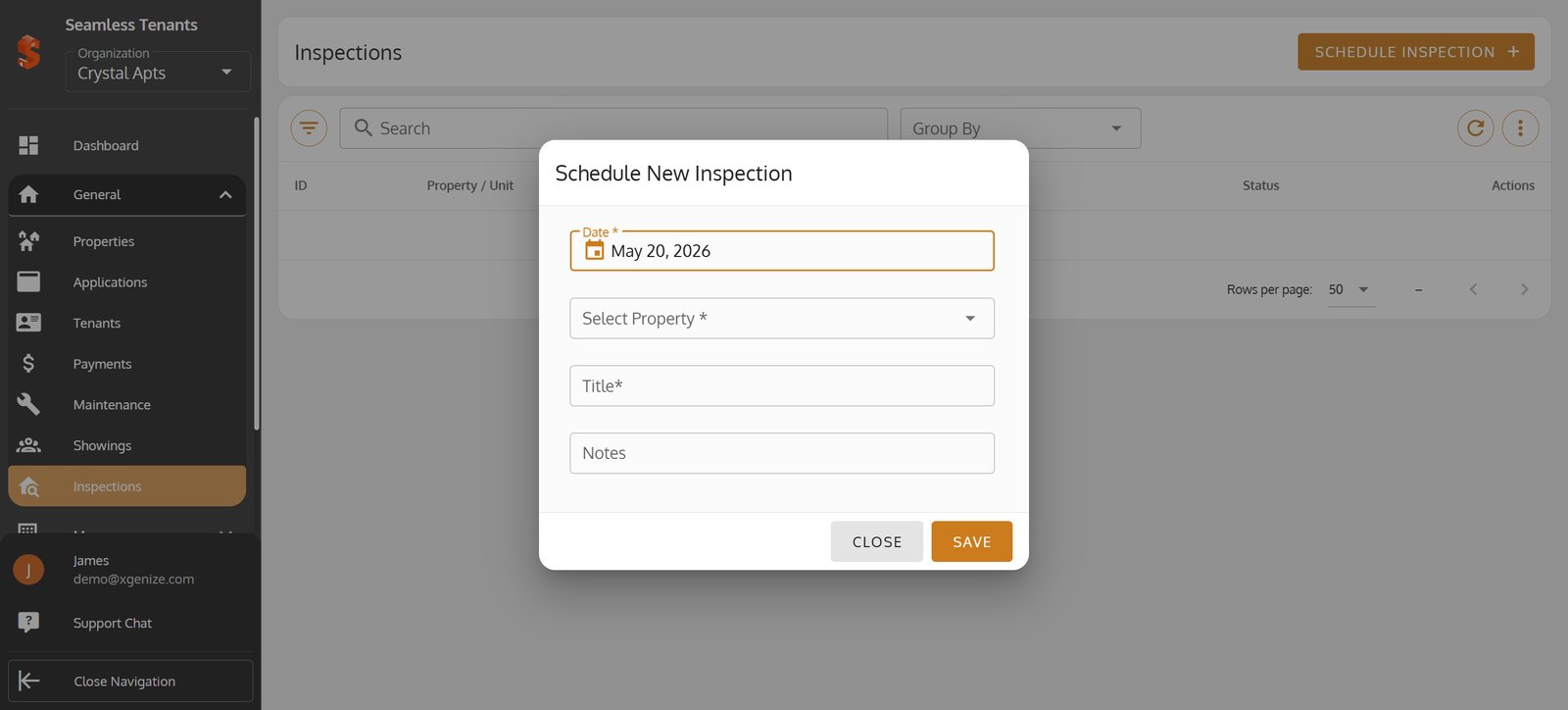
8.
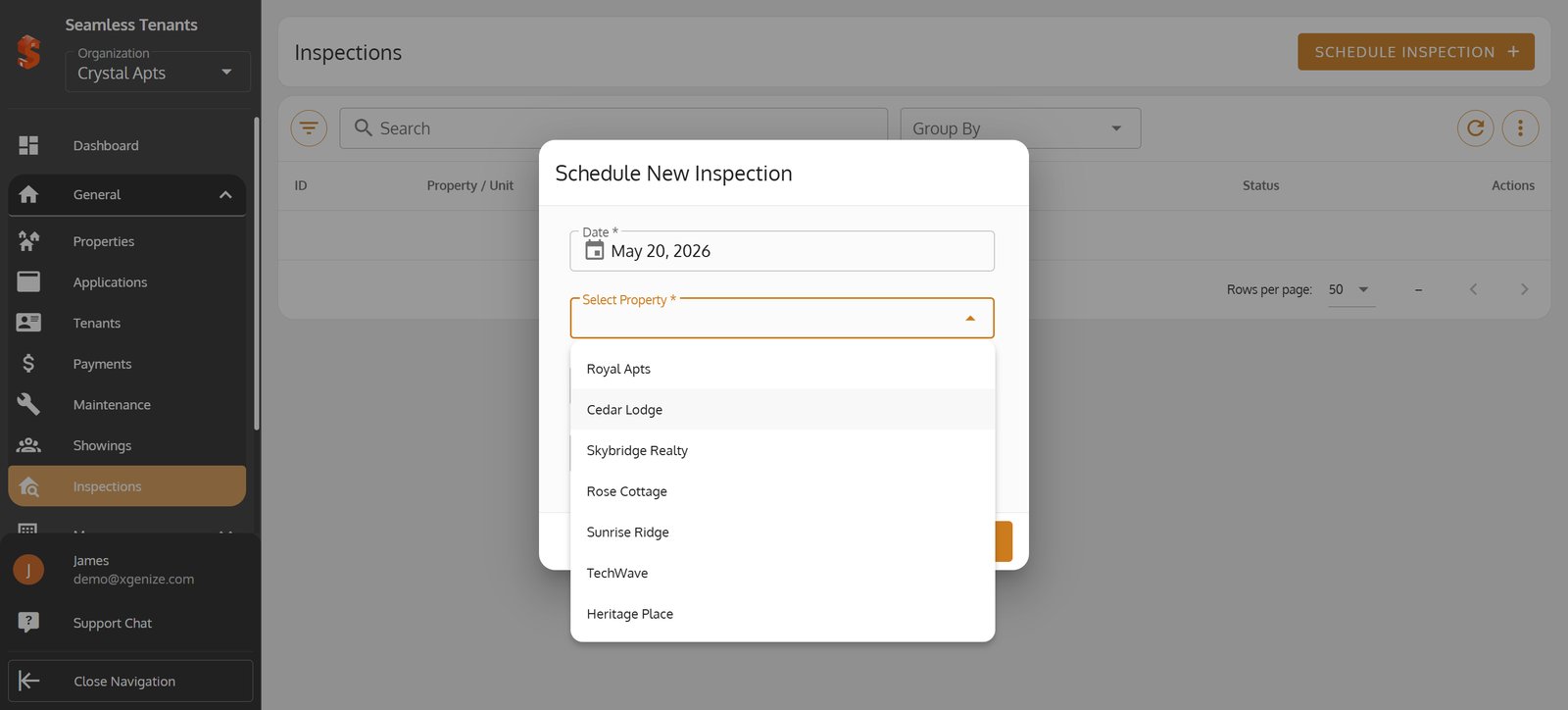
9.
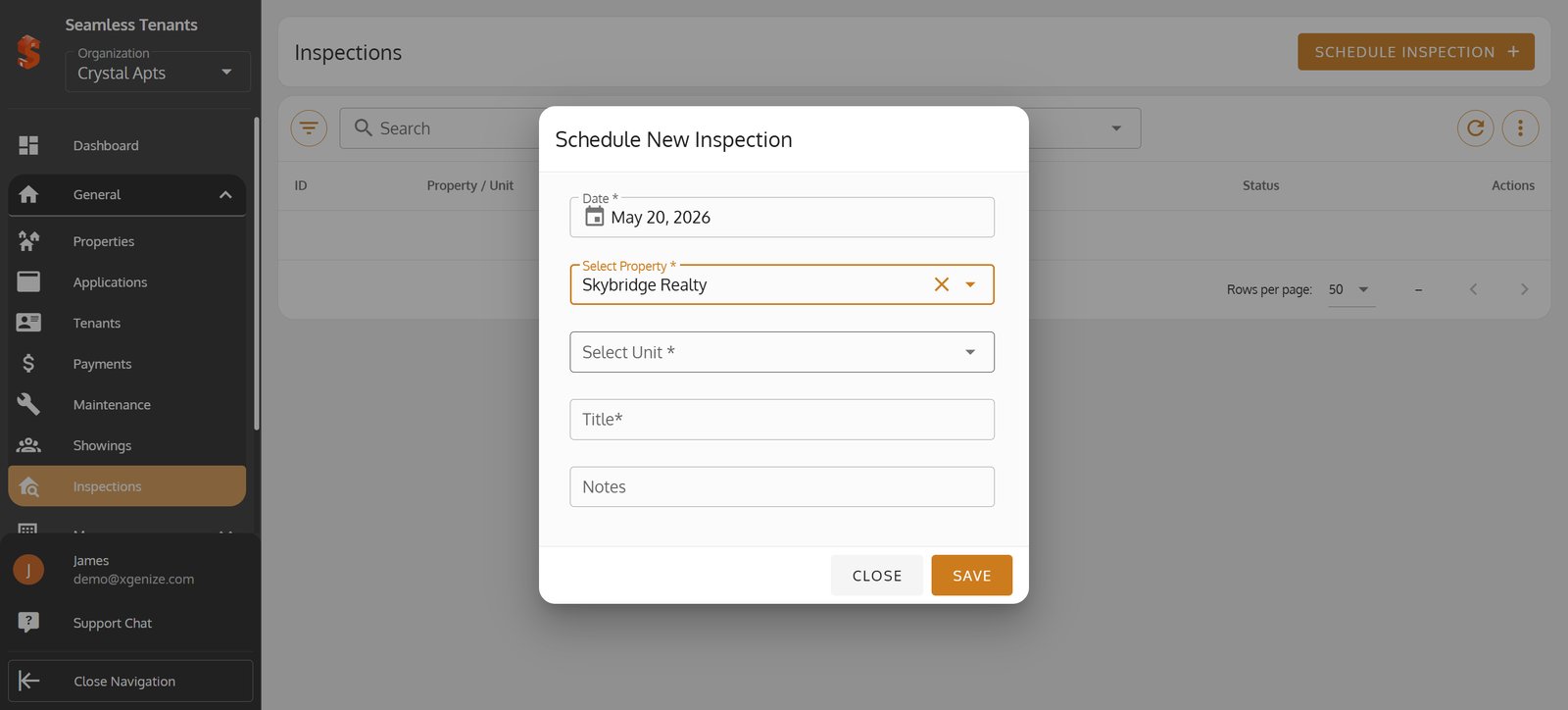
10.
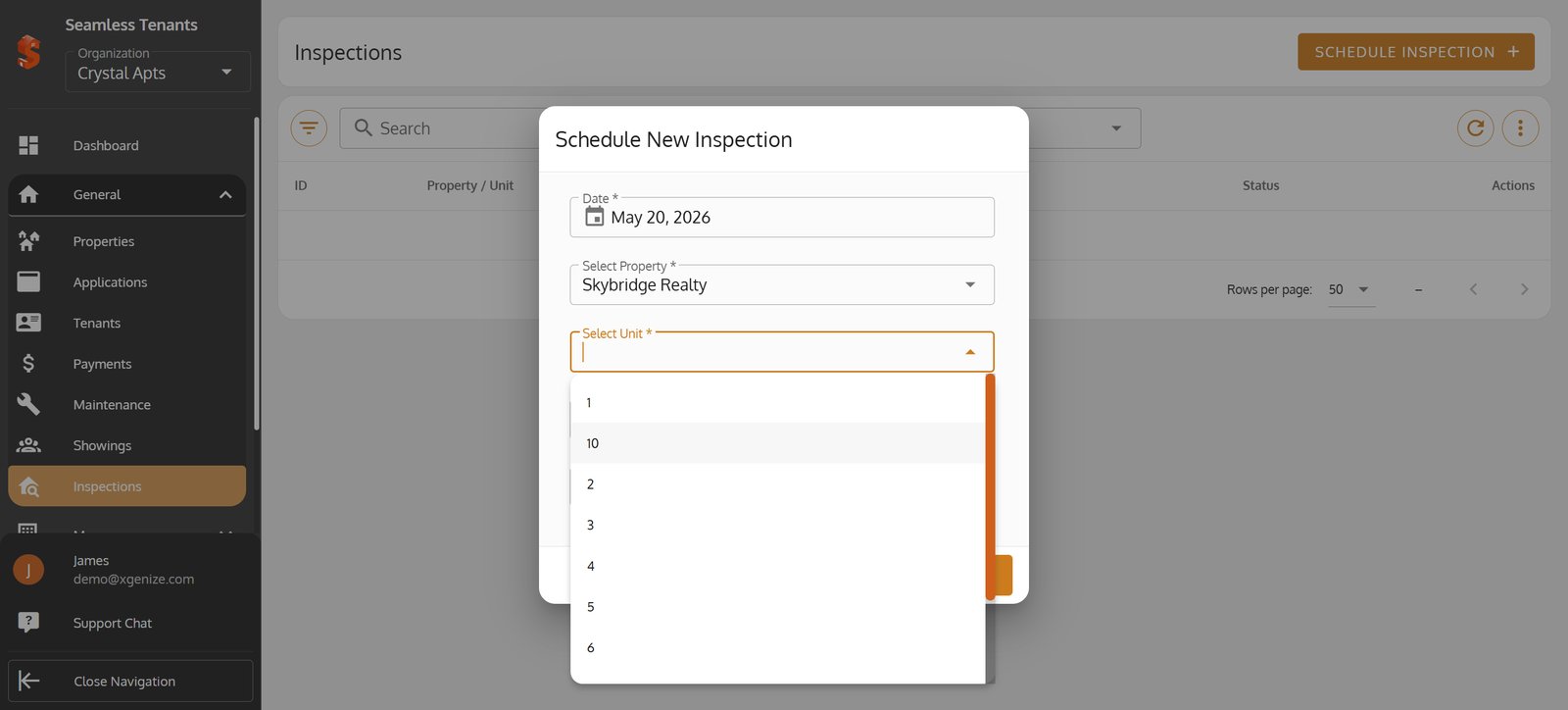
11.
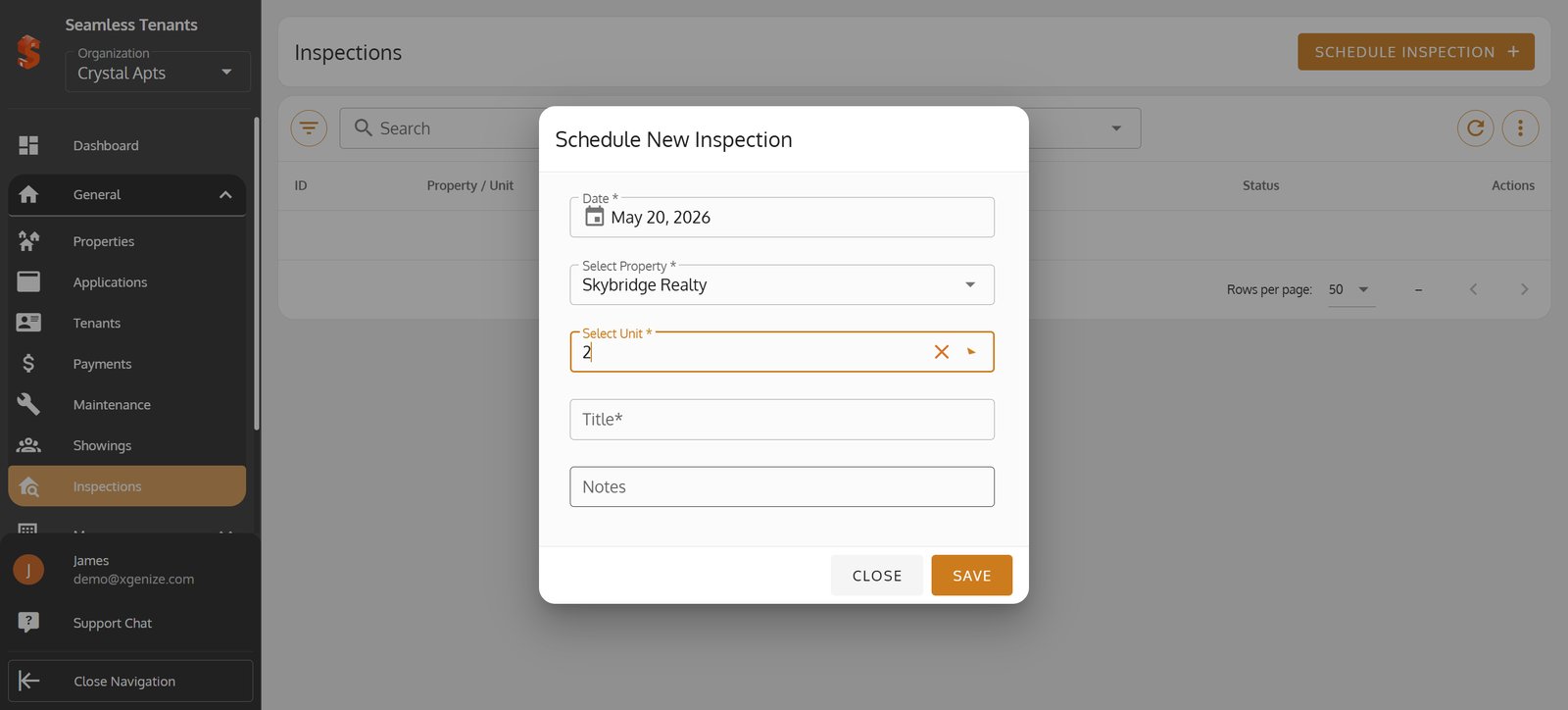
12.
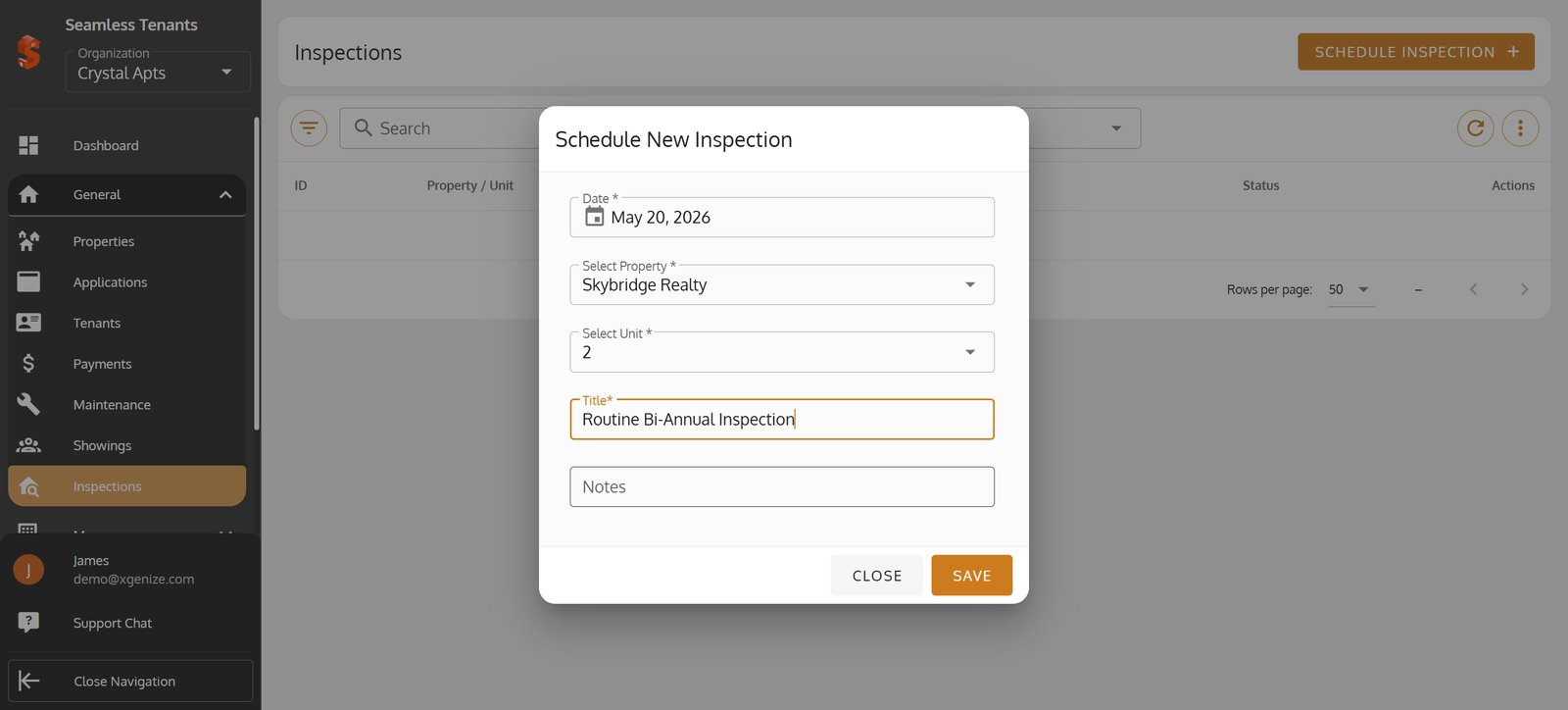
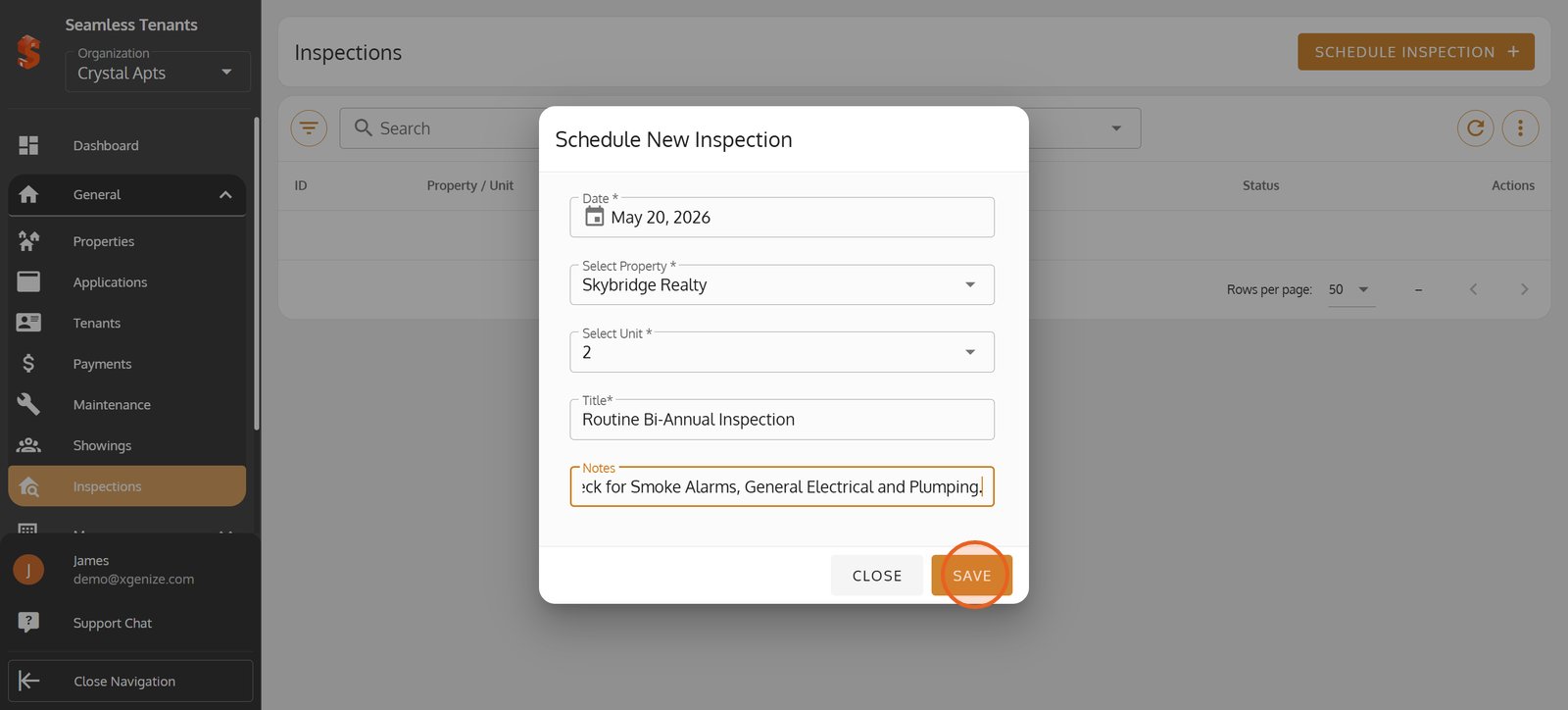
13. Click 'SAVE' to officially schedule the property inspection.
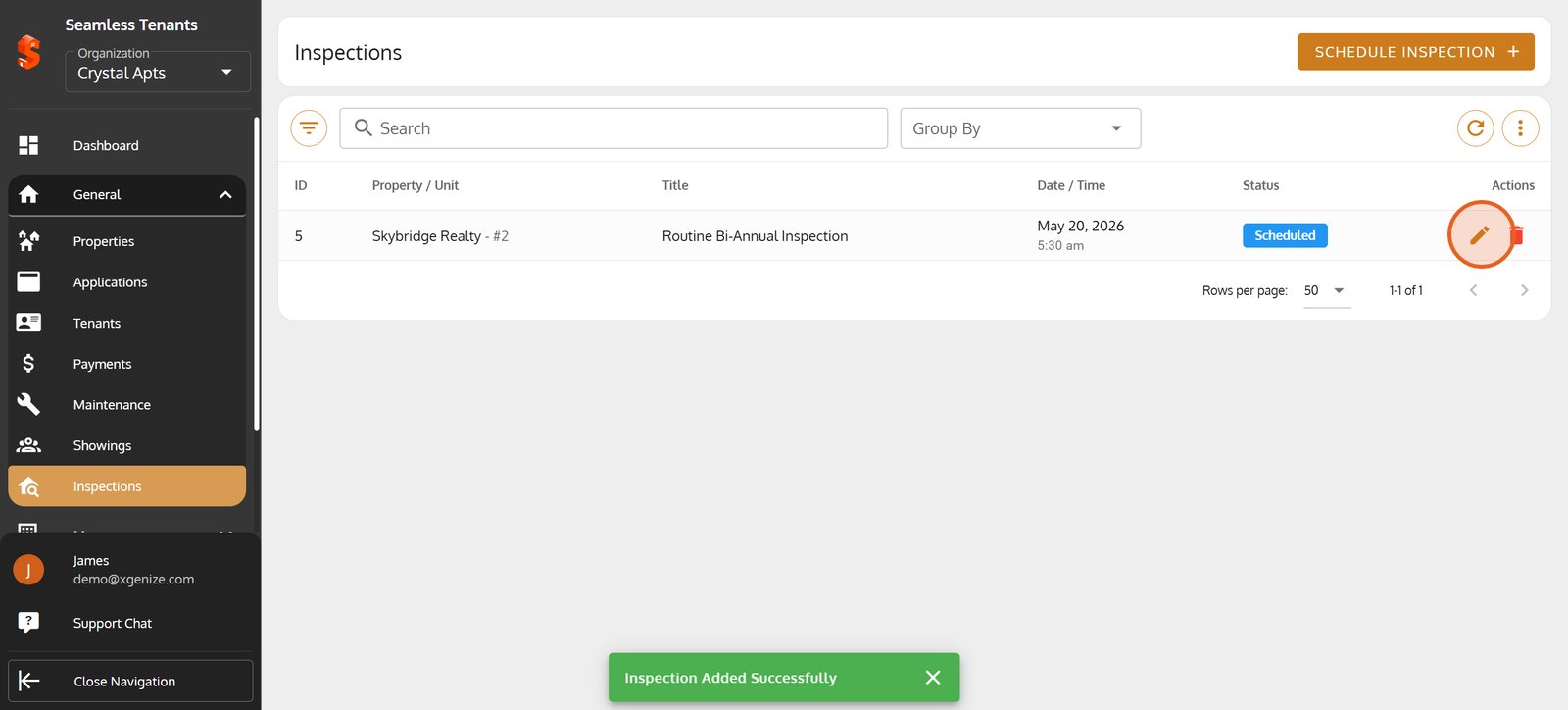
14. Edit an existing inspection anytime by selecting the pencil icon.
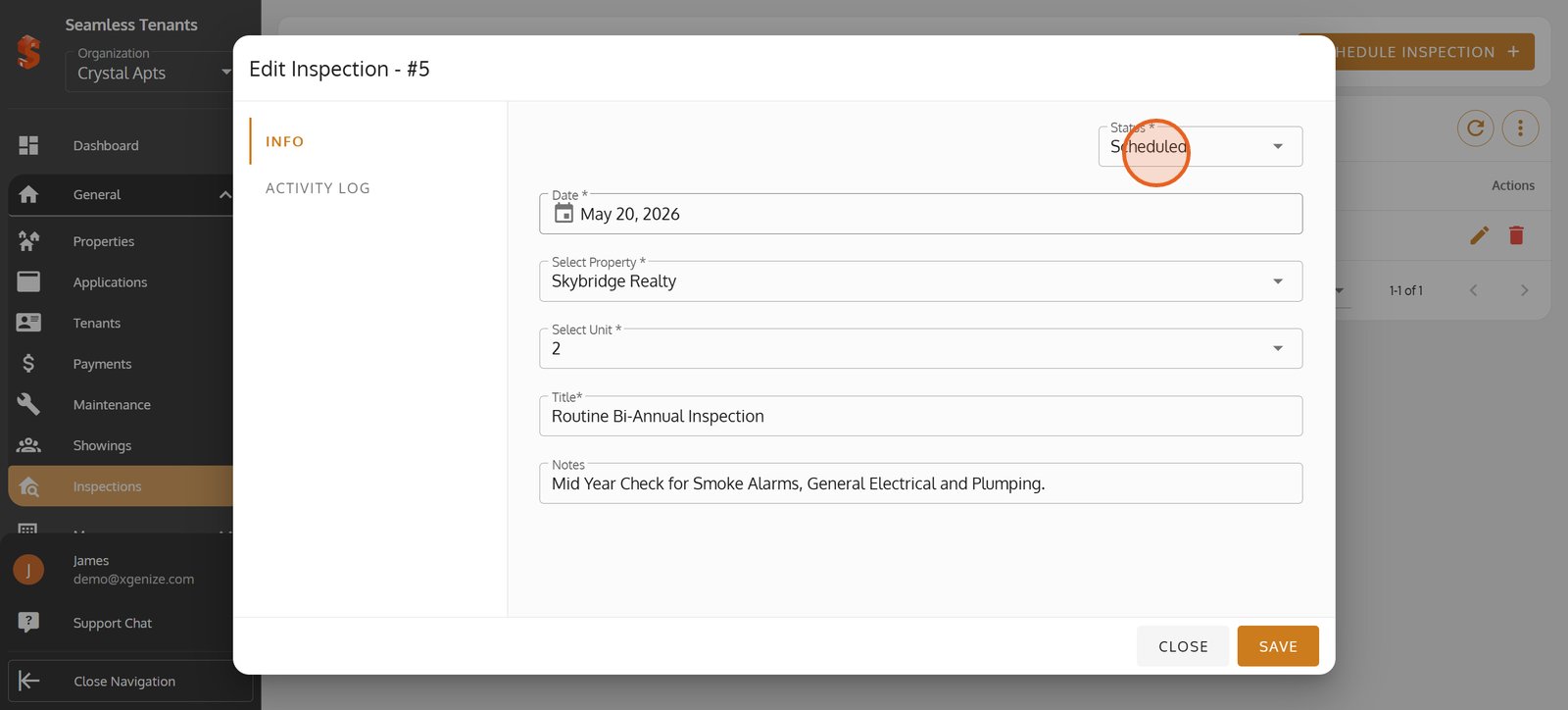
15. Update the inspection's status to keep your records accurate and up-to-date.
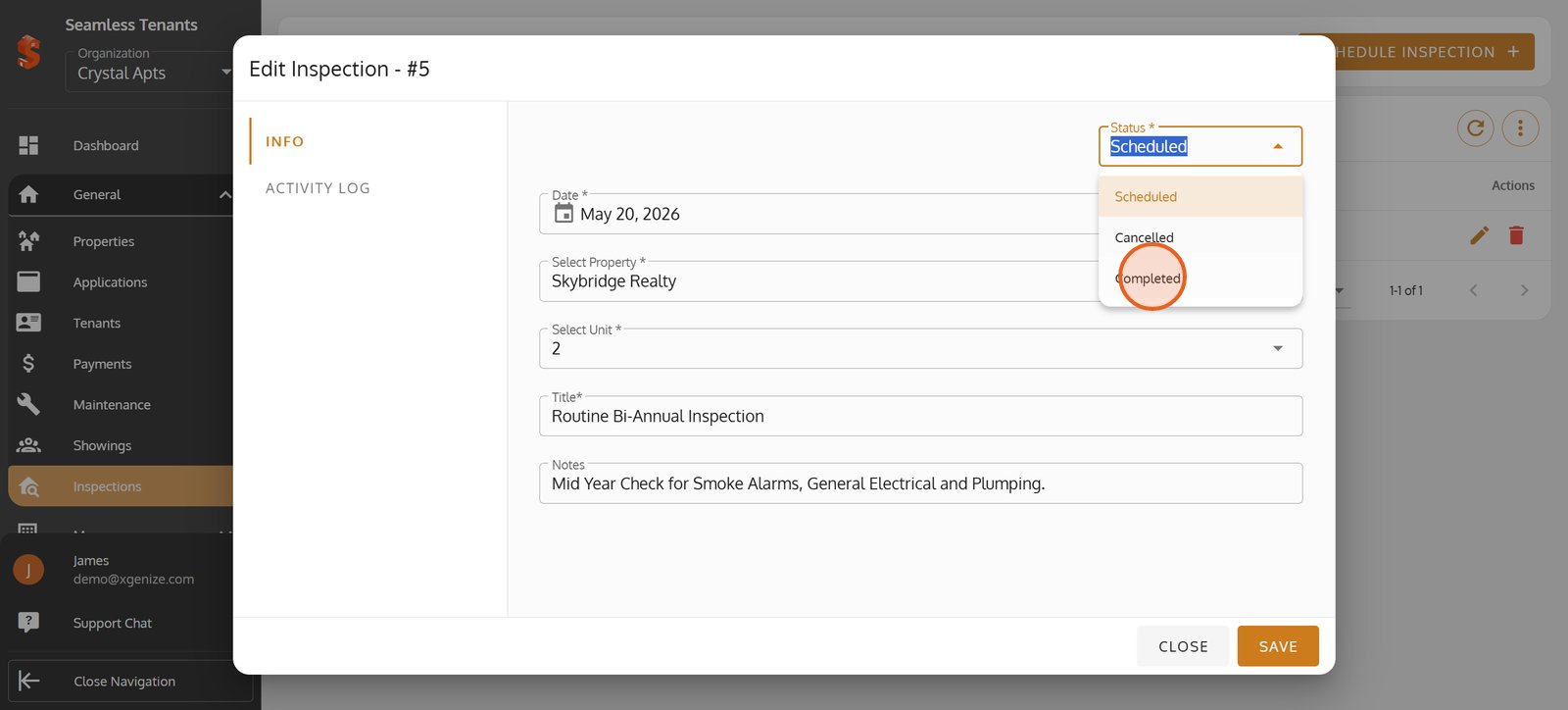
16. Mark the inspection as 'Completed' with just one click.
17. Track progress by reviewing the full inspection activity log.
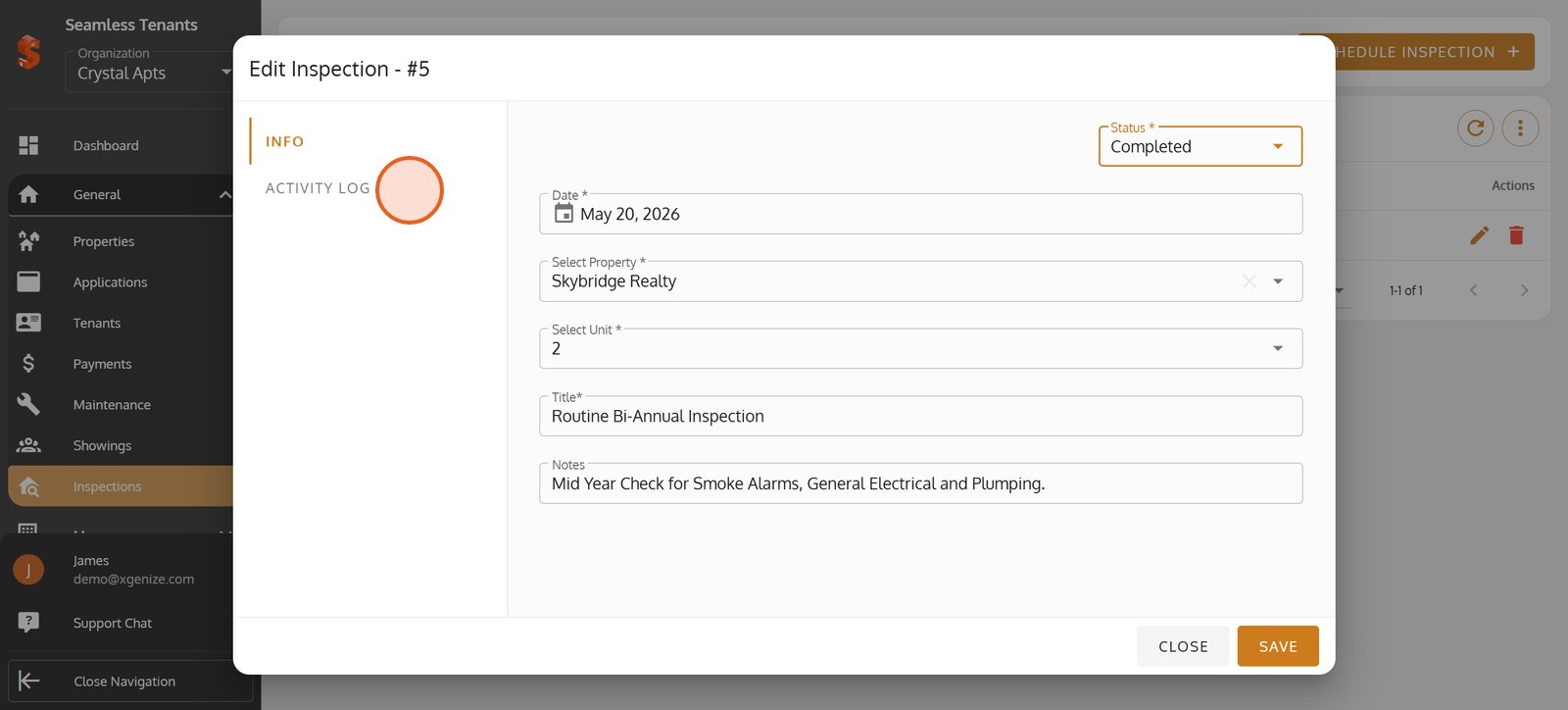
18. Save your changes to ensure every inspection detail is up-to-date.
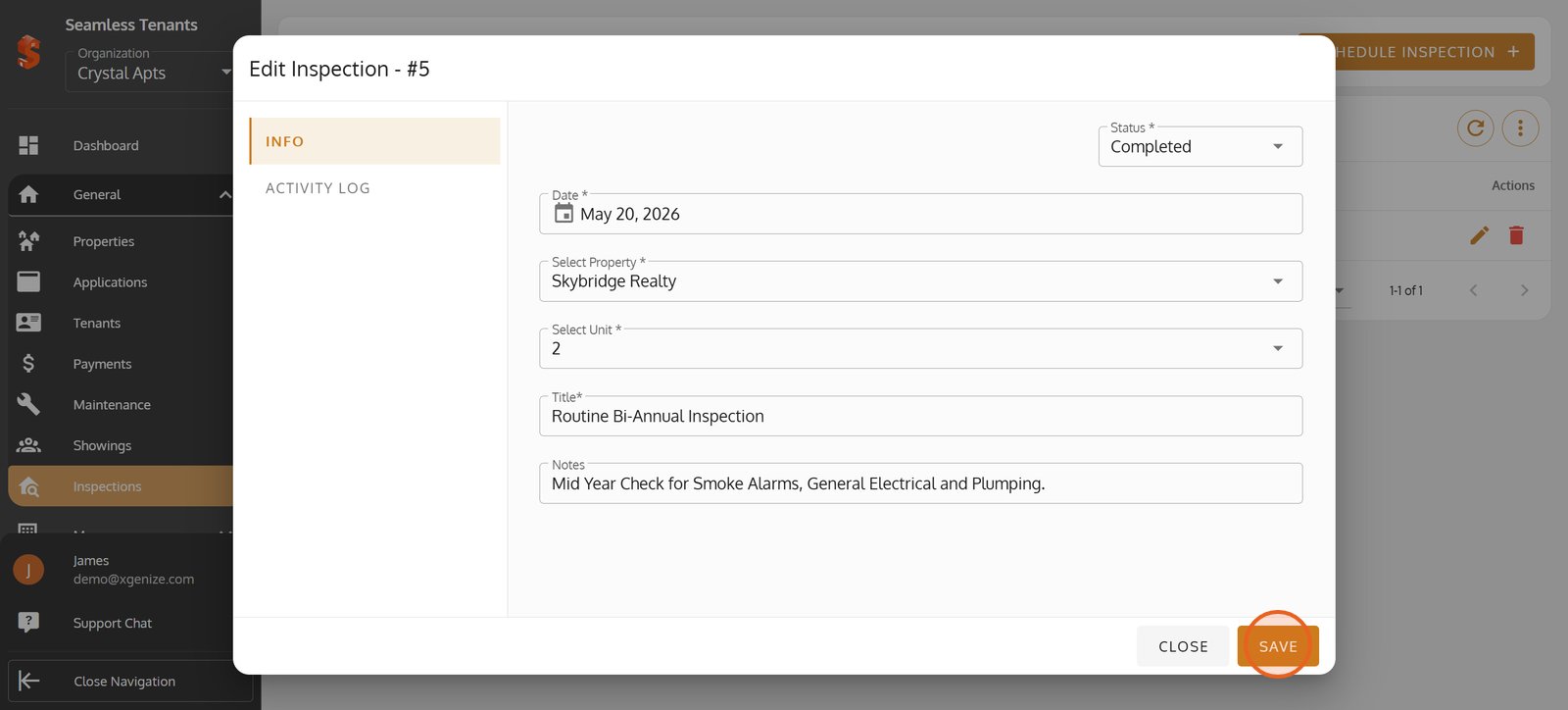
19.
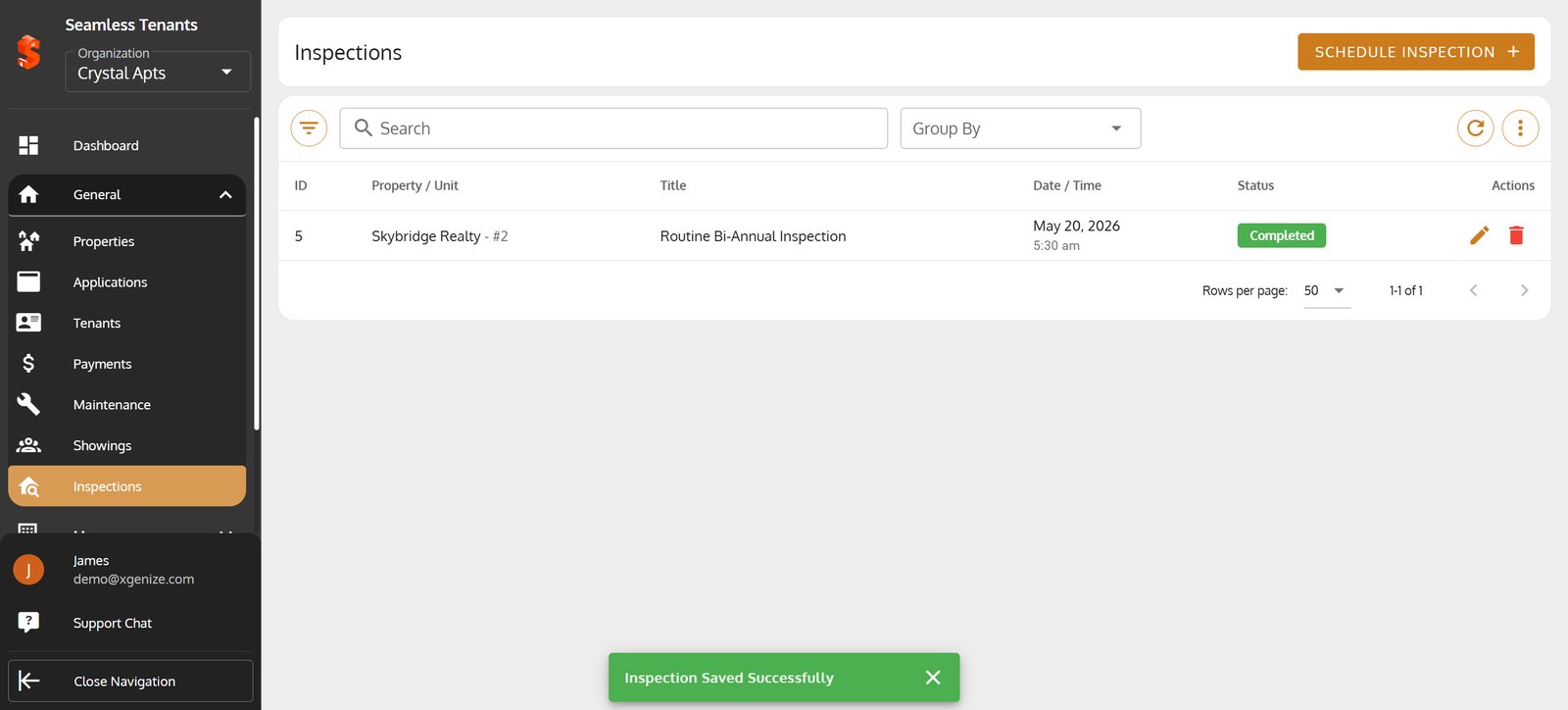
20. Click the filter icon to quickly find relevant inspection records.
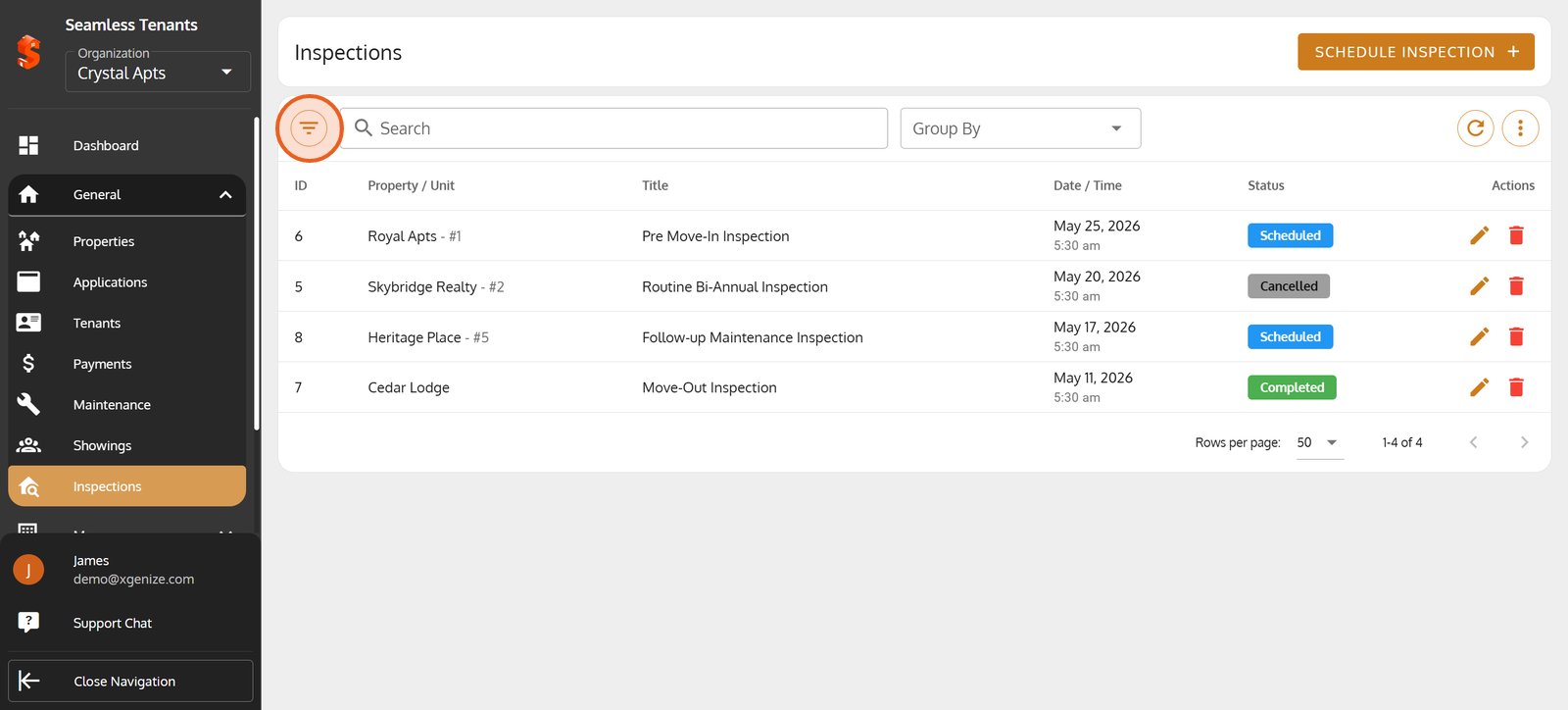
21. Choose the status dropdown to focus on scheduled, completed, or cancelled inspections.
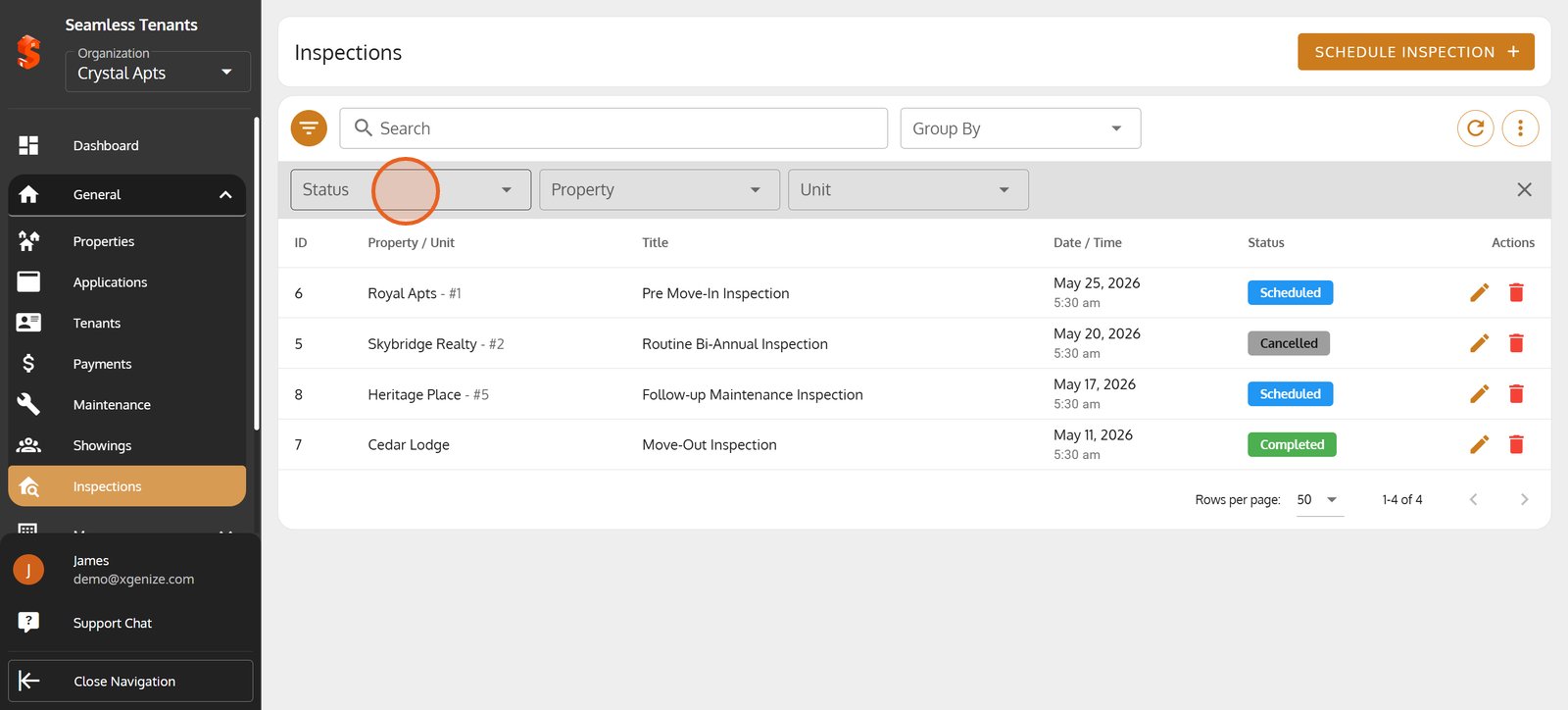
22. Select Scheduled to instantly see all upcoming inspections.
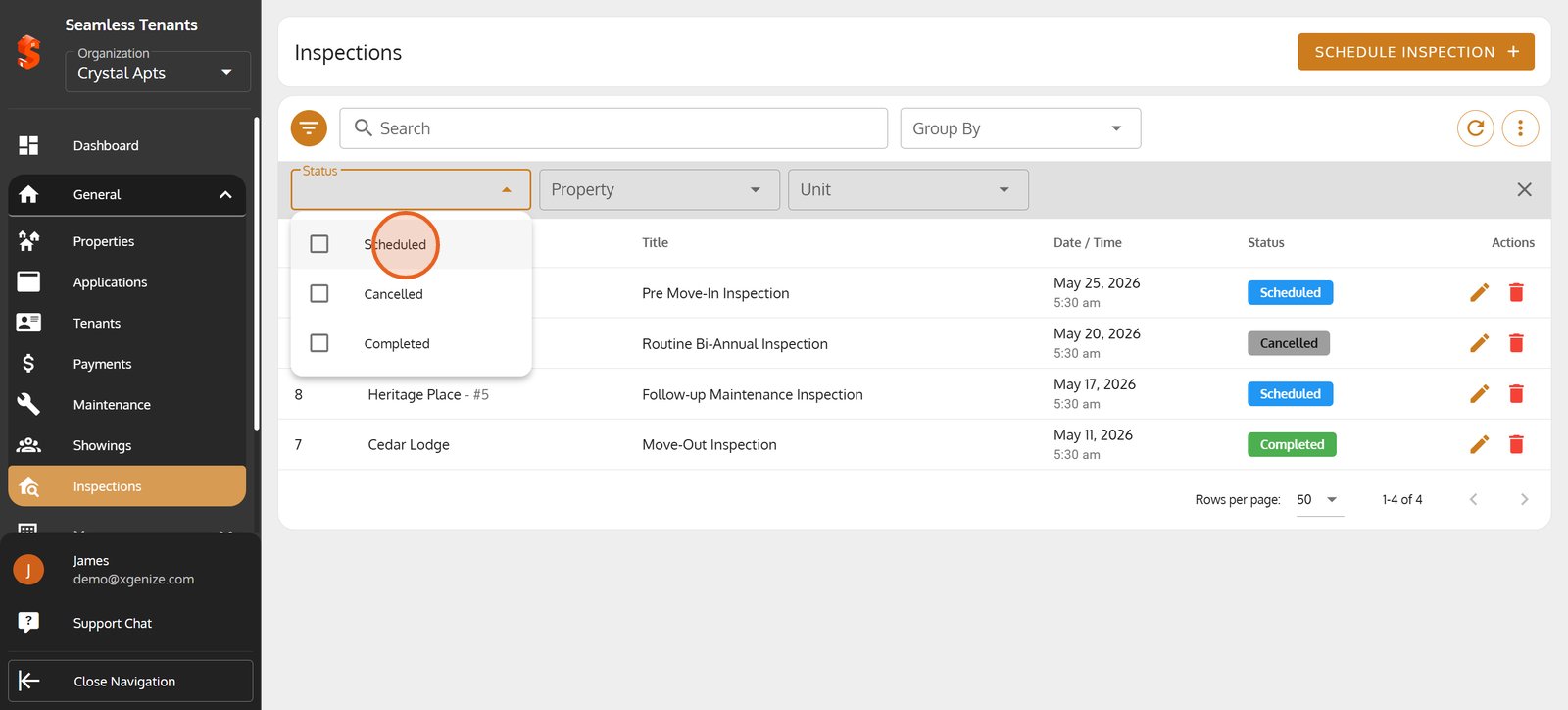
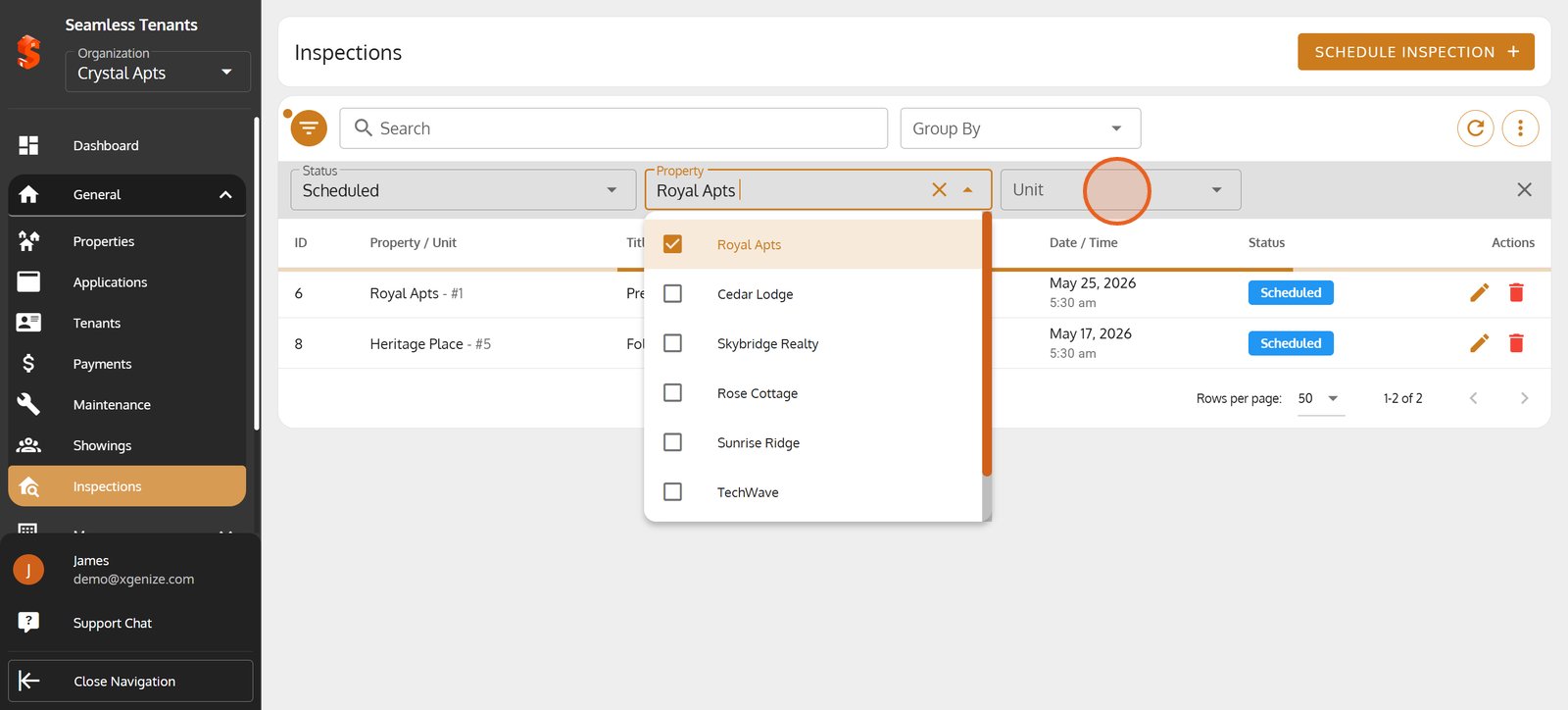
23. Click Property to filter inspections by specific locations you manage.
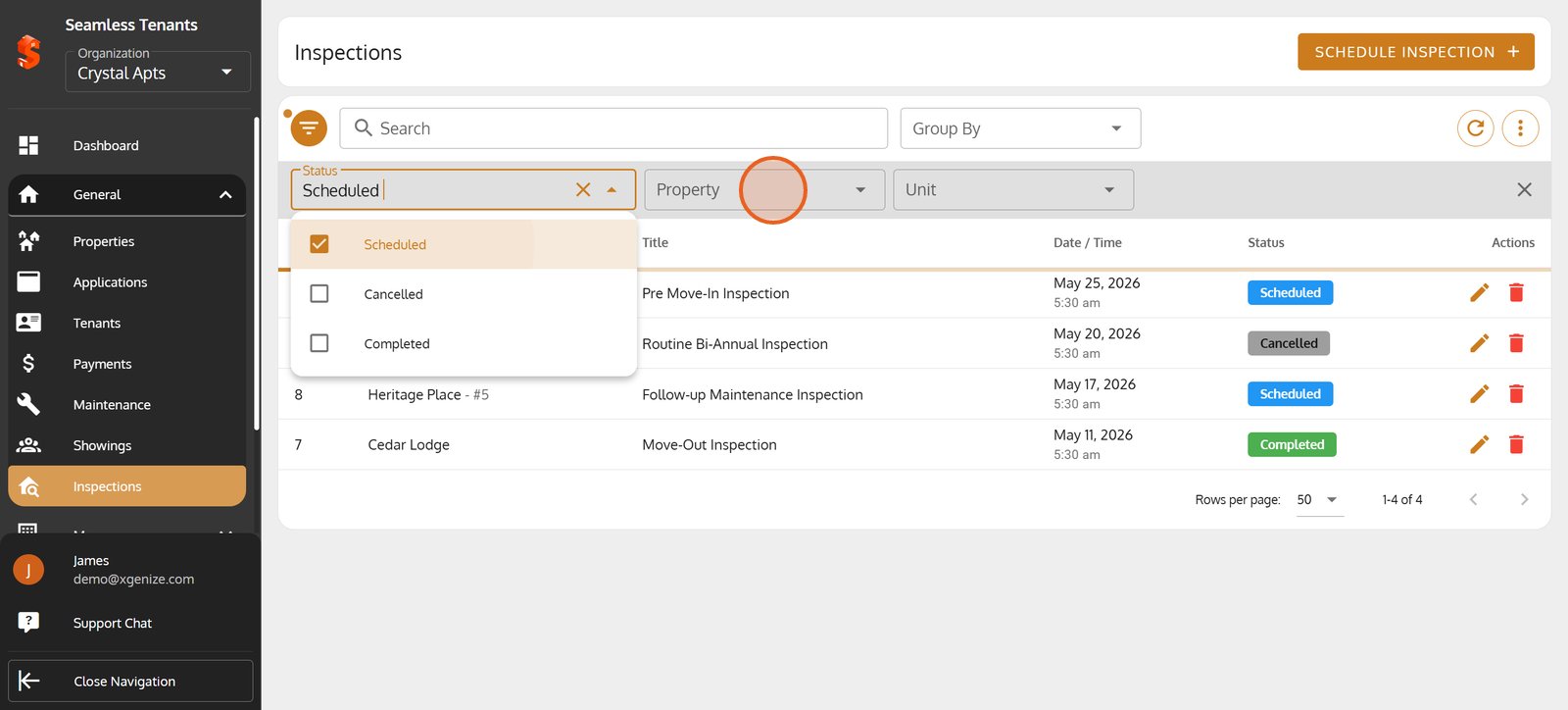
24. Check the box for any property to display only inspections at specific property.
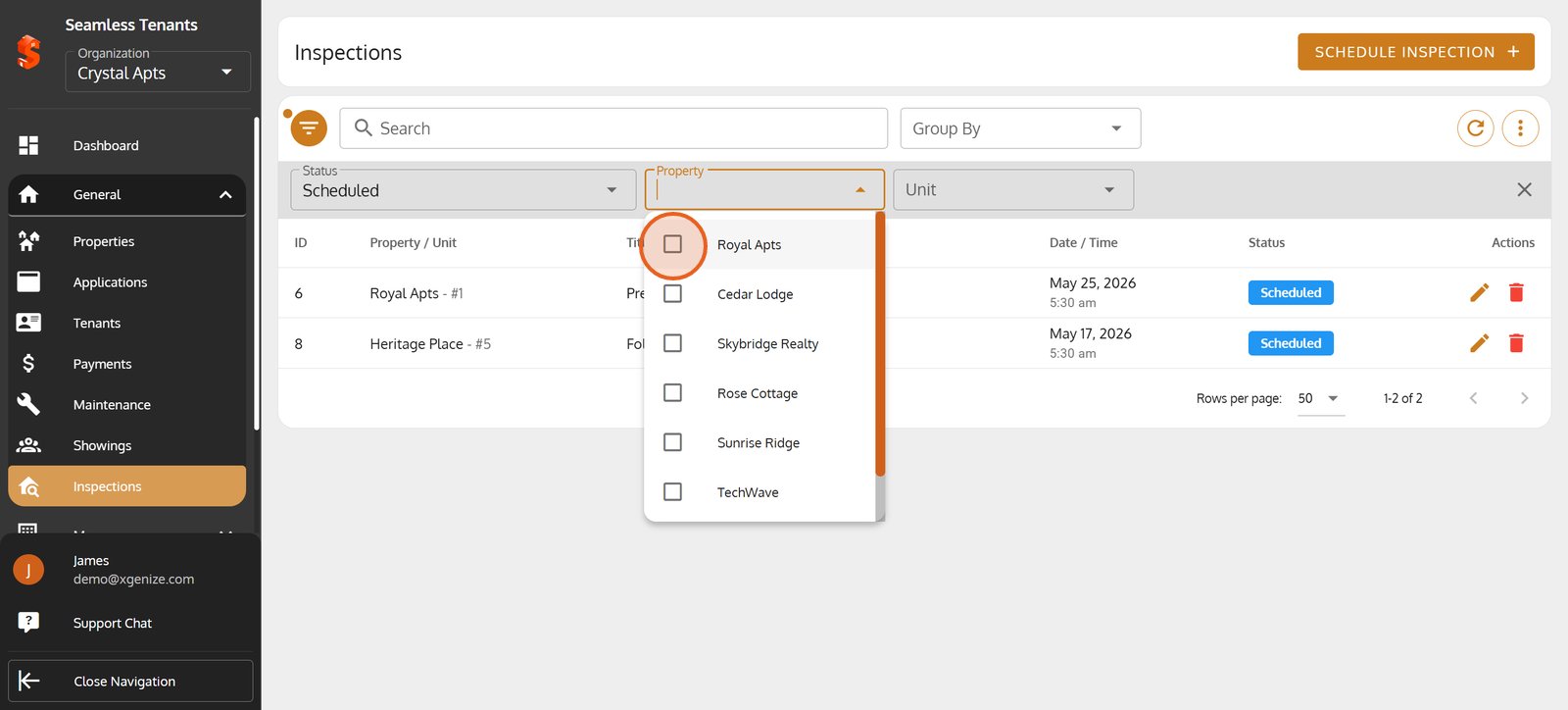
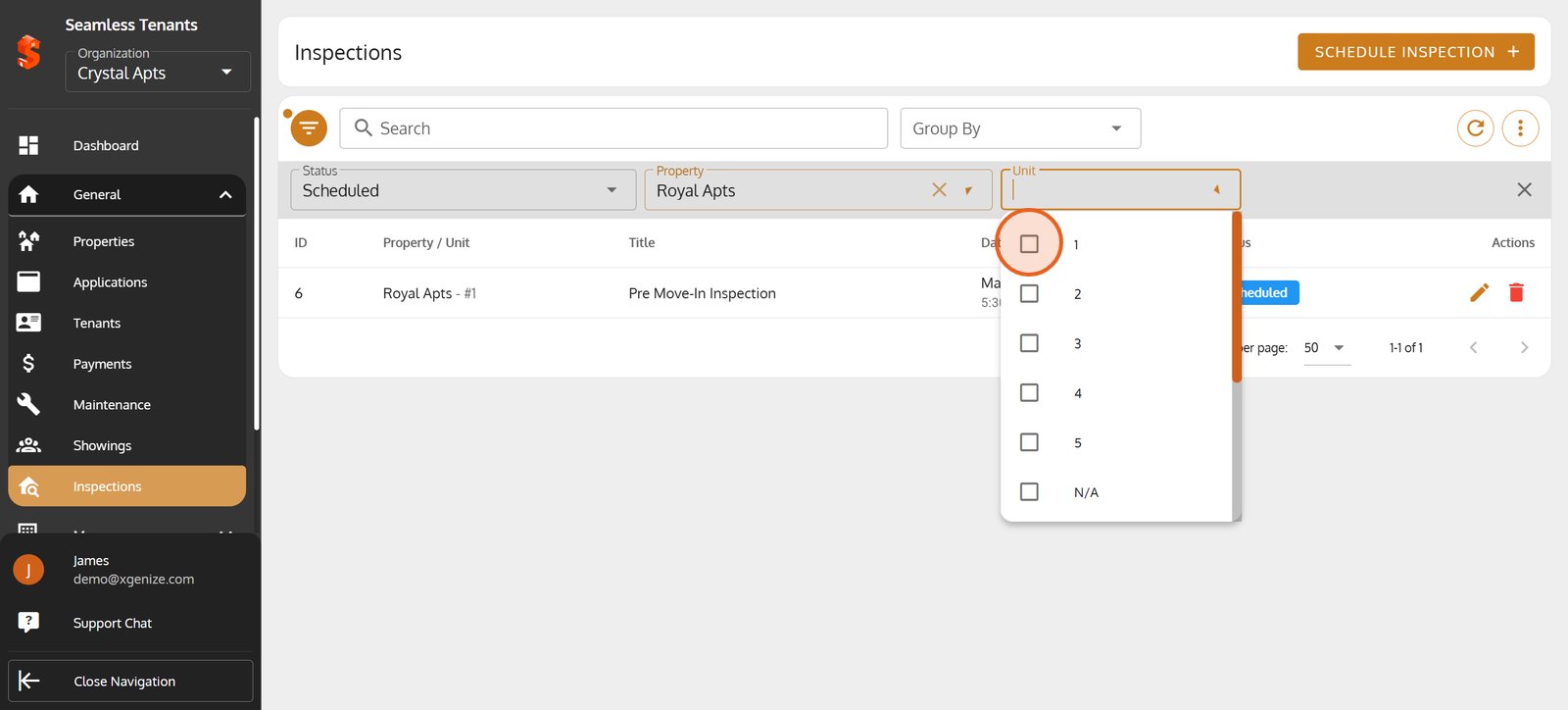
25. Use the Unit filter to streamline results down to a particular apartment.
26. Highlight and select unit 1 to view inspections for just that unit.
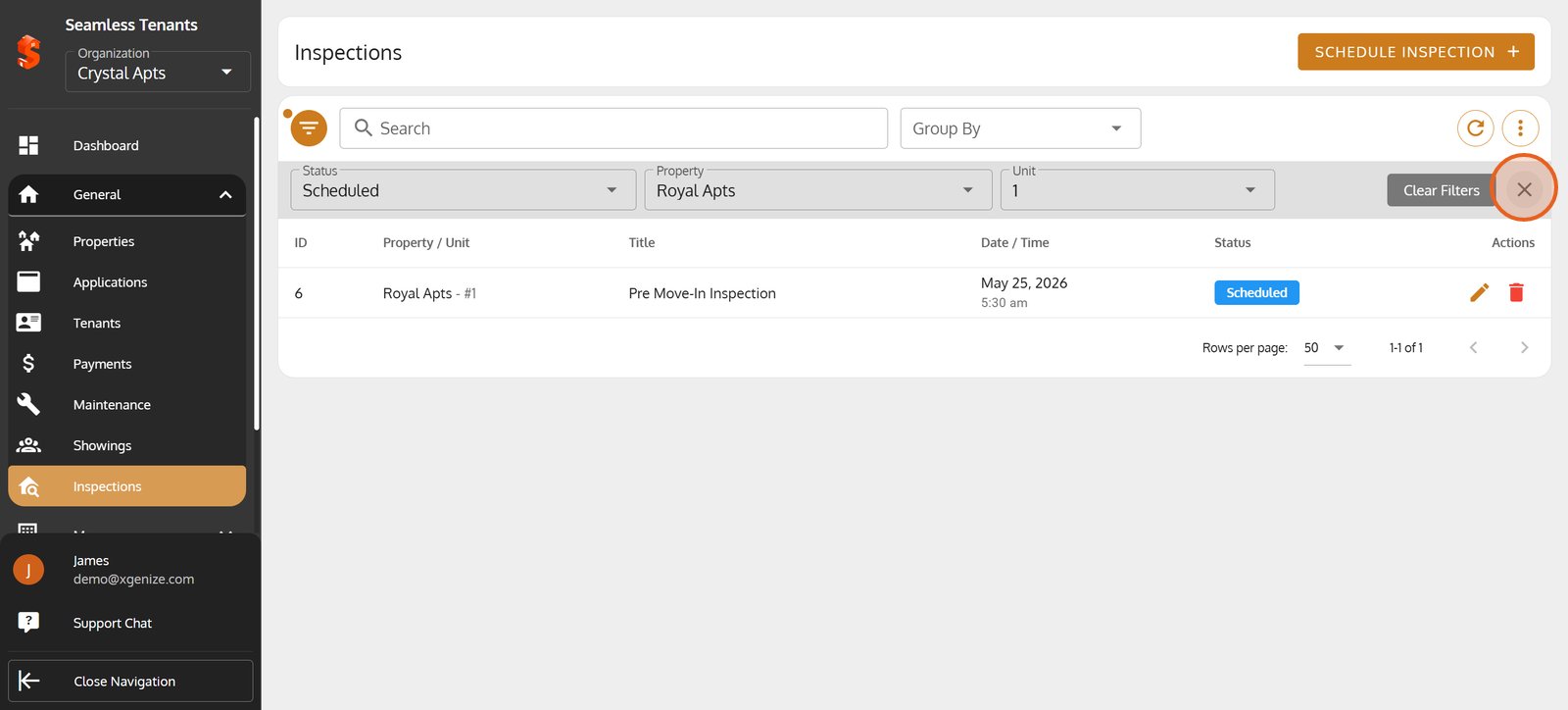
27. Close the filter panel to return to your filtered inspection list.
28. Click the Delete icon to remove a cancelled inspection from your records.
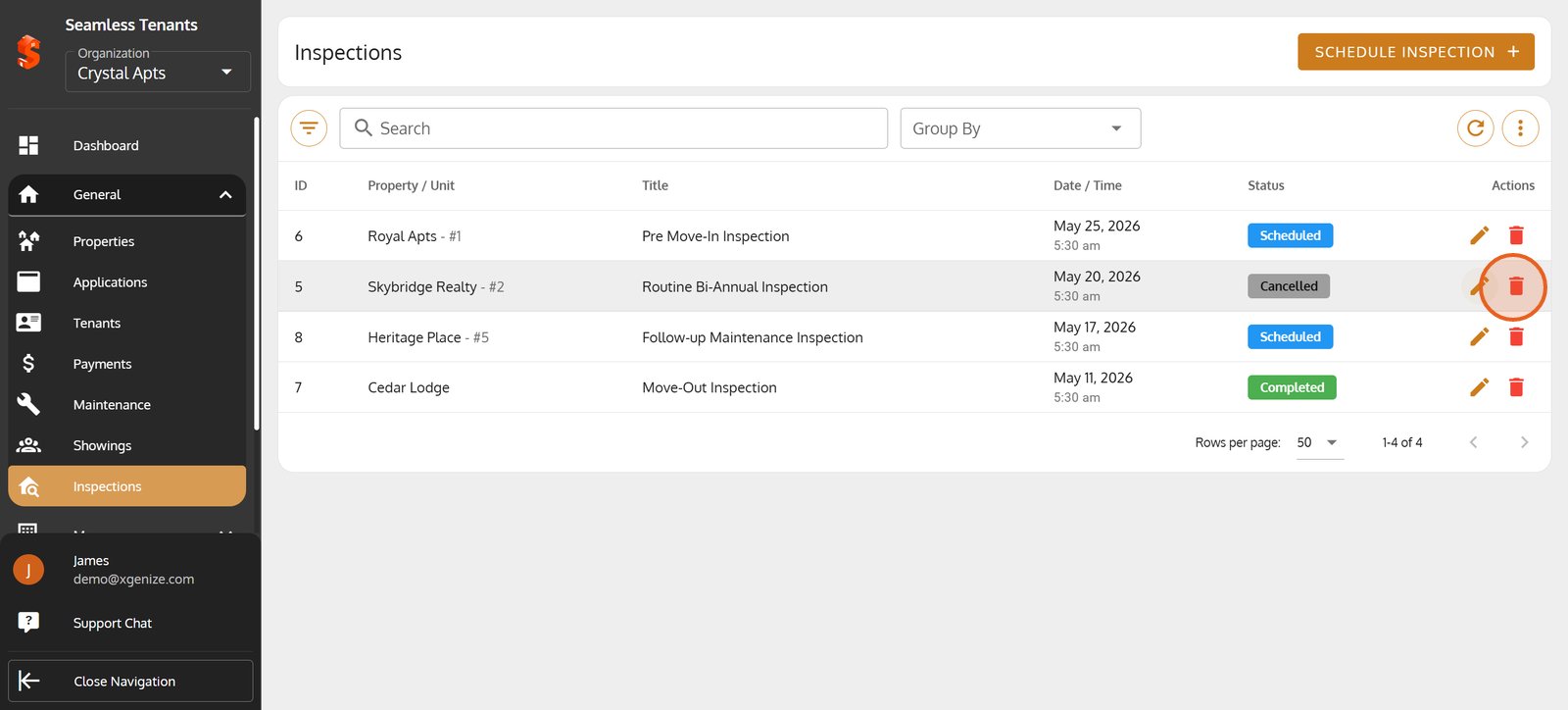
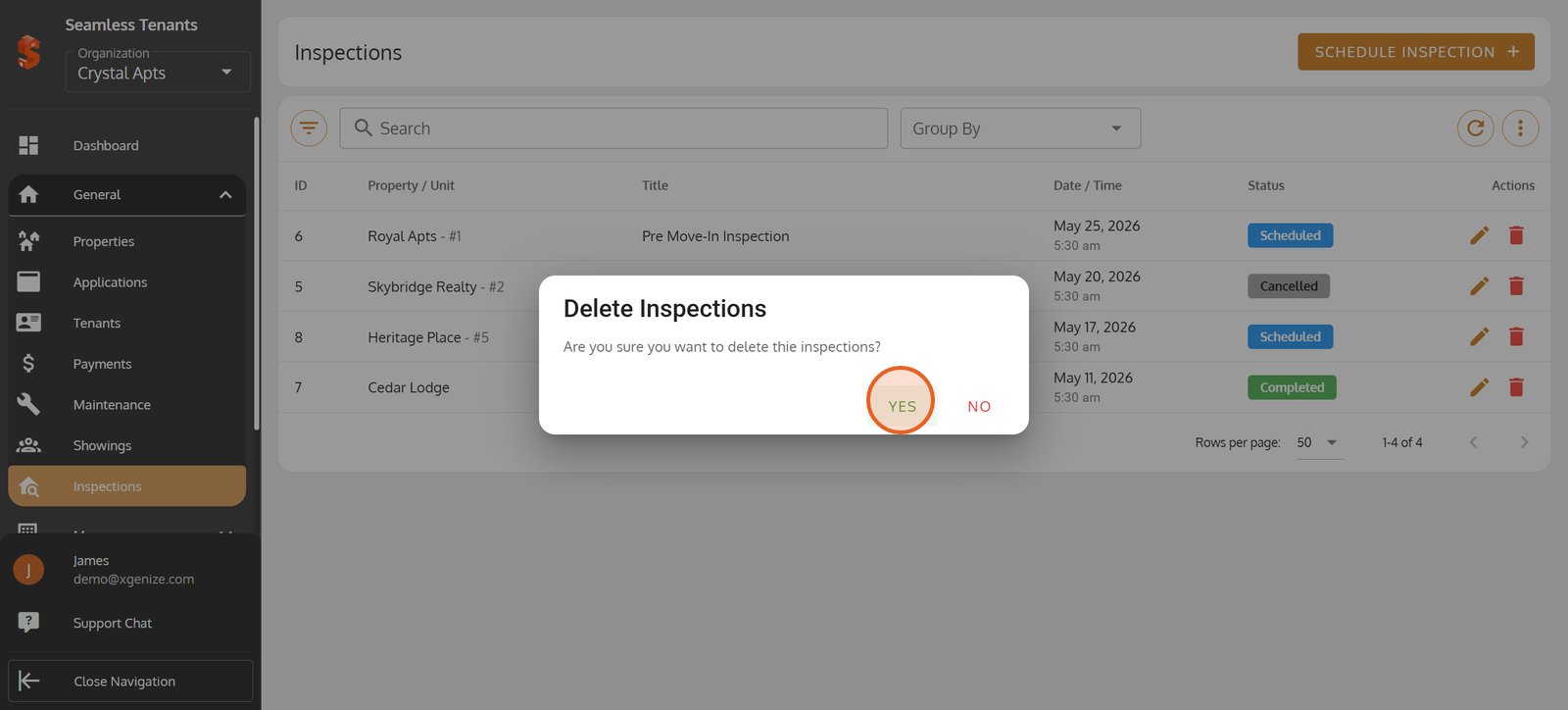
29. Confirm by clicking YES to permanently delete the selected inspection.
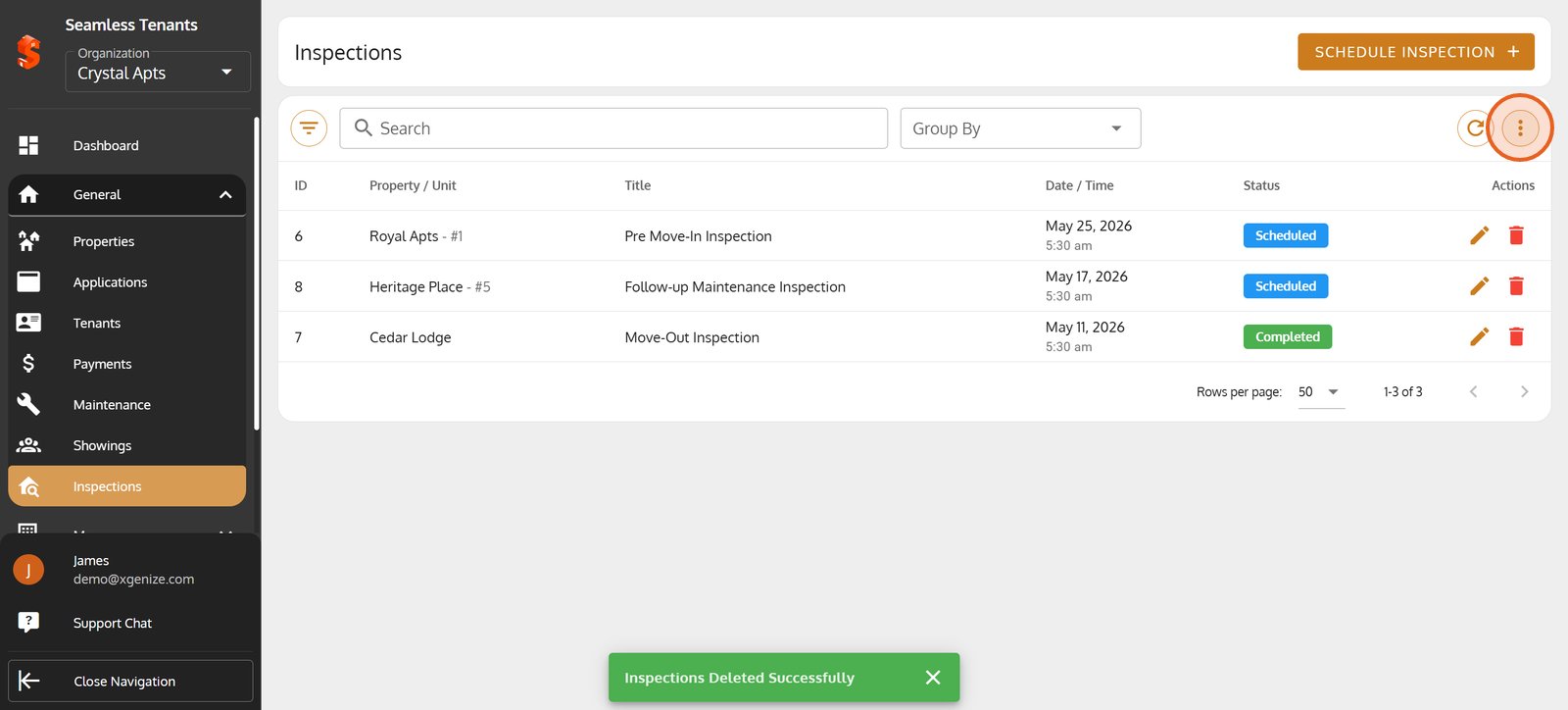
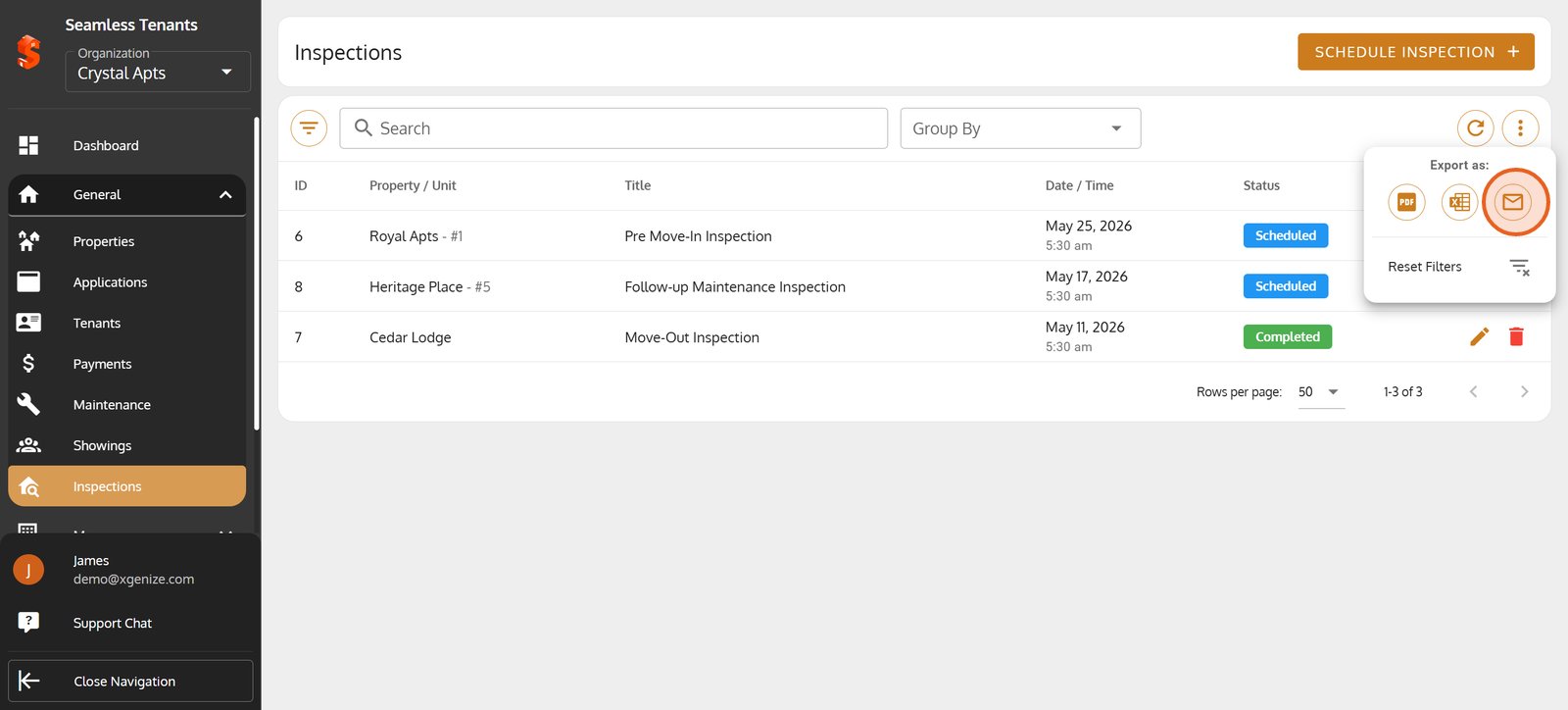
30. Open More options to access advanced inspection actions like exporting.
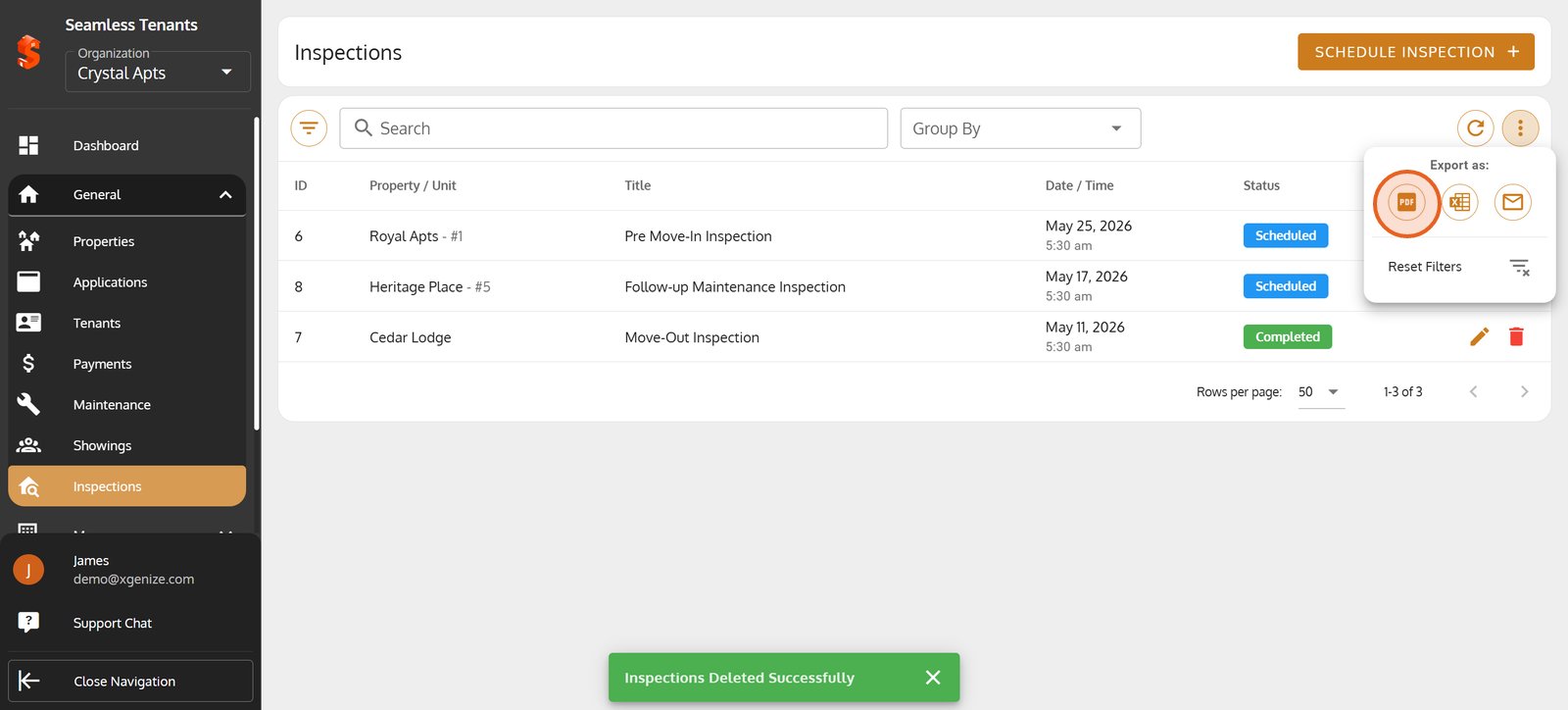
31. Choose PDF export to create a sharable document of your inspection list.
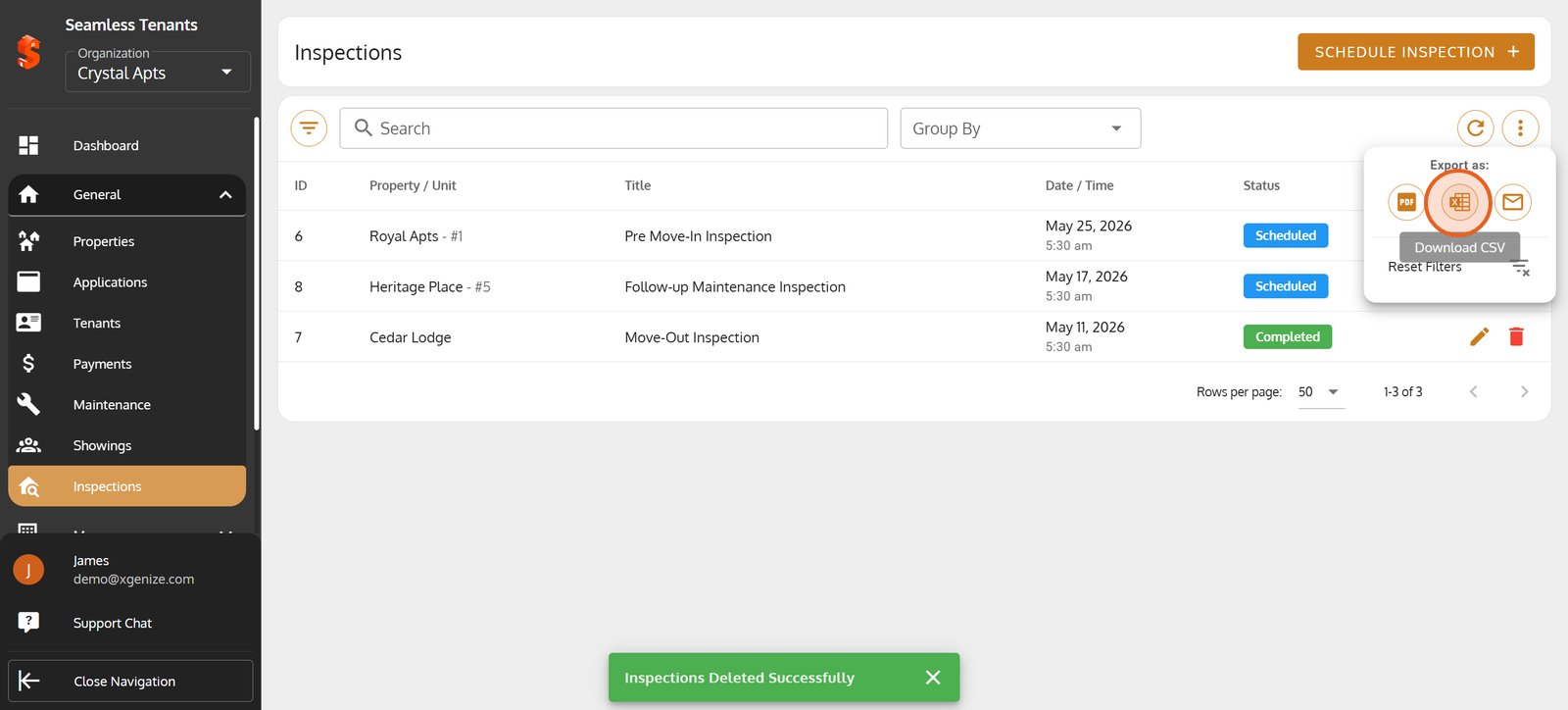
32. Download CSV to analyze or archive your inspection data externally.
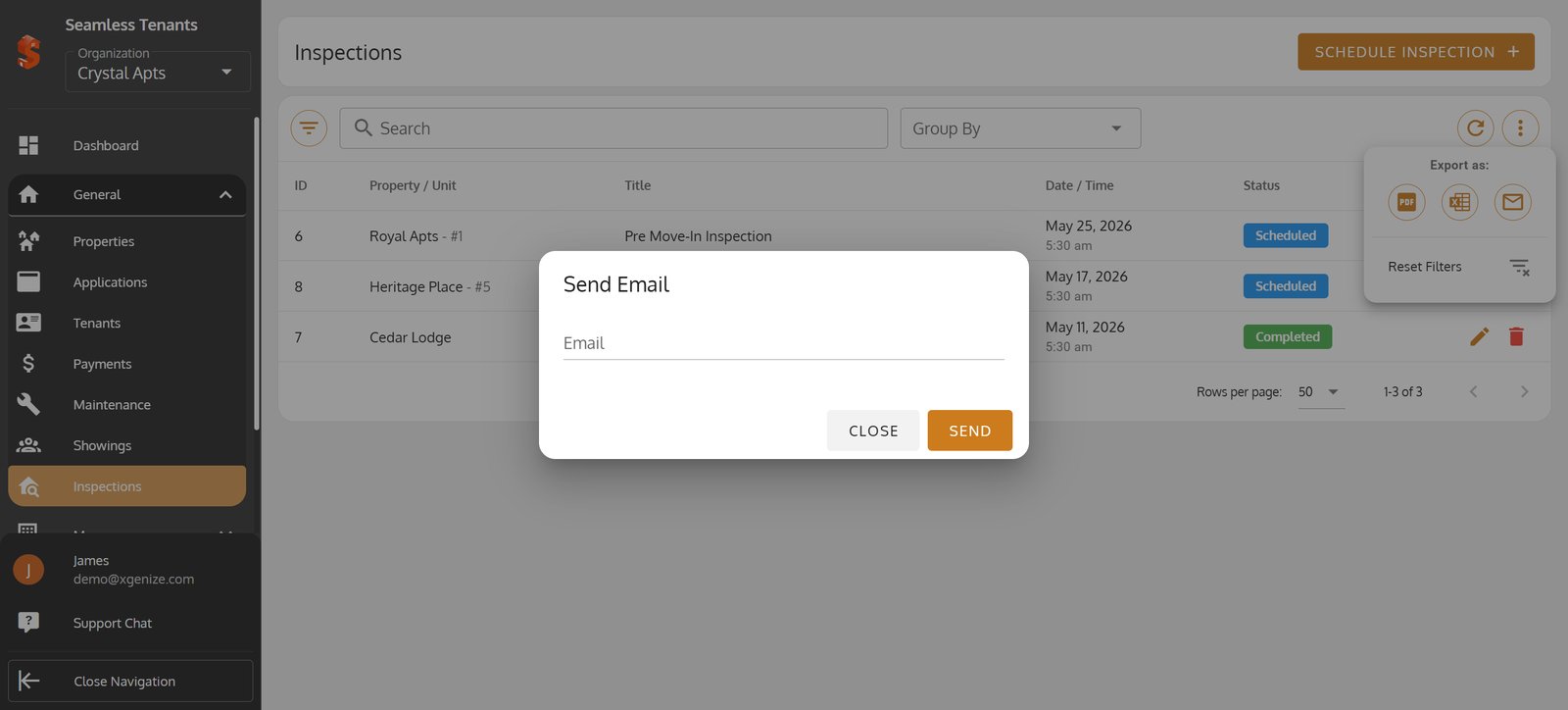
33. Send inspection details via email with a single click for easy sharing.
34.
35.
Property added successfully!
You can now add units, tenants, and start managing your operations.
Was this article helpful?
Help us improve our documentation