Learn how to manage you profile, update email, switch themes, access theme settings for your property management tool.

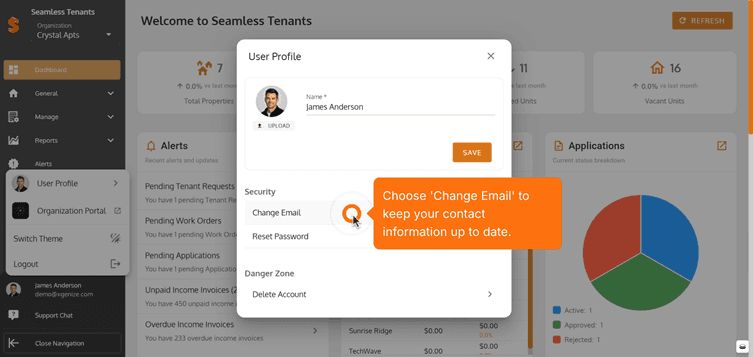
1. Start by Selecting your profile section to access account options.
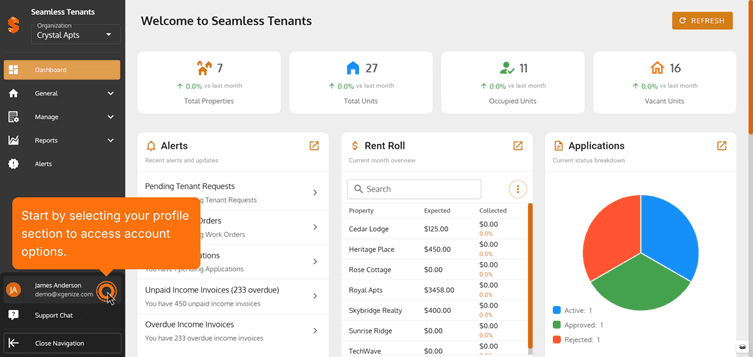
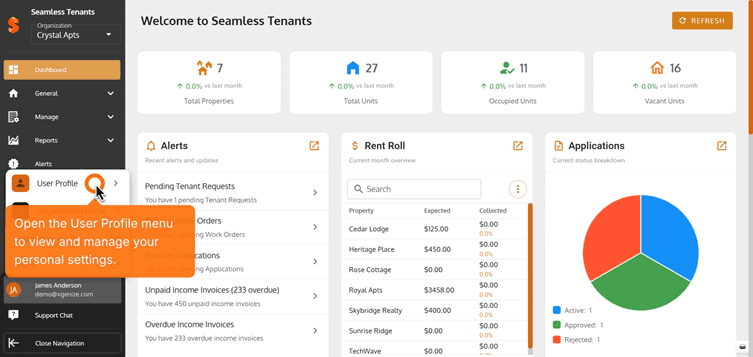
2. Open the User Profile menu to view and manage your personal settings.
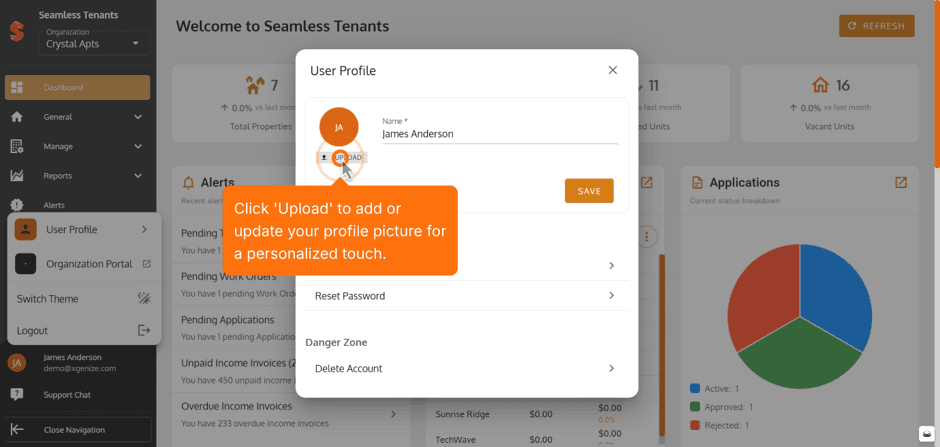
3. Click 'Upload' to add or update your profile for a personalized touch. Note: You can't remove your profile picture but you can change it by uploading a new profile
Note: You can't crop or edit your profile picture while uploading it.
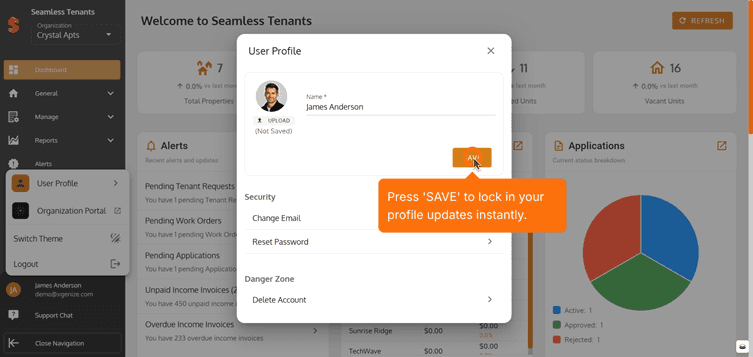
4. Press 'Save' to lock in your profile updates instantly.
5. Choose 'Change Email' to keep your contact information up to date.
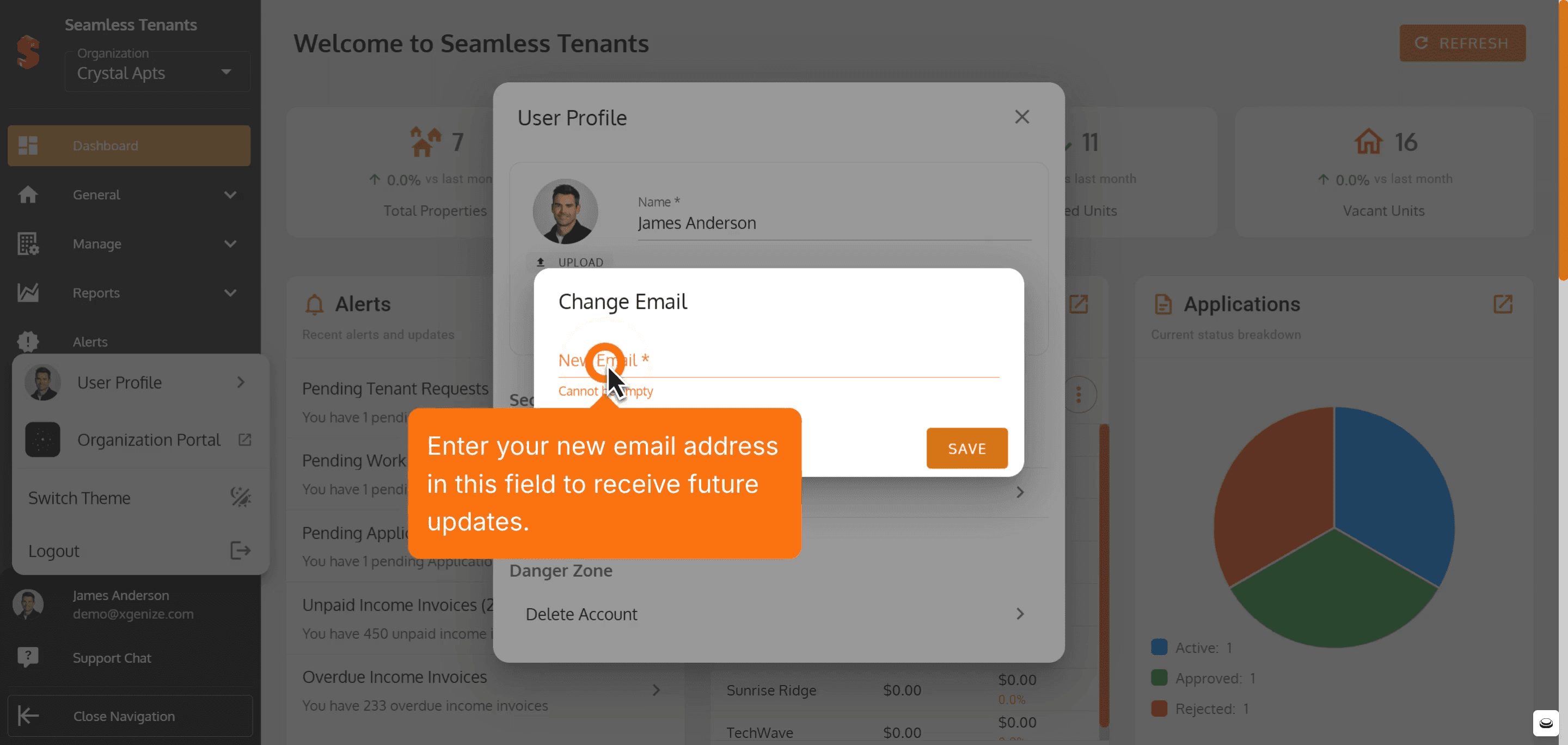
6. Enter your new email address in this field to receive future updates.
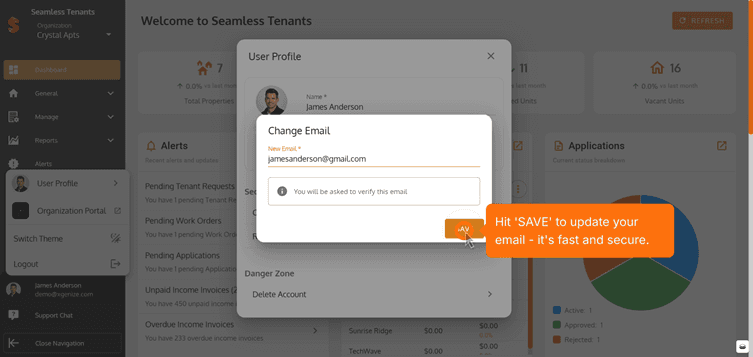
7. Hit 'Save' to update your email - It's a fast and secure. But you have to verify your new email to changing the old email.
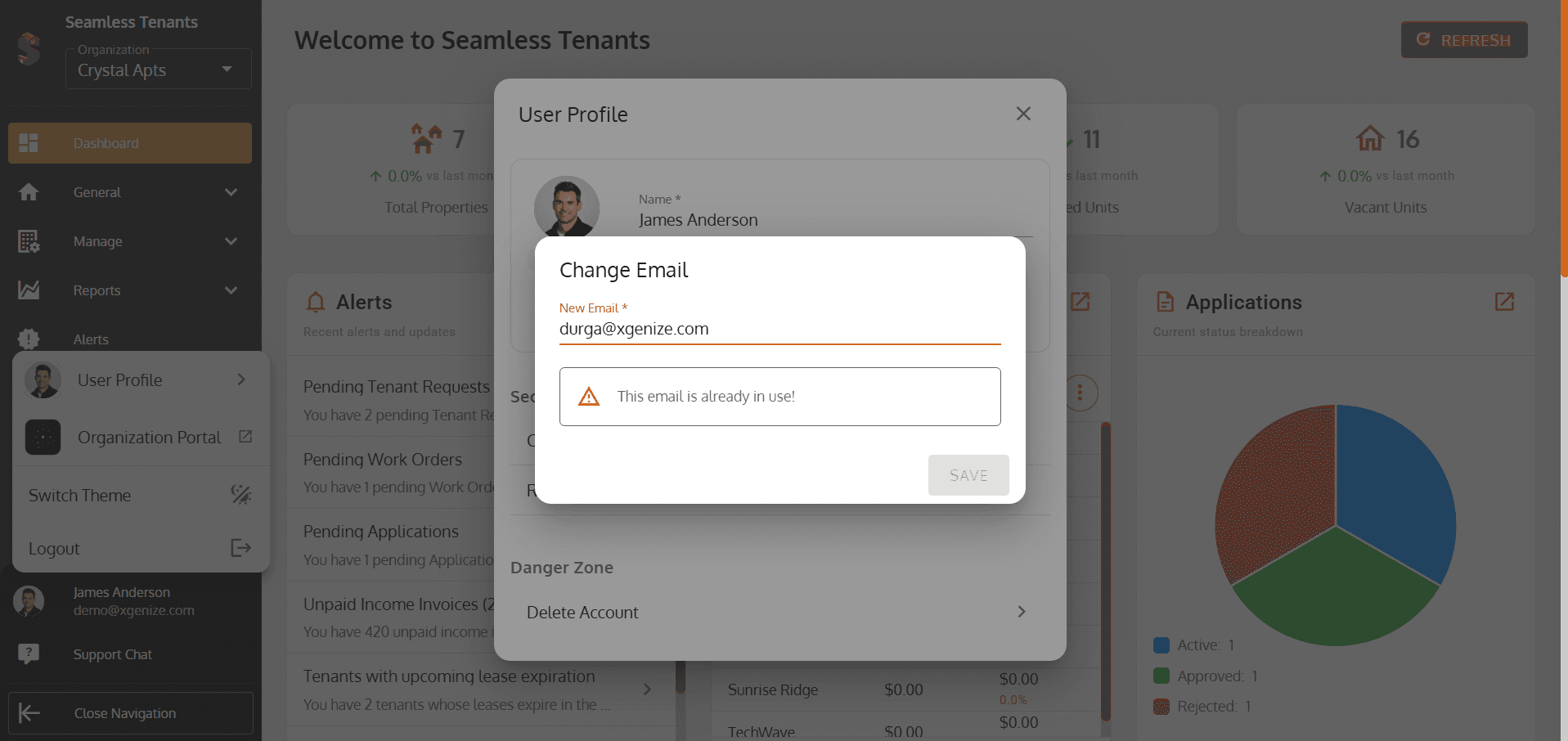
Note: You can't use the email that already in use which means it's already connected with another account.
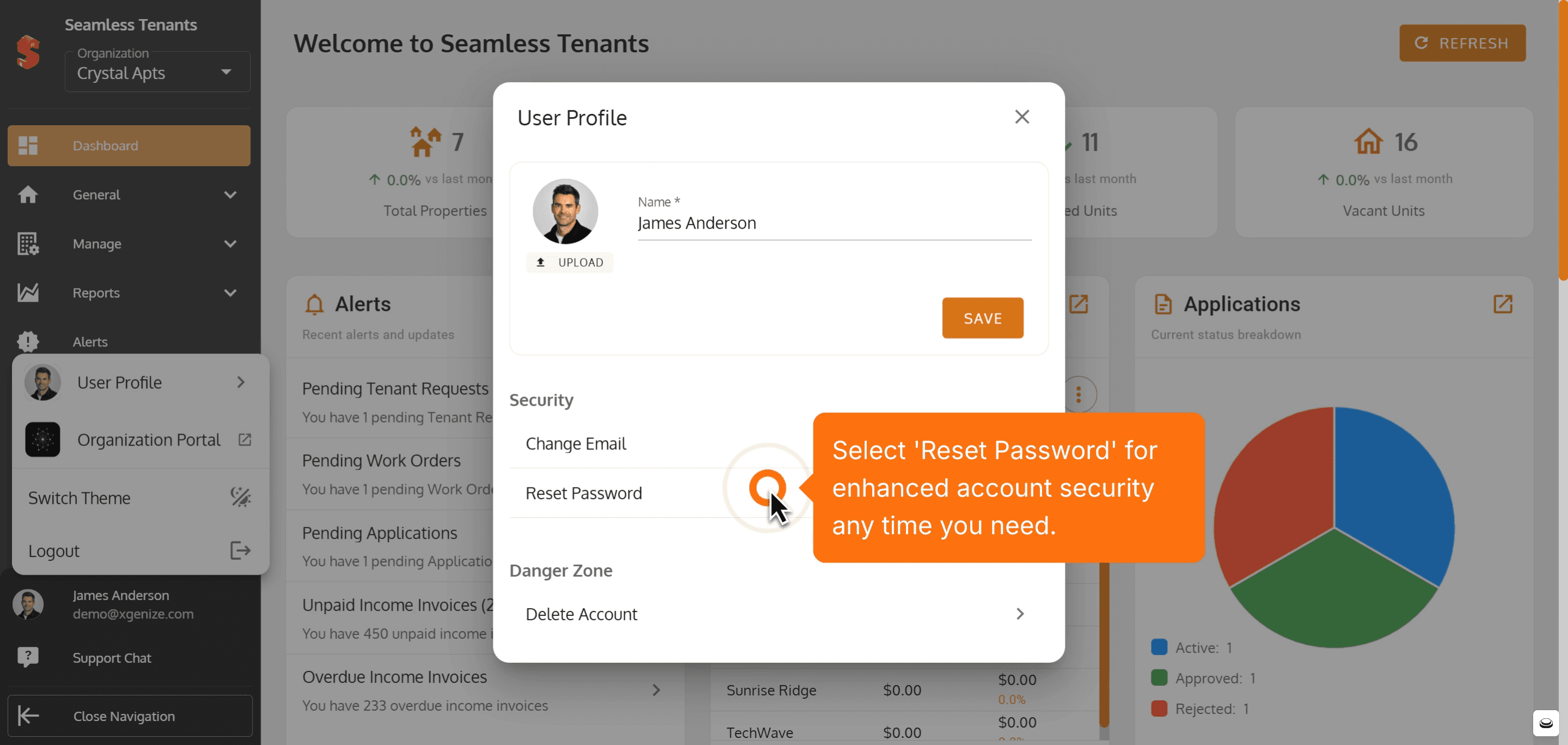
8. Select 'Reset Password' for enhanced account security any time you need.
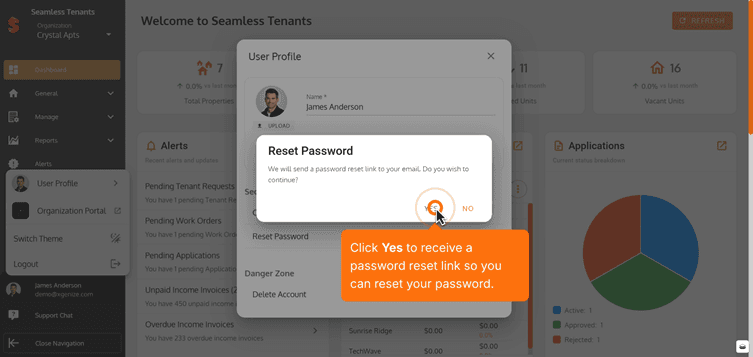
9. Click Yes to receive a password reset link so you can reset your password.
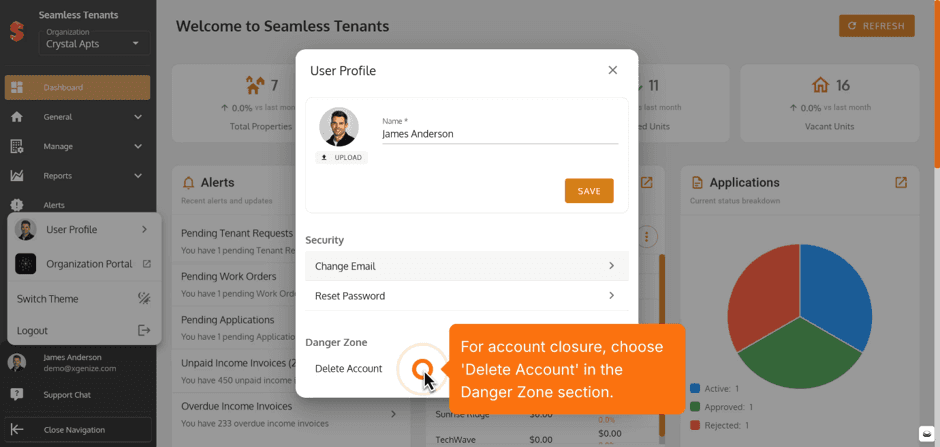
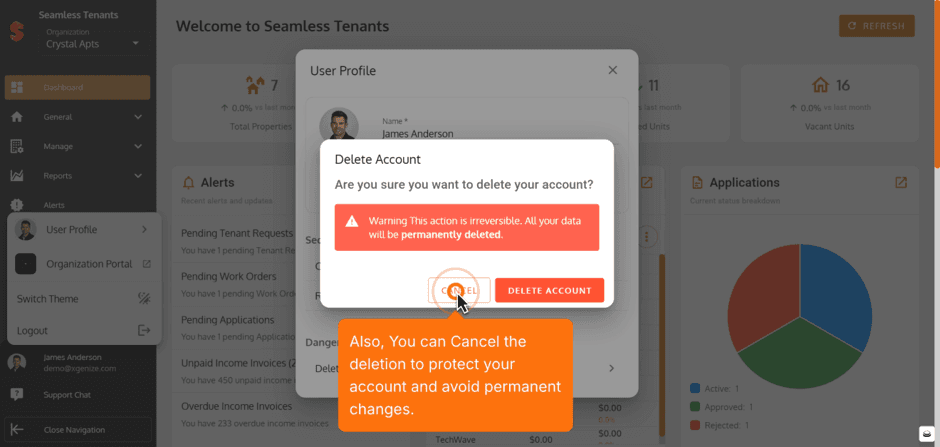
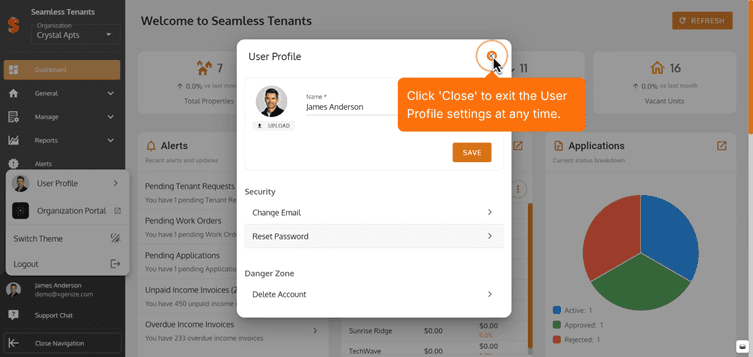
10. For account closure, choose 'Delete Account' in the Danger Zone section.
11. Click Delete Account to Permanently remove your account. (Note: Warning - This action is irreversible. All your data and organizational records will be permanently deleted)
After the account was deleted, the organization will still exist on our system until it is deactivated, but no one will be able to access it.
They can reach out to us via email/support chat to re-enable the account, and the existing organization information will be as it was.
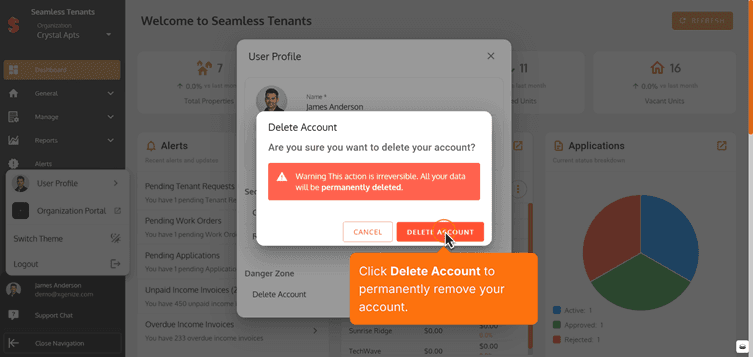
12. Also, You can Cancel the deletion to protect your account and avoid permanent changes.
13. Click 'Close' to exit the User Profile settings at any time.
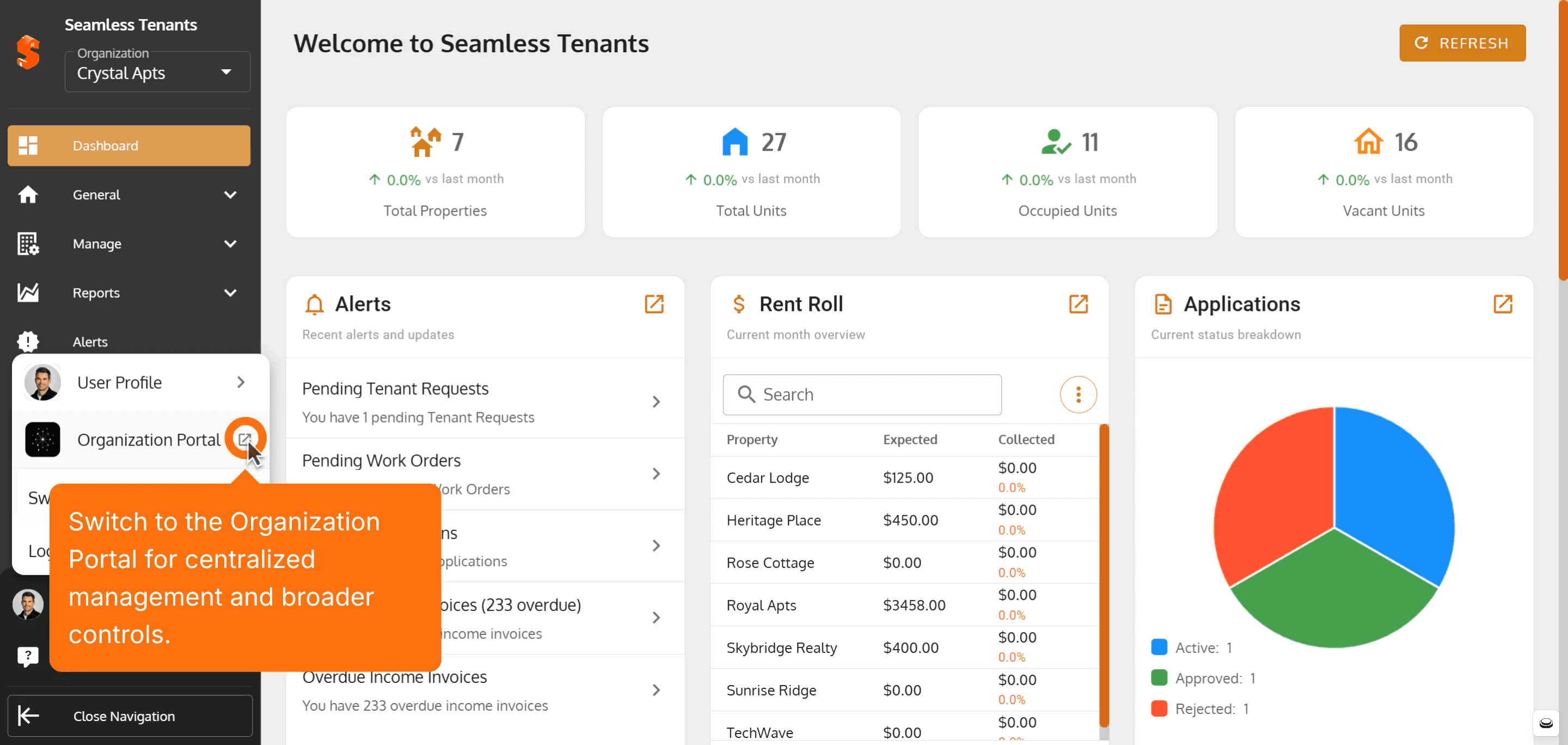
14. Switch to the Organization Portal for centralized management and broader controls.
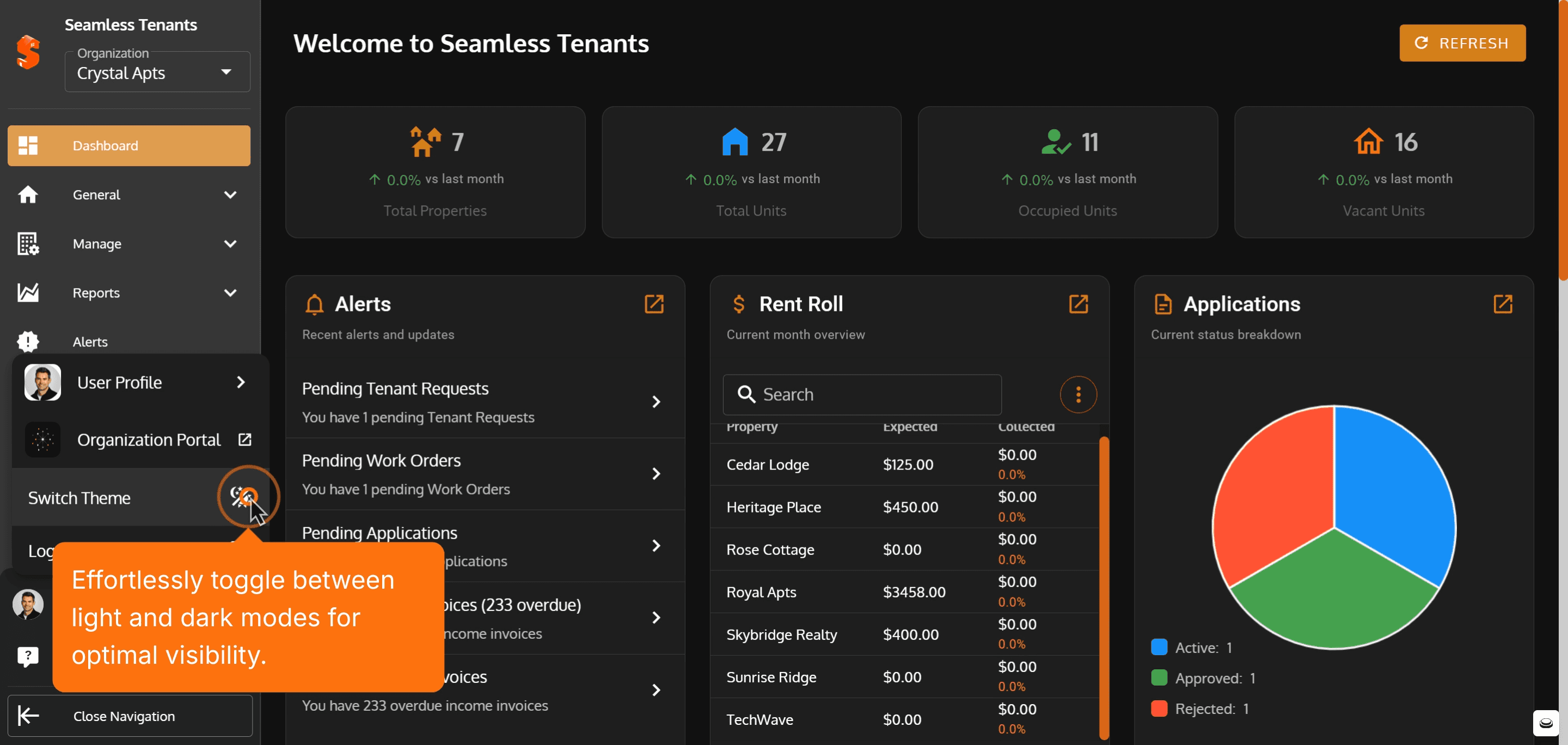
15. Personalize your experience by switching the app theme in just one click.

16. Effortlessly toggle between light and dark modes for optimal visibility.
17. Log out securely to keep your account protected every session.
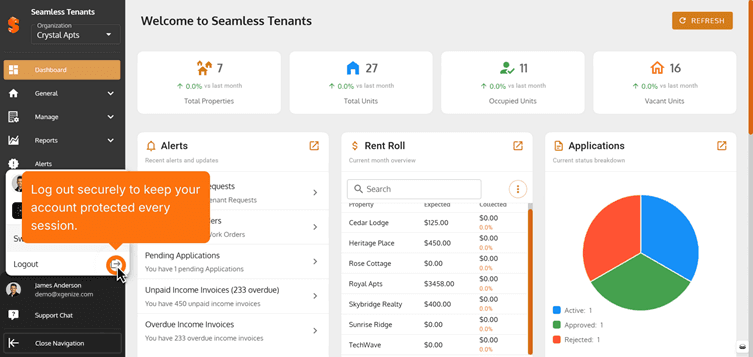
18.Confirm to logout and end your session safely.

Property added successfully!
You can now add units, tenants, and start managing your operations.
Was this article helpful?
Help us improve our documentation